GOHIGHLEVEL ANSWERS & PROMPTS: PLAYBOOK T04 · VOICE AI & PHONE ROUTING
AUTHOR: DANIEL HALLMAN
KEYWORD: RING ORDER
STEP-BY-STEP INSTRUCTIONS + ANNOTATED GHL SCREENSHOTS
Steps in GoHighLevel
-
STEP 1In Automation > Workflows, create an IVR trigger for your phone number: Click + Create Workflow > Start from Scratch, add the Start an IVR trigger, and select your tracking number under the Phone Number filter.
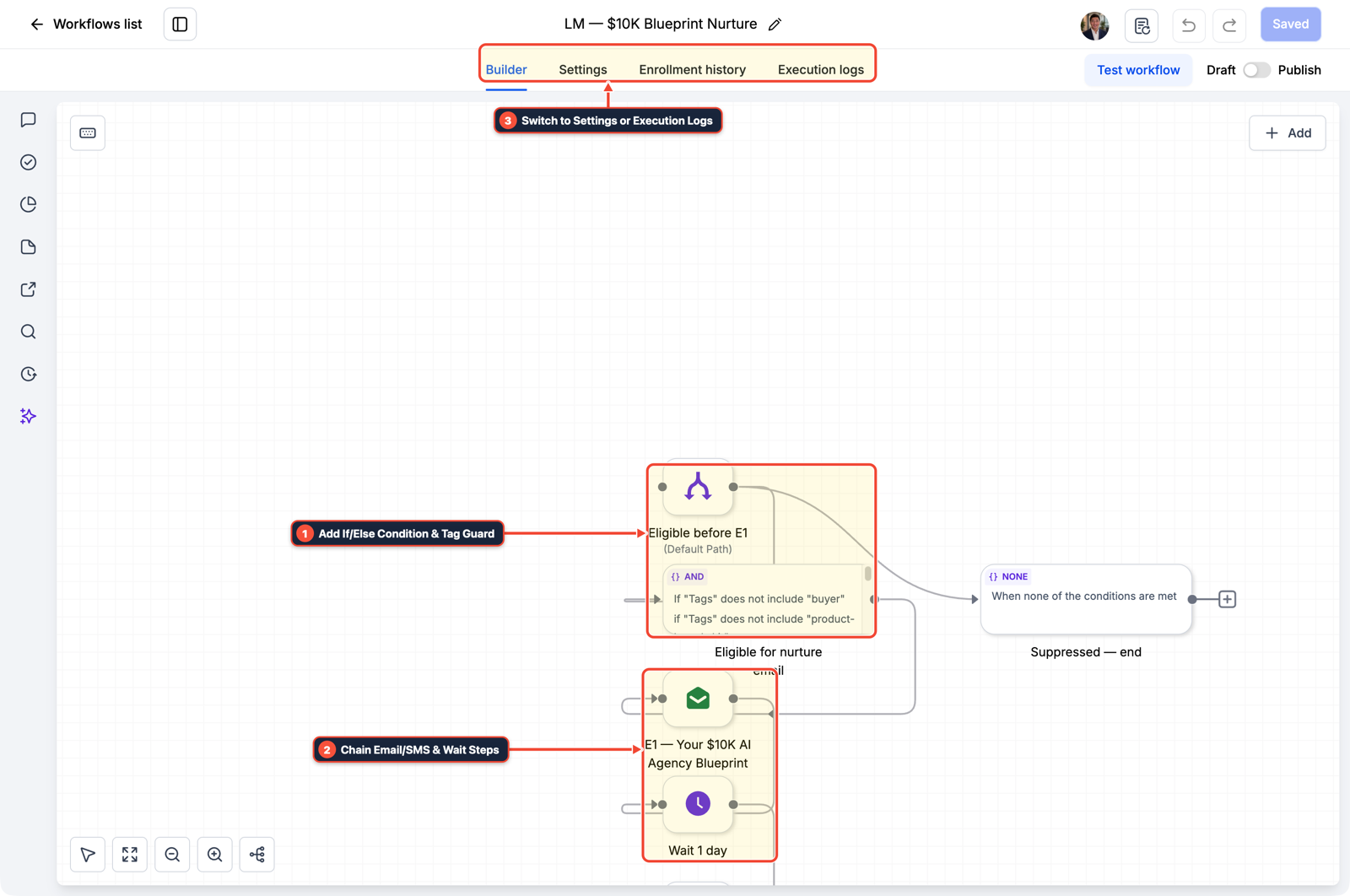
1Add If/Else Condition & Tag Guard 2Chain Priority & Wait Steps 3Switch to Settings or Execution Logs -
STEP 2In Automation > Workflows, add sequential Connect Call actions for each user: Add a Connect Call action assigned only to User 1, set Call Timeout to
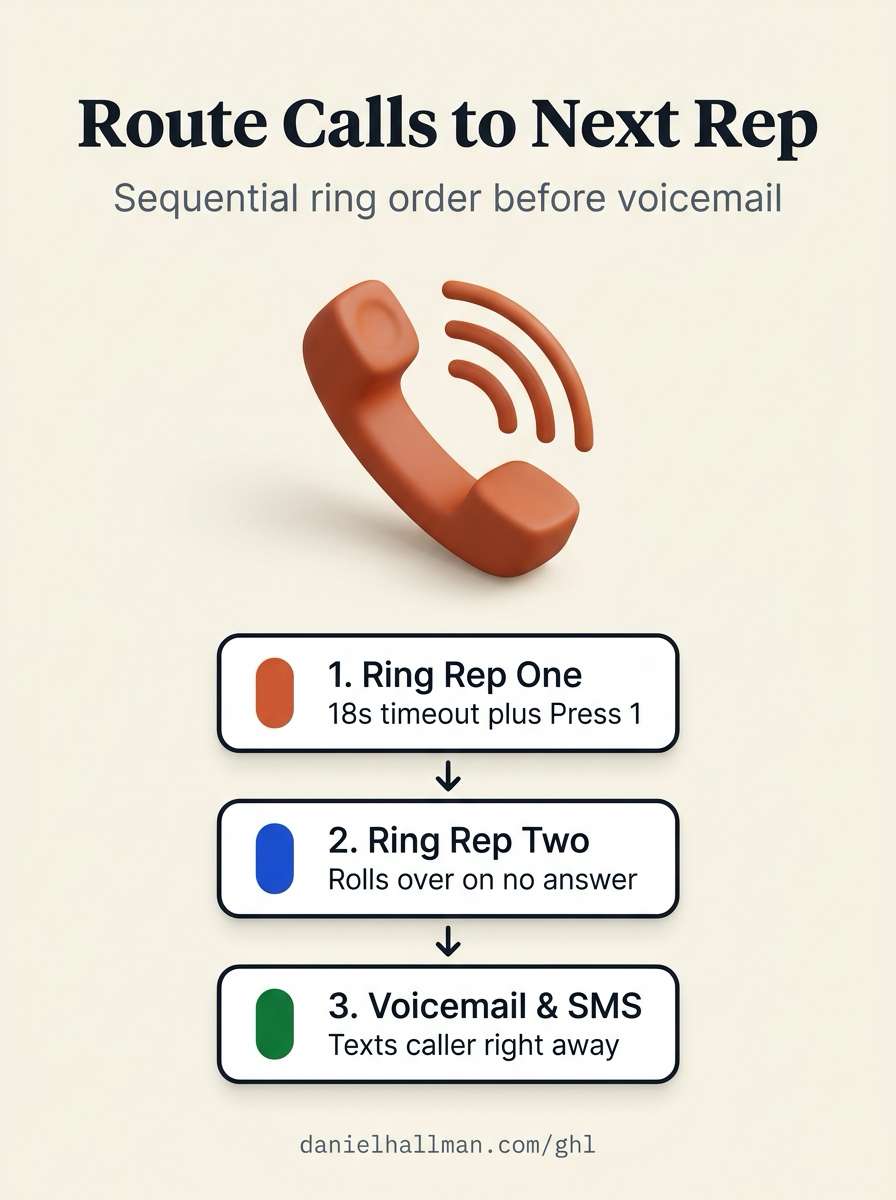
18seconds, and turn on Call Connect (with whisper textCall from {{contact.name}}, press 1 to connect) so declining the call does not dump the caller into User 1's personal cell voicemail. Immediately below it, add a second Connect Call action assigned only to User 2 with the same18second timeout.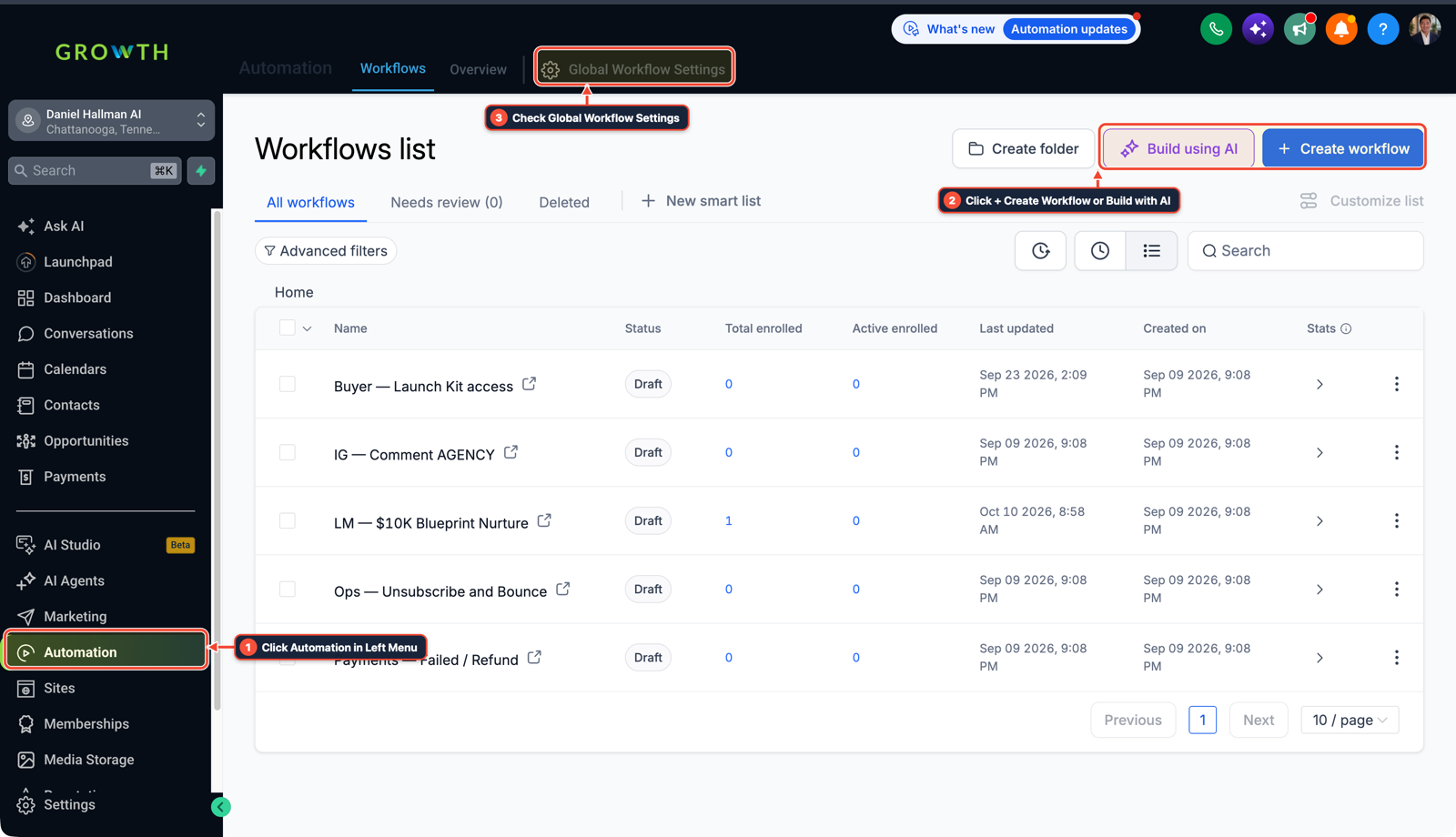
1Click Automation in Left Menu 2Click + Create Workflow or Build with AI 3Check Global Workflow Settings -
STEP 3In Automation > Workflows, add a final voicemail and SMS fallback: Below User 2's Connect Call step, add a Record Voicemail action (upload your custom audio prompt or text-to-speech greeting) followed by an SMS step that texts the caller right away to confirm their message reached the team.
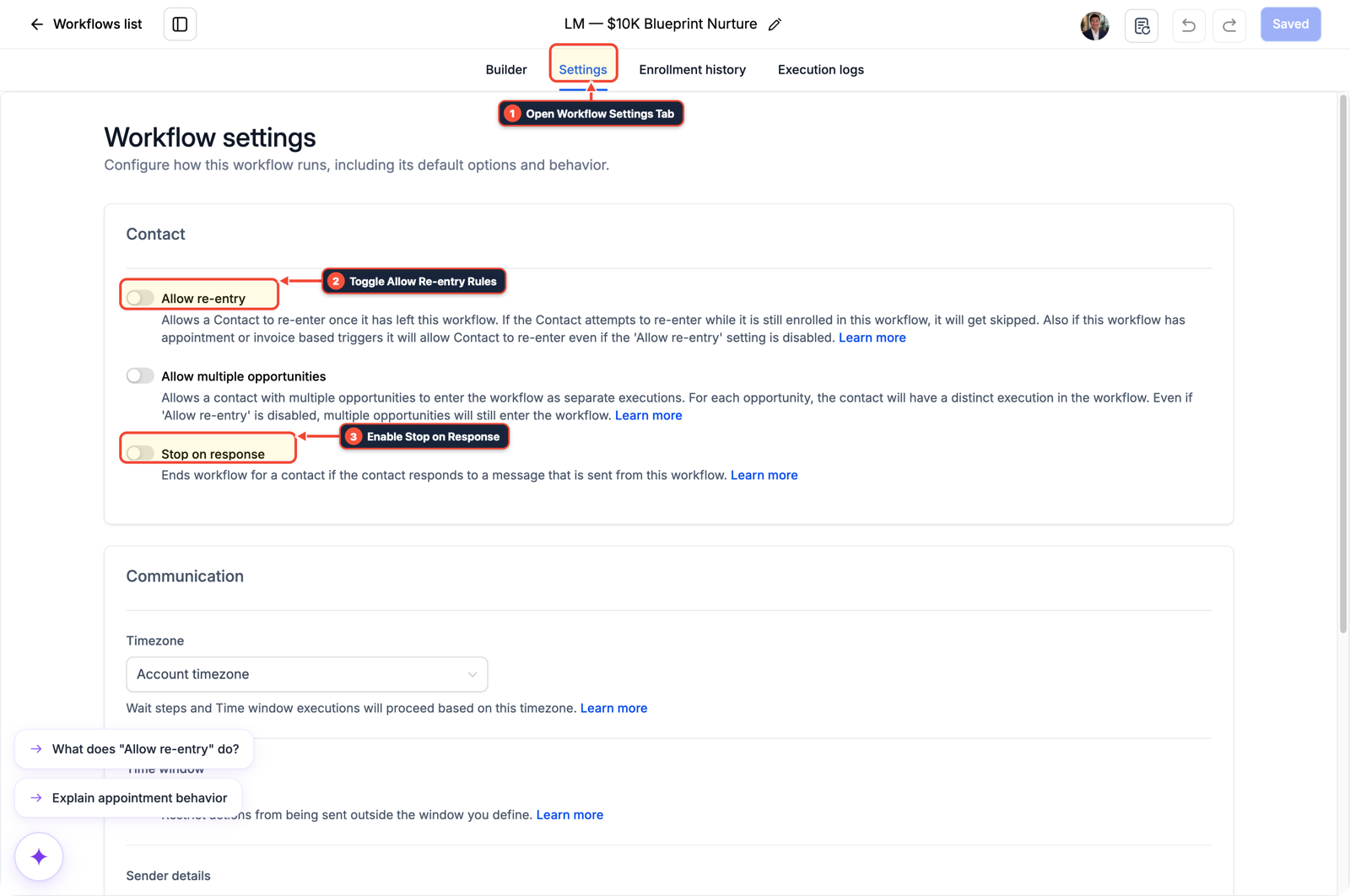
1Open Workflow Settings Tab 2Toggle Allow Re-entry Rules 3Enable Stop on Response
MODE: AGENT PROMPT
PASTE INTO CLAUDE CODE, CURSOR, CHATGPT, OR GOHIGHLEVEL ASK AI
AGENT PROMPT
Build a sequential team call routing workflow (User 1 -> User 2 -> Voicemail) in sub-account <YOUR_LOCATION_ID>:
1. In Automation > Workflows, create a workflow with the Start an IVR trigger bound to the main business phone number.
2. Add Connect Call action #1 for User 1 with Call Timeout set to 18 seconds and Call Connect whisper enabled, followed by Connect Call action #2 for User 2 with Call Timeout set to 18 seconds.
3. Add a Record Voicemail step at the end of the cascade followed by an instant missed-call confirmation SMS.
GHL-TOOLS MCP SERVER & CLI (DANIELHALLMAN.COM/MCP)
BUILDER + SUB-ACCOUNT TOOLS
# Inspect IVR and call routing workflows in the sub-account via ghl-crm
ghl-crm workflows list --context <YOUR_CONTEXT> --location <YOUR_LOCATION_ID>
Official GHL MCP vs. ghl-tools: HighLevel’s official hosted MCP (services.leadconnectorhq.com/mcp) covers public v2 CRM records (contacts, opportunities, appointments, conversations). ghl-tools MCP complements it with workflow graph inspection & recipes, funnel/form builders, DNS/BIMI checks, and ghl-crm doctor audits.
Cause
- When you add two or more staff members to Incoming Call Routing under Settings > Phone Numbers, GoHighLevel rings every phone simultaneously.
- Worse, if User 1 hits Decline on their mobile phone or has no cell signal, their personal carrier voicemail answers immediately and stops the call from ever reaching User 2.
GoHighLevel Configuration
- Route the phone number into a workflow triggered by Start an IVR.
- Chain a separate Connect Call step for each team member in priority order, set each timeout to 18 seconds (around 3 to 4 rings), and turn on Call Connect ('Press 1 to accept') so User 1's personal cell voicemail cannot hijack the call.
GoHighLevel Menu Paths
| Step | Menu Path in GHL | Action |
|---|---|---|
| Step 1 | Automation > Workflows | Create an IVR trigger for your phone number: Click + Create Workflow > Start from Scratch, add the Start an IVR trigger, and select your tracking number under the Phone Number filter. |
| Step 2 | Automation > Workflows | Add sequential Connect Call actions for each user: Add a Connect Call action assigned only to User 1, set Call Timeout to 18 seconds, and turn on Call Connect (with whisper text Call from {{contact.name}}, press 1 to connect) so declining the call does not dump the caller into User 1's personal cell voicemail. |
| Step 3 | Automation > Workflows | Add a final voicemail and SMS fallback: Below User 2's Connect Call step, add a Record Voicemail action (upload your custom audio prompt or text-to-speech greeting) followed by an SMS step that texts the caller right away to confirm their message reached the team. |
DEFAULT SETUP VS. AUTOMATED WORKFLOW
Operational Comparison
After-Hours & Missed Call Capture
Qualified Jobs Booked 24/7
Related Questions
- How do you stop iPhone Live Voicemail from breaking GoHighLevel Missed-Call Text-Back?
- How do you block Google Business robocalls from burning GoHighLevel Voice AI minutes?
- How do you use GoHighLevel Voice AI with an existing office desk phone without swapping your main number?
- How Do You Pitch AI Receptionists to Local Businesses Without Getting Rejected?
BUILD FASTER IN GOHIGHLEVEL · FREE TRIAL BONUSES + MCP SERVER
Build this directly inside your GoHighLevel sub-account
Connect Claude Code, Cursor, or OpenAI Codex to our ghl-tools MCP Server & Rust CLI to build workflows, forms, and funnels from your editor, or start your GoHighLevel plan through our partner link to unlock $612+ in ready-to-import kits (including Voice AI & Phone Routing Pack) and weekly live clinics.