GOHIGHLEVEL ANSWERS & PROMPTS: PLAYBOOK T07 · PAYMENTS, ESTIMATES & REVIEWS
AUTHOR: DANIEL HALLMAN
KEYWORD: PAYMENTS
STEP-BY-STEP INSTRUCTIONS + ANNOTATED GHL SCREENSHOTS
Steps in GoHighLevel
-
STEP 1In Payments > Integrations, connect your payment processor: Click Connect on the Stripe (or Square / Authorize.net) card, complete the account sign-in, and enable Text2Pay so you can send mobile payment links directly inside the Conversations thread or from the mobile app.
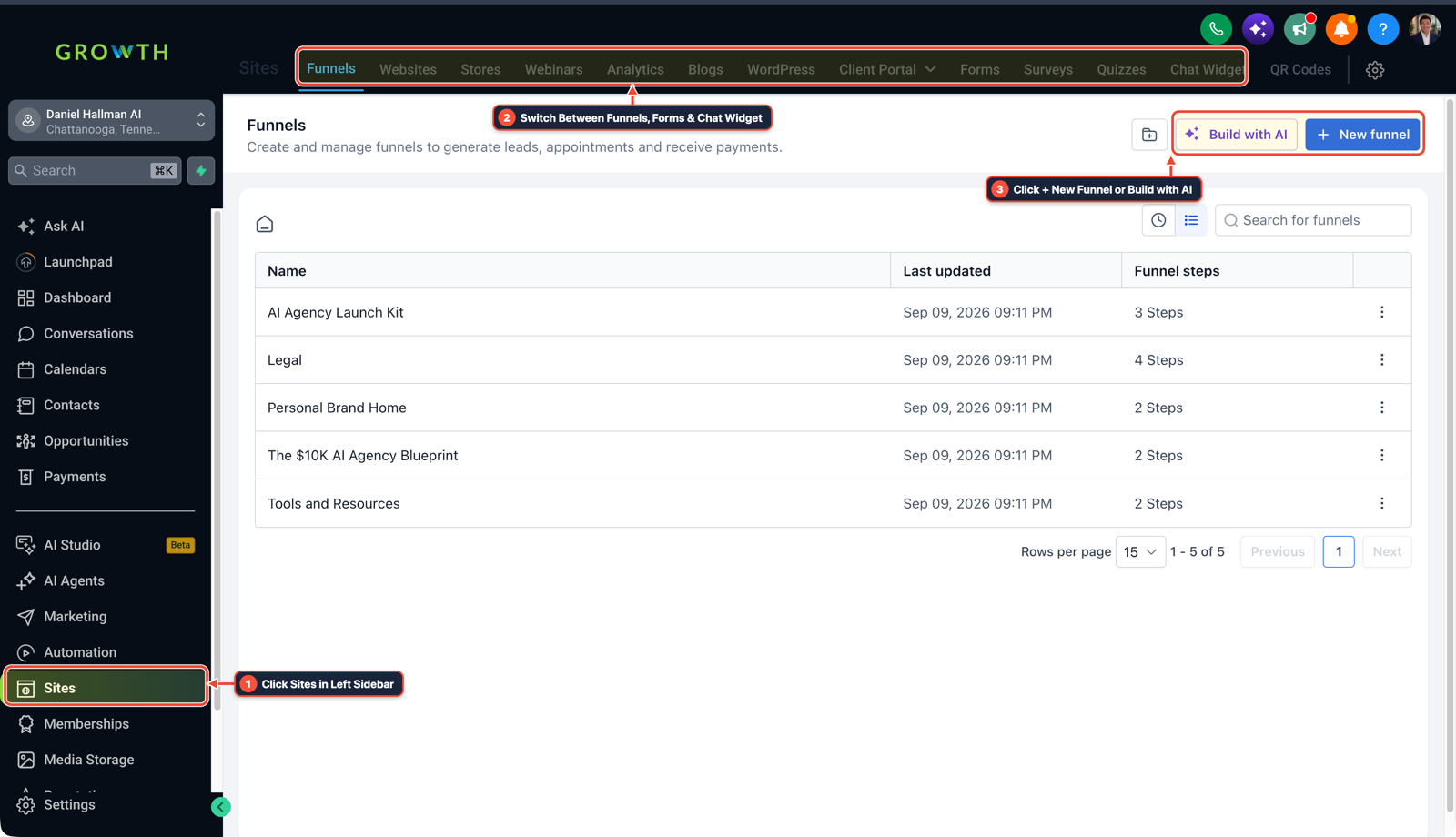
1Click Sites in Left Sidebar 2Switch Between Funnels, Forms & Chat Widget 3Click + New Funnel or Build with AI -
STEP 2In Settings > Integrations, link your Google Business Profile: Click Sign in with Google, select your verified business location, and open Reputation > Settings to customize your review request SMS message and upload your business logo.
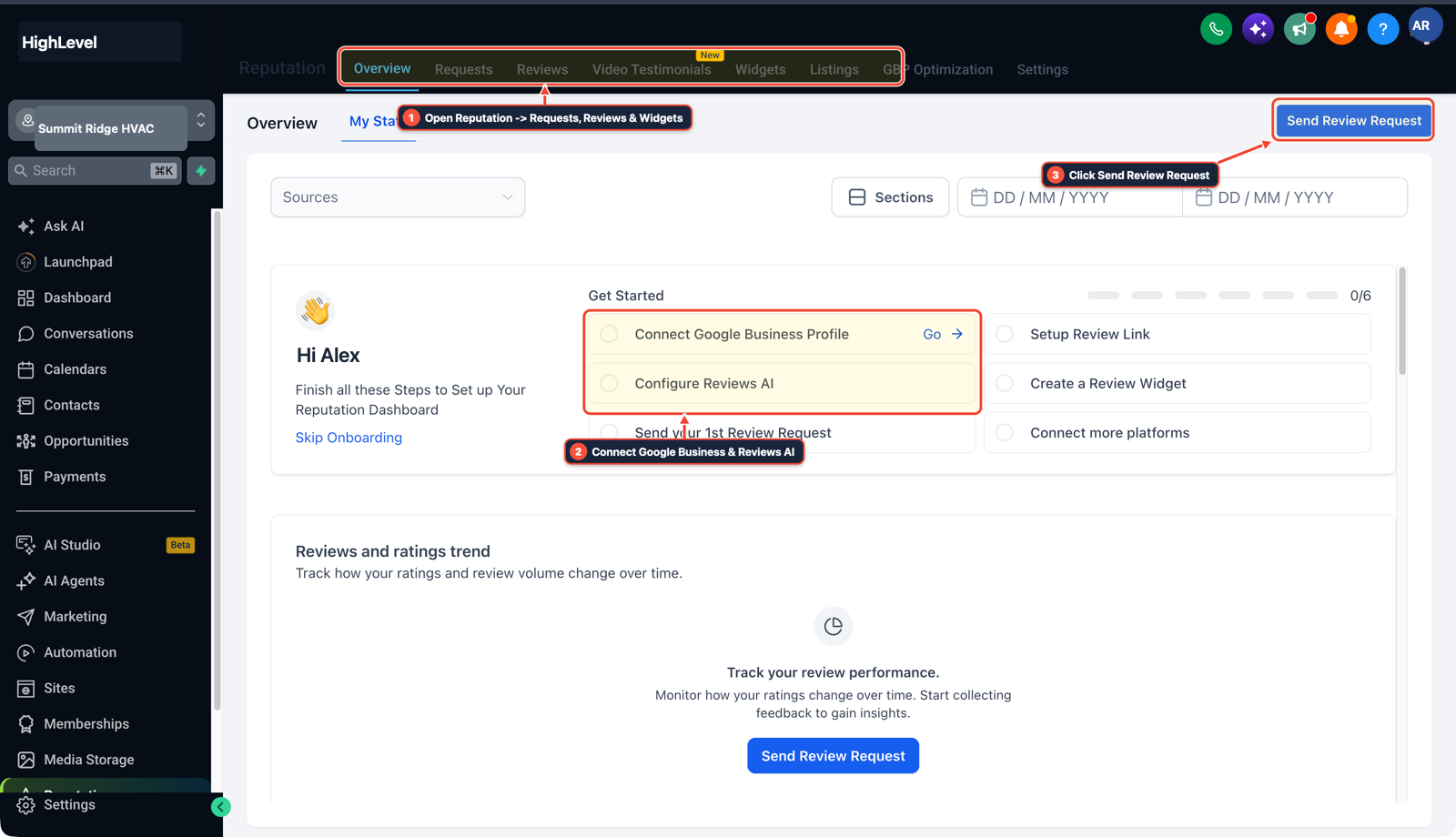
1Open Reputation > Requests, Reviews & Widgets 2Connect Google Business & Reviews AI 3Click Send Review Request -
STEP 3In Automation > Workflows, trigger a Google review request on payment: Click + Create Workflow, add the Invoice trigger with filter
Invoice Status=Paid(or Opportunity Status Changed toWon), add a Wait step set to2 hours, and add the Send Review Request action set toSMS.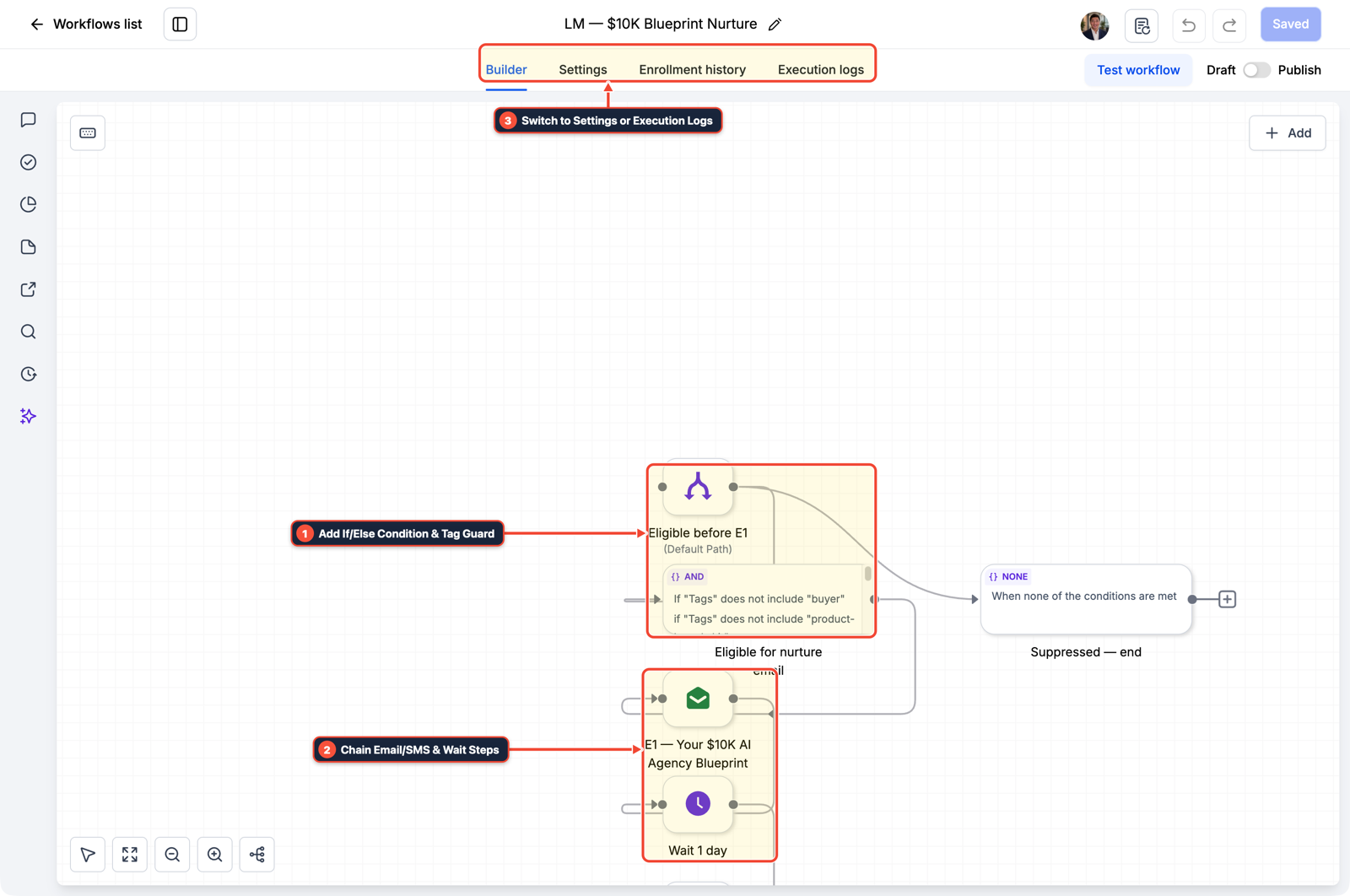
1Add If/Else Condition & Tag Guard 2Chain Priority & Wait Steps 3Switch to Settings or Execution Logs
MODE: AGENT PROMPT
PASTE INTO CLAUDE CODE, CURSOR, CHATGPT, OR GOHIGHLEVEL ASK AI
AGENT PROMPT
Set up Stripe payment collection and automated post-payment Google review requests in sub-account <YOUR_LOCATION_ID>:
1. In Payments > Integrations, connect Stripe and enable Text2Pay mobile invoice links.
2. In Settings > Integrations and Reputation > Settings, connect the Google Business Profile and configure the SMS review template.
3. In Automation > Workflows, create a workflow triggered when Invoice Status is Paid that waits 2 hours and runs Send Review Request via SMS.
GHL-TOOLS MCP SERVER & CLI (DANIELHALLMAN.COM/MCP)
BUILDER + SUB-ACCOUNT TOOLS
# List payment and reputation workflows in the sub-account via ghl-crm
ghl-crm workflows list --context <YOUR_CONTEXT> --location <YOUR_LOCATION_ID>
Official GHL MCP vs. ghl-tools: HighLevel’s official hosted MCP (services.leadconnectorhq.com/mcp) covers public v2 CRM records (contacts, opportunities, appointments, conversations). ghl-tools MCP complements it with workflow graph inspection & recipes, funnel/form builders, DNS/BIMI checks, and ghl-crm doctor audits.
Cause
- New HighLevel users often wonder if payment processing and automated Google review follow-ups require upgrading to the $297 or $497 plan
- or they try to trigger review texts manually after every job and forget to follow up once the invoice clears.
GoHighLevel Configuration
- Use the built-in Payments and Reputation tools already included on the $97 Starter plan.
- Link Stripe in Payments > Integrations, link your Google Business Profile in Settings > Integrations, and create a workflow triggered by Invoice Status = Paid that waits 2 hours and sends the native Send Review Request action.
GoHighLevel Menu Paths
| Step | Menu Path in GHL | Action |
|---|---|---|
| Step 1 | Payments > Integrations | Connect your payment processor: Click Connect on the Stripe (or Square / Authorize.net) card, complete the account sign-in, and enable Text2Pay so you can send mobile payment links directly inside the Conversations thread or from the mobile app. |
| Step 2 | Settings > Integrations | Link your Google Business Profile: Click Sign in with Google, select your verified business location, and open Reputation > Settings to customize your review request SMS message and upload your business logo. |
| Step 3 | Automation > Workflows | Trigger a Google review request on payment: Click + Create Workflow, add the Invoice trigger with filter Invoice Status = Paid (or Opportunity Status Changed to Won), add a Wait step set to 2 hours, and add the Send Review Request action set to SMS. |
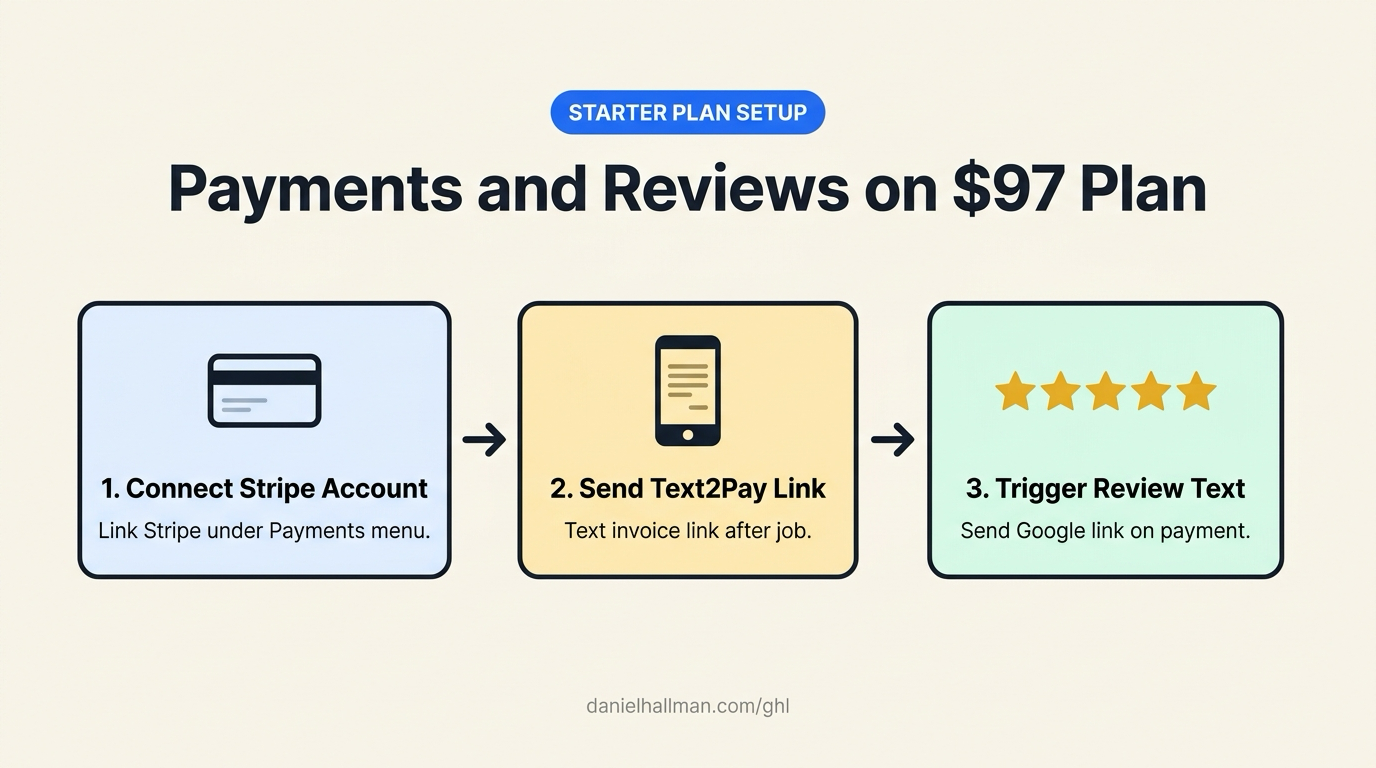
DEFAULT SETUP VS. AUTOMATED WORKFLOW
Operational Comparison
Manual Admin Work Per Client
Lead-to-Booked-Job Conversion
Related Questions
- How do you get more 5-star Google reviews in GoHighLevel without annoying unhappy customers?
- How do you send estimates and collect Text2Pay deposits in GoHighLevel?
- How do you onboard a new GoHighLevel agency client fast?
- How do you make money with GoHighLevel in 2026 without selling software logins?
BUILD FASTER IN GOHIGHLEVEL · FREE TRIAL BONUSES + MCP SERVER
Build this directly inside your GoHighLevel sub-account
Connect Claude Code, Cursor, or OpenAI Codex to our ghl-tools MCP Server & Rust CLI to build workflows, forms, and funnels from your editor, or start your GoHighLevel plan through our partner link to unlock $612+ in ready-to-import kits (including GHL Workflow Architect Pack) and weekly live clinics.