GOHIGHLEVEL ANSWERS & PROMPTS: PLAYBOOK T08 · AI AGENTS, MCP & OPERATIONS
AUTHOR: DANIEL HALLMAN
KEYWORD: AGENT SPEC
STEP-BY-STEP INSTRUCTIONS + ANNOTATED GHL SCREENSHOTS
Steps in GoHighLevel
-
STEP 1In your project repo or AI Agents > Knowledge Base, write a locked task spec before running the agent: Define the exact input sources, allowed tools, output format, and explicit stop conditions in a
SPEC.mdfile or structured Knowledge Base document so the agent never guesses scope mid-run.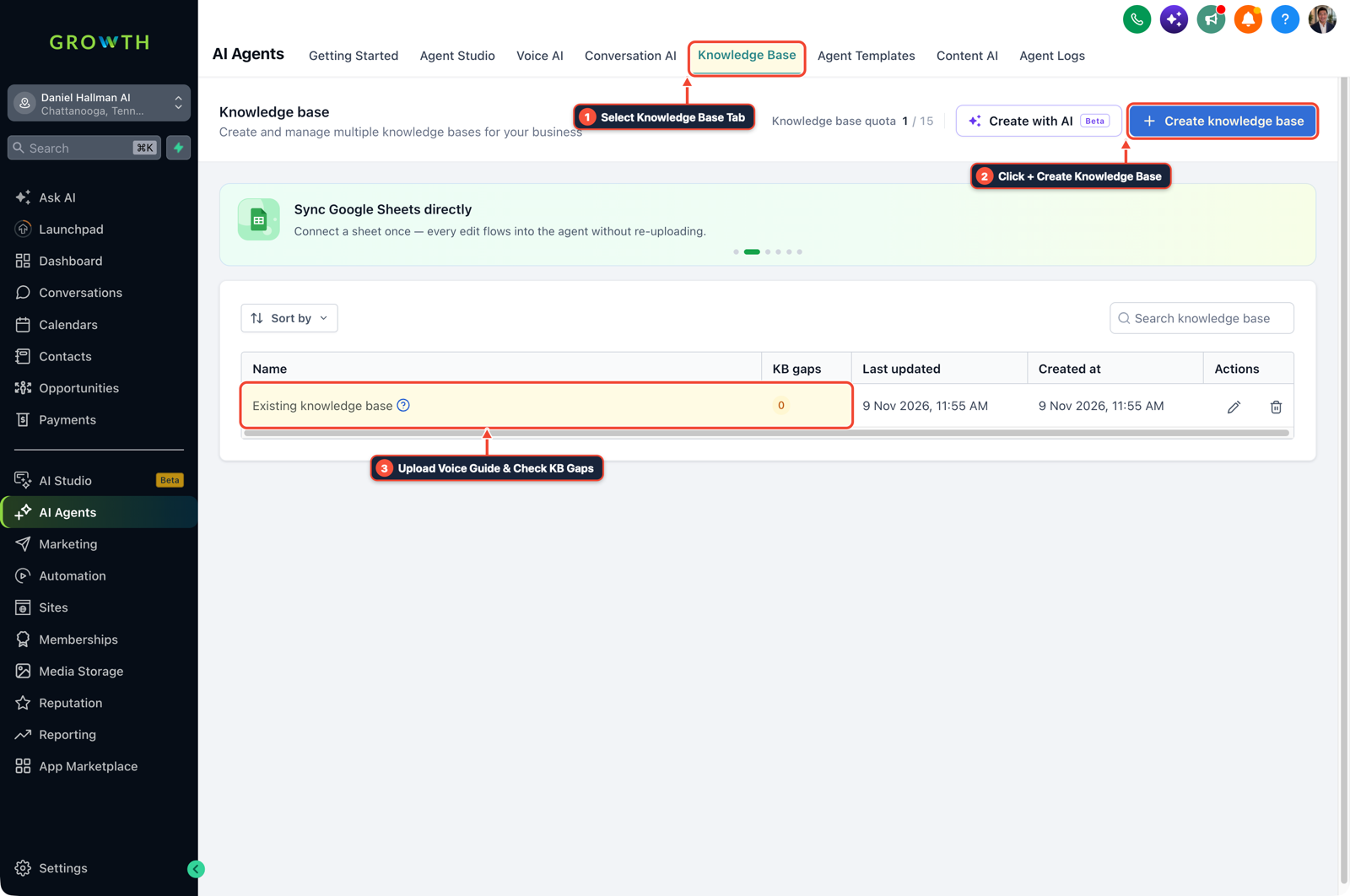
1Select Knowledge Base Tab 2Click + Create Knowledge Base 3Review Industry FAQ & Check KB Gaps -
STEP 2In Automation > Workflows (or your local scheduler), replace infinite polling loops with event webhooks and fixed cron windows: Trigger customer-facing tasks immediately on Inbound Webhook or Customer Replied, and run batch research or CRM audits on a fixed schedule (
3windows per day) instead of an open-ended 24-hour loop.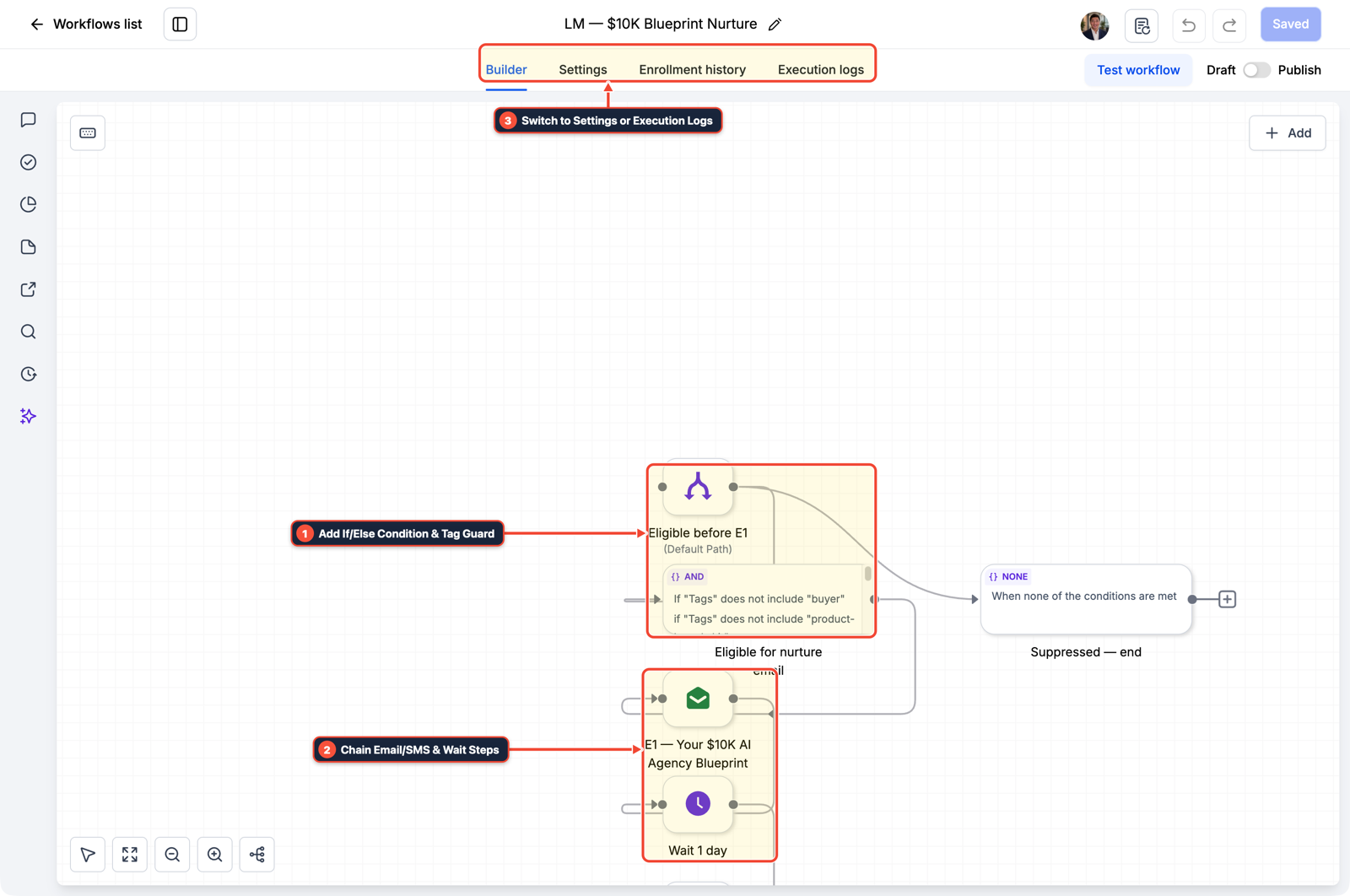
1Add If/Else Condition & Tag Guard 2Chain Priority & Wait Steps 3Switch to Settings or Execution Logs -
STEP 3In Settings > Private Integrations, scope tool permissions to the target sub-account: Connect your agent through
ghl-toolsMCP (danielhallman.com/mcp) with a location-scoped token, let the agent complete research and stage drafts automatically, and send a mobile Internal Notification so you can approve public posts or live workflow changes in 30 seconds.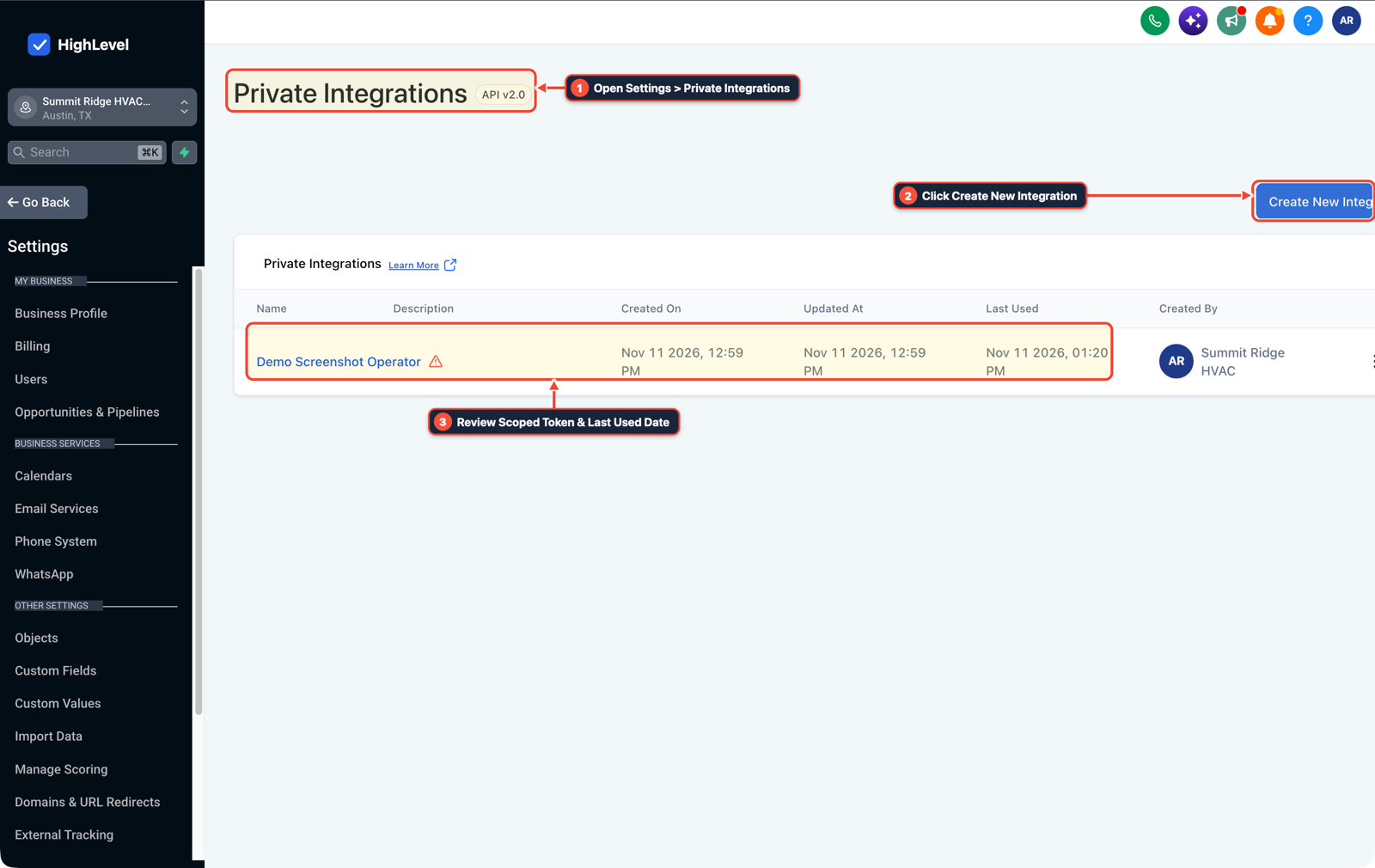
1Open Settings > Private Integrations 2Click Create New Integration 3Review Scoped Token & Last Used Date
MODE: AGENT PROMPT
PASTE INTO CLAUDE CODE, CURSOR, CHATGPT, OR GOHIGHLEVEL ASK AI
AGENT PROMPT
Configure a scheduled AI agent workflow with scoped MCP access for sub-account <YOUR_LOCATION_ID>:
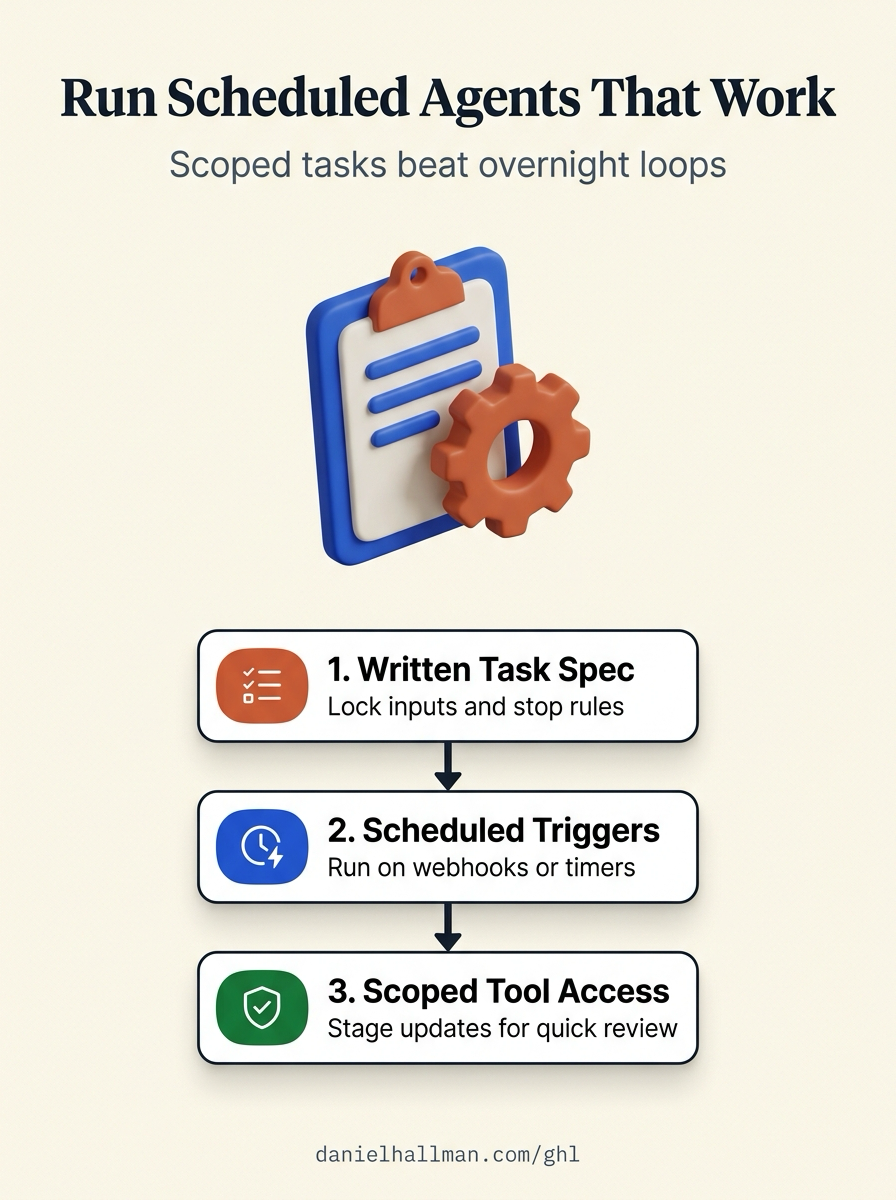
1. Create a written task specification defining input filters, allowed GHL MCP tools, and stop conditions.
2. In Automation > Workflows, configure Inbound Webhook triggers for live lead triage and fixed schedule windows for batch audits.
3. Connect ghl-tools MCP using a location-scoped Private Integration token and send a mobile notification when staged updates are ready for review.
GHL-TOOLS MCP SERVER & CLI (DANIELHALLMAN.COM/MCP)
BUILDER + SUB-ACCOUNT TOOLS
# Check sub-account health and active workflows via ghl-agency and ghl-crm
ghl-agency doctor --context <YOUR_CONTEXT>
ghl-crm workflows list --context <YOUR_CONTEXT> --location <YOUR_LOCATION_ID>
Official GHL MCP vs. ghl-tools: HighLevel’s official hosted MCP (services.leadconnectorhq.com/mcp) covers public v2 CRM records (contacts, opportunities, appointments, conversations). ghl-tools MCP complements it with workflow graph inspection & recipes, funnel/form builders, DNS/BIMI checks, and ghl-crm doctor audits.
Cause
- When operators give a coding or CRM agent a vague prompt and let it run unattended for hours, the model drifts off task, retries failed API calls in a loop, or overwrites working workflows.
- Without a written specification and hard boundaries, you end up hand-holding every step.
GoHighLevel Configuration
- Separate planning from execution.
- Start with a planning session to write a locked specification file and a 3-tier task checklist, trigger the agent only on real webhook events or fixed schedule windows, and scope CRM mutations through a location-specific Private Integration token.
GoHighLevel Menu Paths
| Step | Menu Path in GHL | Action |
|---|---|---|
| Step 1 | AI Agents > Knowledge Base | Write a locked task spec before running the agent: Define the exact input sources, allowed tools, output format, and explicit stop conditions in a SPEC.md file or structured Knowledge Base document so the agent never guesses scope mid-run. |
| Step 2 | Automation > Workflows | Replace infinite polling loops with event webhooks and fixed cron windows: Trigger customer-facing tasks immediately on Inbound Webhook or Customer Replied, and run batch research or CRM audits on a fixed schedule (3 windows per day) instead of an open-ended 24-hour loop. |
| Step 3 | Settings > Private Integrations | Scope tool permissions to the target sub-account: Connect your agent through ghl-tools MCP (danielhallman.com/mcp) with a location-scoped token, let the agent complete research and stage drafts automatically, and send a mobile Internal Notification so you can approve public posts or live workflow changes in 30 seconds. |
DEFAULT SETUP VS. AUTOMATED WORKFLOW
Operational Comparison
Manual Admin Work Per Client
Lead-to-Booked-Job Conversion
Related Questions
- When Should You Use AI Agents and MCP vs Structured Workflows in GoHighLevel?
- How do you connect Claude Code or Cursor to GoHighLevel using MCP?
- Why are AI agents unreliable in production workflows and how do you fix them in GoHighLevel?
- How to Stop Runaway AI Costs in Business Workflows Without Killing Team Adoption
BUILD FASTER IN GOHIGHLEVEL · FREE TRIAL BONUSES + MCP SERVER
Build this directly inside your GoHighLevel sub-account
Connect Claude Code, Cursor, or OpenAI Codex to our ghl-tools MCP Server & Rust CLI to build workflows, forms, and funnels from your editor, or start your GoHighLevel plan through our partner link to unlock $612+ in ready-to-import kits (including AI Agent & MCP Operator Pack) and weekly live clinics.