GOHIGHLEVEL ANSWERS & PROMPTS: PLAYBOOK T87 · AI CHAT HANDOFF RECAP, RULED-OUT OPTIONS LOG & CONTACT STATE FIELDS
AUTHOR: DANIEL HALLMAN
KEYWORD: AI CONTEXT
STEP-BY-STEP INSTRUCTIONS + ANNOTATED GHL SCREENSHOTS
Steps in GoHighLevel
-
STEP 1In Settings > Custom Fields, create three text fields for ongoing projects or multi-day client threads:
Current Goal and Constraints,Ruled-Out Options and Why, andNext Single Action.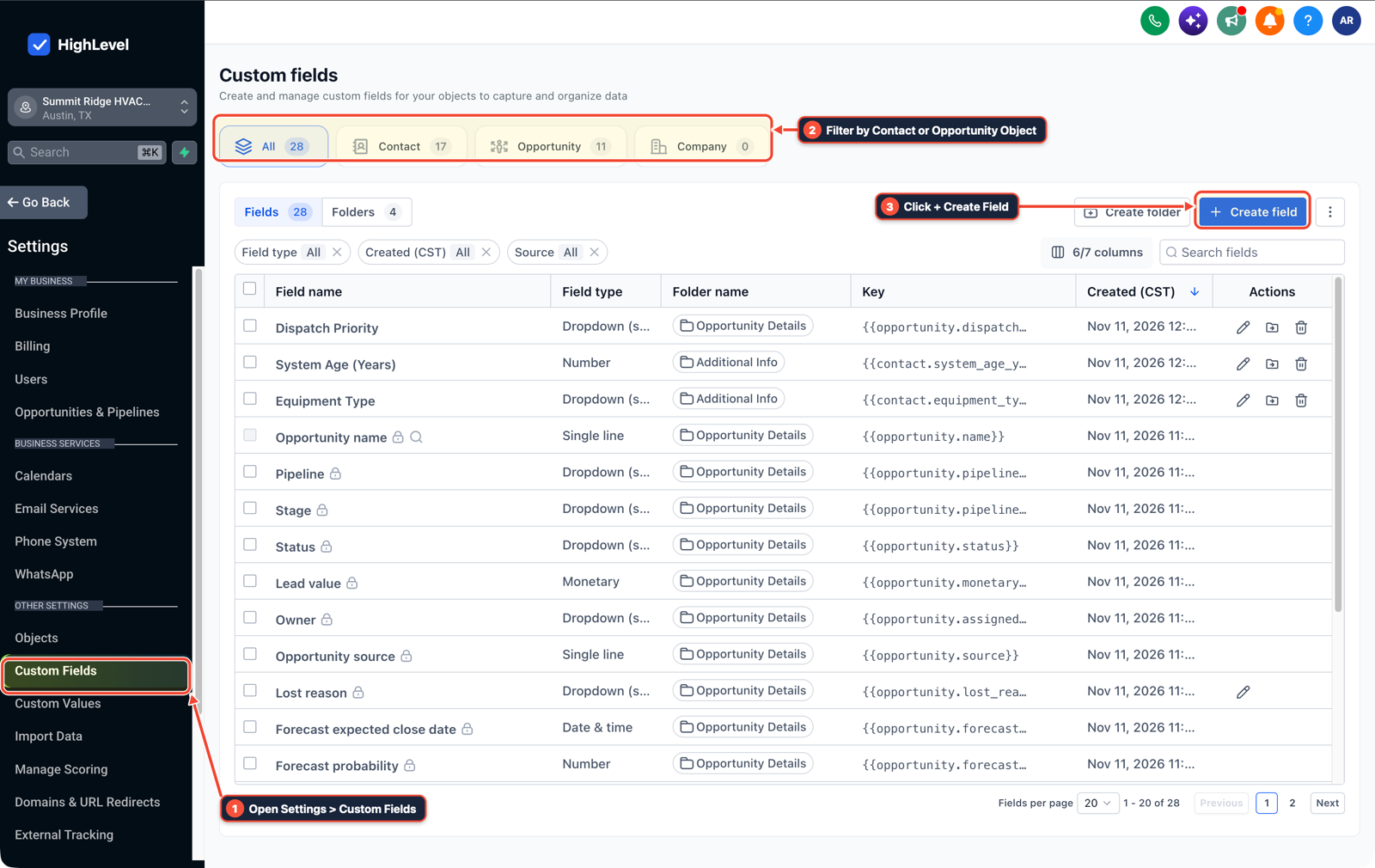
1Open Settings > Custom Fields 2Filter by Contact or Opportunity Object 3Click + Create Field -
STEP 2In AI Agents > Knowledge Base, store permanent project constraints, approved pricing tables, and technical boundaries as separate topic entries so the assistant can pull reference facts on demand instead of relying on chat history.
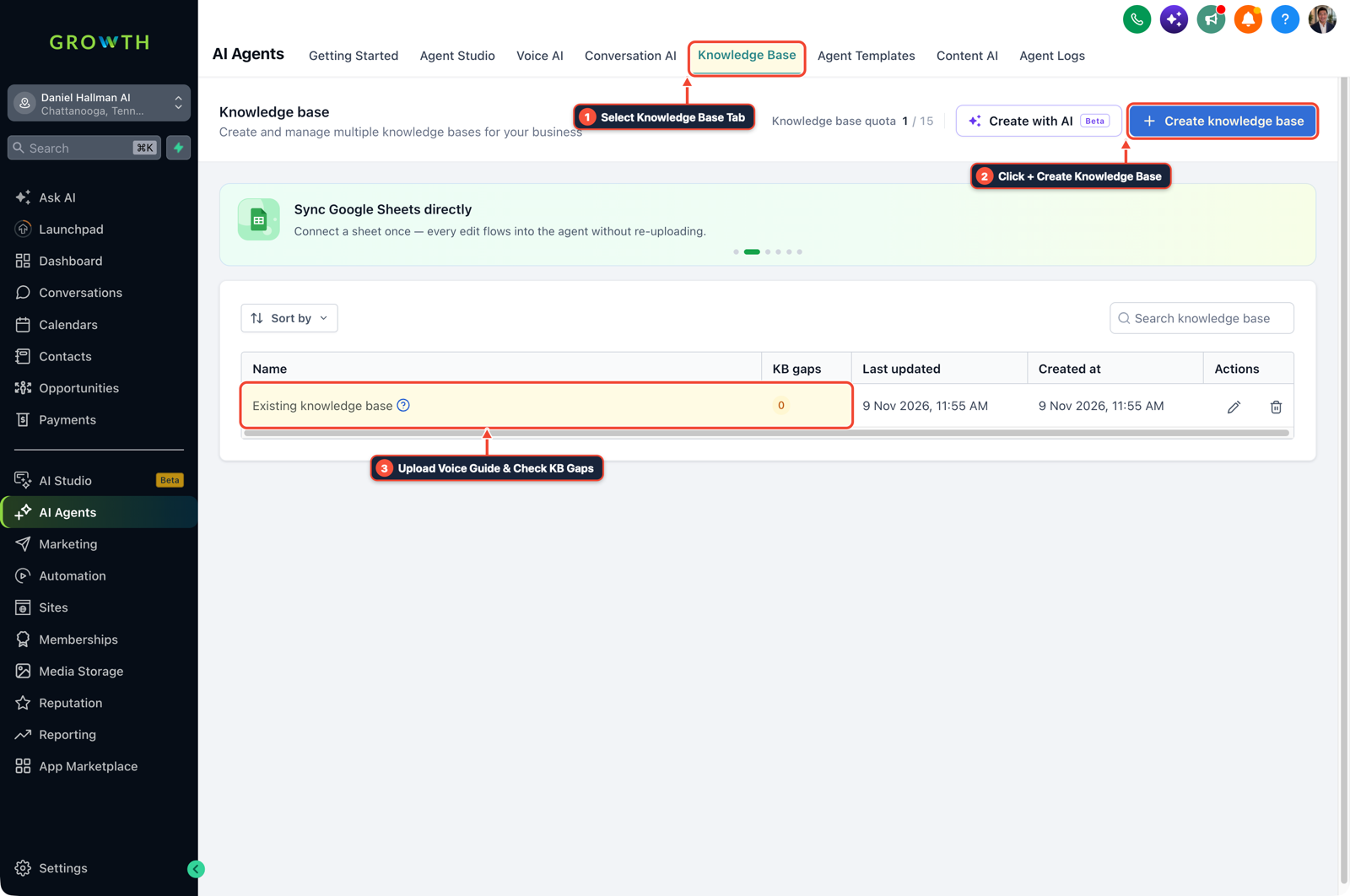
1Select Knowledge Base Tab 2Click + Create Knowledge Base 3Review Industry FAQ & Check KB Gaps -
STEP 3In AI Agents > Conversation AI, inject
{{contact.current_goal_and_constraints}},{{contact.ruled_out_options_and_why}}, and{{contact.next_single_action}}at the top of the prompt and test a fresh session by asking what the assistant should do next and what it should avoid.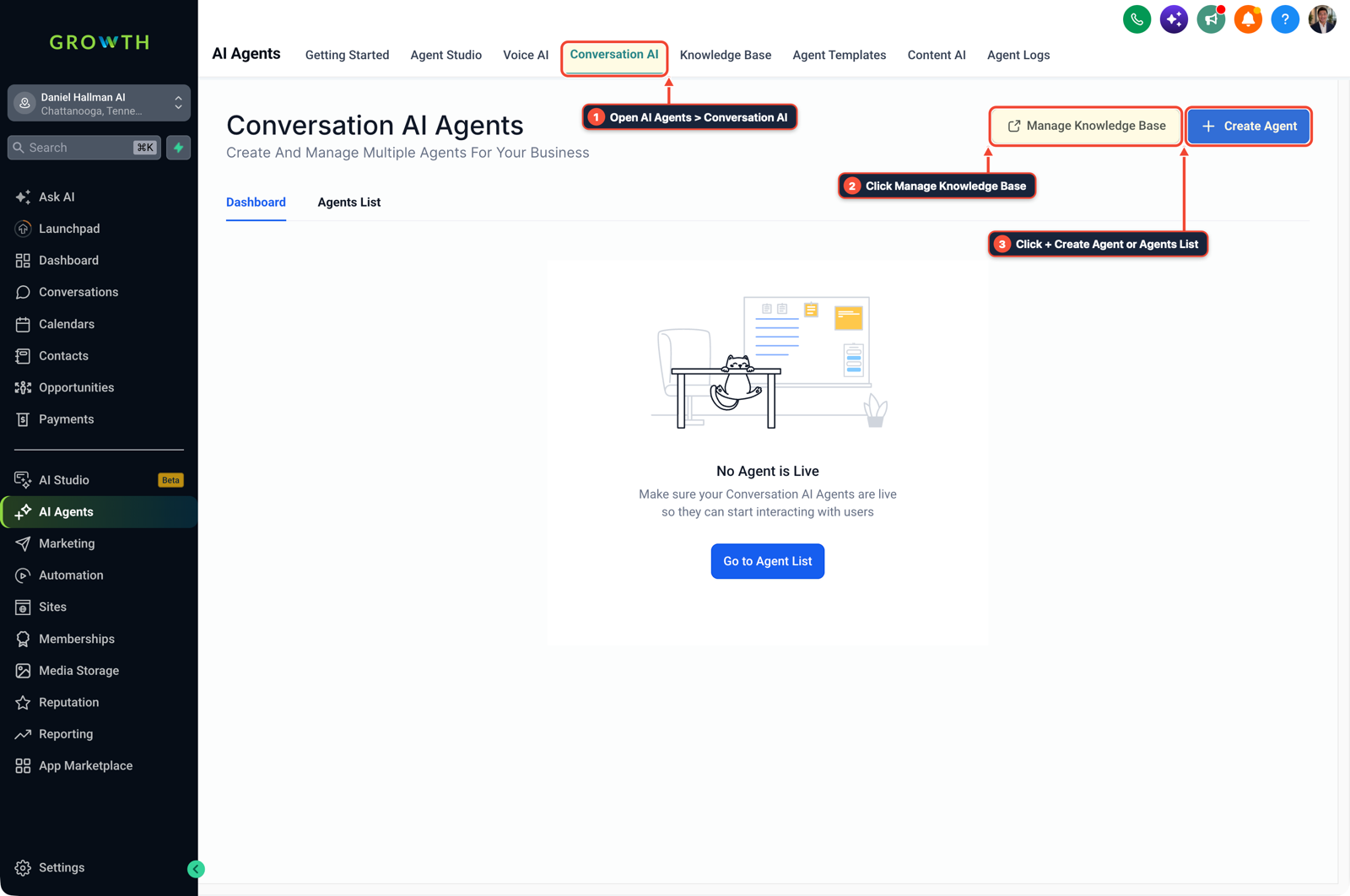
1Open AI Agents > Conversation AI 2Click Manage Knowledge Base 3Click + Create Agent or Agents List
MODE: AGENT PROMPT
PASTE INTO CLAUDE CODE, CURSOR, CHATGPT, OR GOHIGHLEVEL ASK AI
AGENT PROMPT
Set up a structured project context handoff for multi-session AI chats in sub-account <YOUR_LOCATION_ID>:
1. In Settings > Custom Fields, create fields for Current Goal and Constraints, Ruled-Out Options and Why, and Next Single Action.
2. In AI Agents > Knowledge Base, store permanent project constraints and approved specifications as standalone entries.
3. In AI Agents > Conversation AI, inject the three custom fields at the top of the system prompt so new sessions preserve rejected options and the next step.
GHL-TOOLS MCP SERVER & CLI (DANIELHALLMAN.COM/MCP)
BUILDER + SUB-ACCOUNT TOOLS
# Inspect custom fields and Conversation AI context handoff workflows in the sub-account
ghl-crm custom-fields list --context <YOUR_CONTEXT> --location <YOUR_LOCATION_ID>
ghl-crm workflows list --context <YOUR_CONTEXT> --location <YOUR_LOCATION_ID>
Official GHL MCP vs. ghl-tools: HighLevel’s official hosted MCP (services.leadconnectorhq.com/mcp) covers public v2 CRM records (contacts, opportunities, appointments, conversations). ghl-tools MCP complements it with workflow graph inspection & recipes, funnel/form builders, DNS/BIMI checks, and ghl-crm doctor audits.
Cause
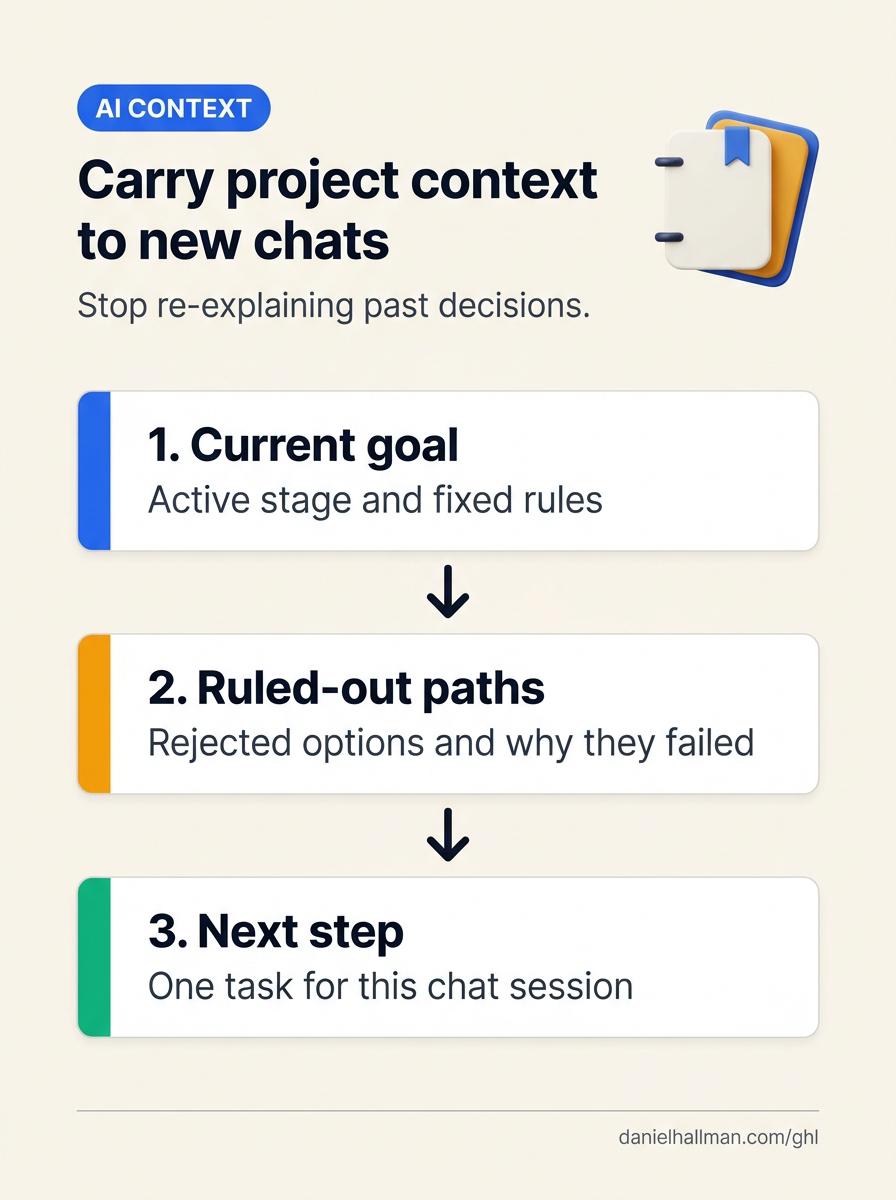
- Most pasted chat summaries only describe what the project is doing right now.
- Without an explicit list of rejected approaches and the reason each one was ruled out, a fresh AI session immediately suggests the exact workaround or pricing offer you already eliminated two days earlier.
GoHighLevel Configuration
- Save active stage, ruled-out options
- and the next step in Settings > Custom Fields, store standing project and pricing rules in AI Agents > Knowledge Base
- and pass those custom field values into AI Agents > Conversation AI so every new turn starts with current decisions and prior dead ends.
GoHighLevel Menu Paths
| Step | Menu Path in GHL | Action |
|---|---|---|
| Step 1 | Settings > Custom Fields | Create three text fields for ongoing projects or multi-day client threads: Current Goal and Constraints, Ruled-Out Options and Why, and Next Single Action. |
| Step 2 | AI Agents > Knowledge Base | Store permanent project constraints, approved pricing tables, and technical boundaries as separate topic entries so the assistant can pull reference facts on demand instead of relying on chat history. |
| Step 3 | AI Agents > Conversation AI | Inject {{contact.current_goal_and_constraints}}, {{contact.ruled_out_options_and_why}}, and {{contact.next_single_action}} at the top of the prompt and test a fresh session by asking what the assistant should do next and what it should avoid. |
DEFAULT SETUP VS. AUTOMATED WORKFLOW
Operational Comparison
Manual Admin Work Per Client
Lead-to-Booked-Job Conversion
Related Questions
- How Do You Coordinate Codex, Claude Code, and a Planner Agent Without Copy-Pasting?
- What Causes Production AI Agents to Act on Stale Data or Double-Send (And How Do You Prevent It in GoHighLevel)?
- How Do You Make Multi-Tool AI Agents Reliable Without Duplicate Bookings or Hallucinated Tool Calls in GoHighLevel?
- When Are AI Agent Skills Actually Useful for GoHighLevel and CRM Workflows?
BUILD FASTER IN GOHIGHLEVEL · FREE TRIAL BONUSES + MCP SERVER
Build this directly inside your GoHighLevel sub-account
Connect Claude Code, Cursor, or OpenAI Codex to our ghl-tools MCP Server & Rust CLI to build workflows, forms, and funnels from your editor, or start your GoHighLevel plan through our partner link to unlock $612+ in ready-to-import kits (including GHL AI Agent Context Handoff & MCP Kit) and weekly live clinics.