GOHIGHLEVEL ANSWERS & PROMPTS: PLAYBOOK T52 · AI AGENT OVERSIGHT VS. BABYSITTING AUDIT
AUTHOR: DANIEL HALLMAN
KEYWORD: AGENT OVERSIGHT
STEP-BY-STEP INSTRUCTIONS + ANNOTATED GHL SCREENSHOTS
Steps in GoHighLevel
-
STEP 1In Settings > Private Integrations, create a scoped token for one specific job (such as standard FAQ replies or appointment rescheduling) with delete, billing, and custom-quote permissions unchecked so the agent can act inside clear limits.
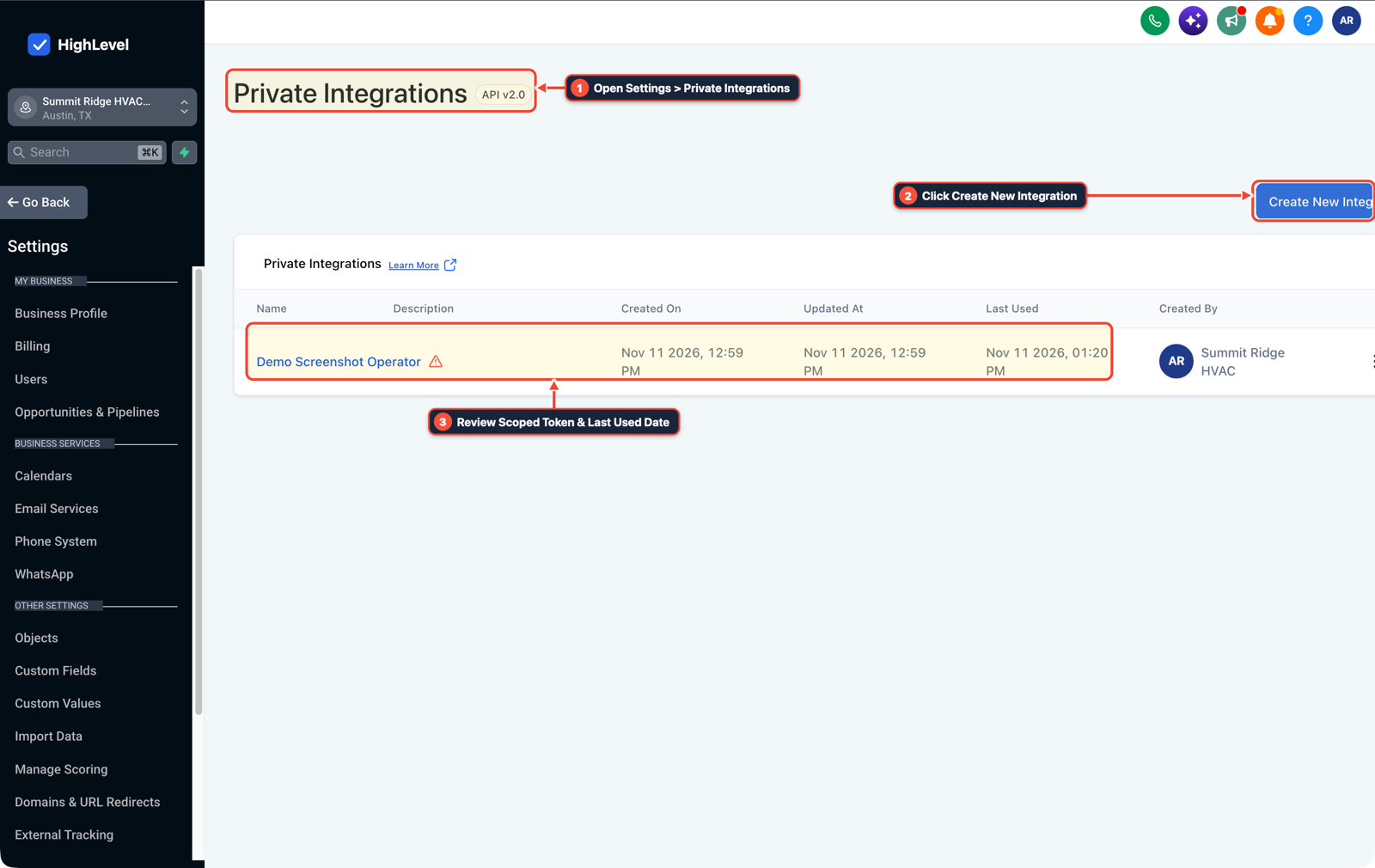
1Open Settings > Private Integrations 2Click Create New Integration 3Review Scoped Token & Last Used Date -
STEP 2In AI Agents > Conversation AI, run the new intent in Suggestive mode for the first 50 requests and instruct reps to apply an
ai-draft-editedtag whenever they have to rewrite a suggested answer (andcustomer-callback-fixif a customer calls back to correct a mistake).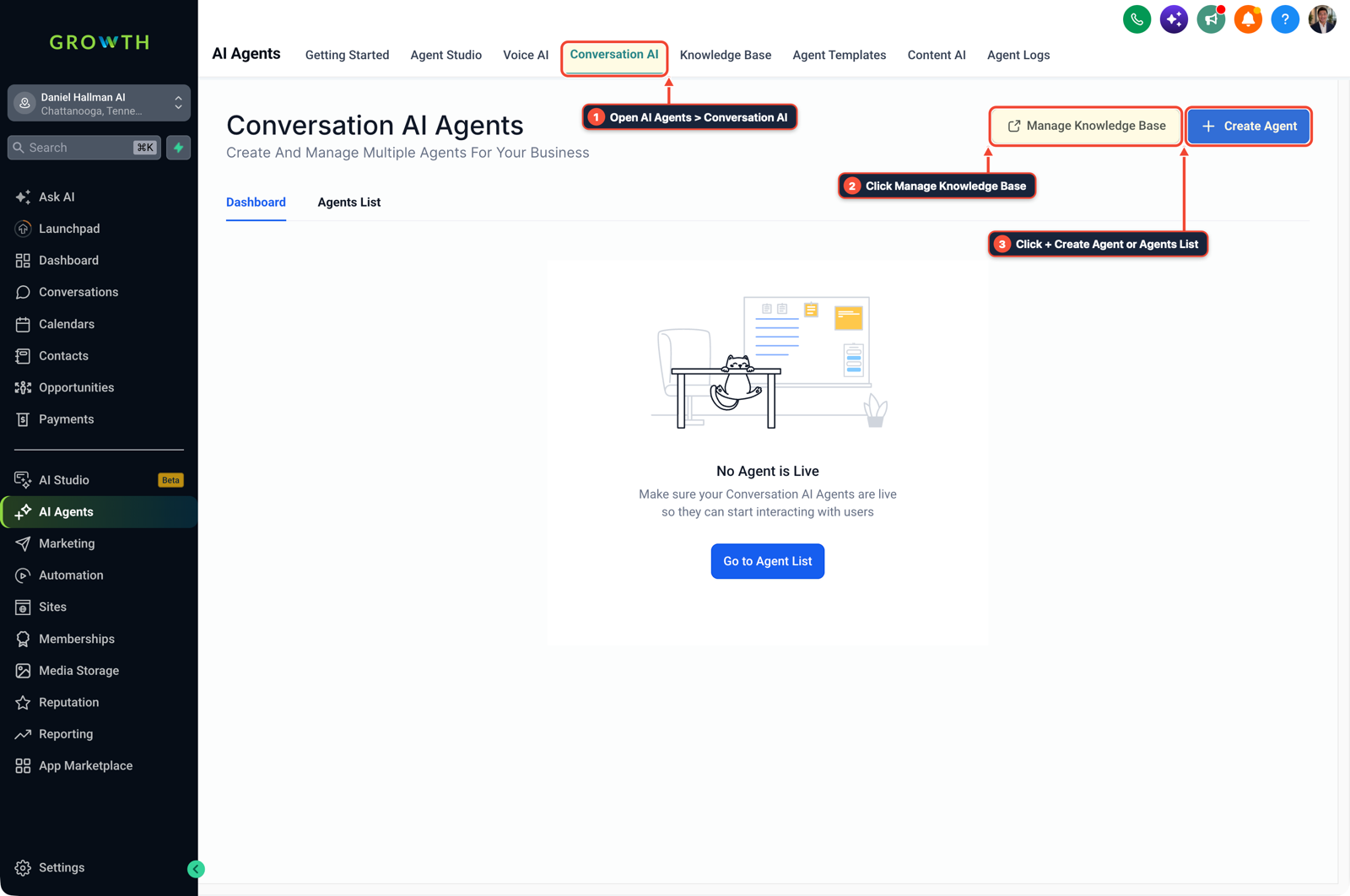
1Open AI Agents > Conversation AI 2Click Manage Knowledge Base 3Click + Create Agent or Agents List -
STEP 3In Automation > Workflow > Execution Logs, review the weekly count of unedited sends versus
ai-draft-editedtags: once an intent passes 85% unedited replies with zero customer correction callbacks, flip that branch to Auto-Pilot and keep human review only on exception tags.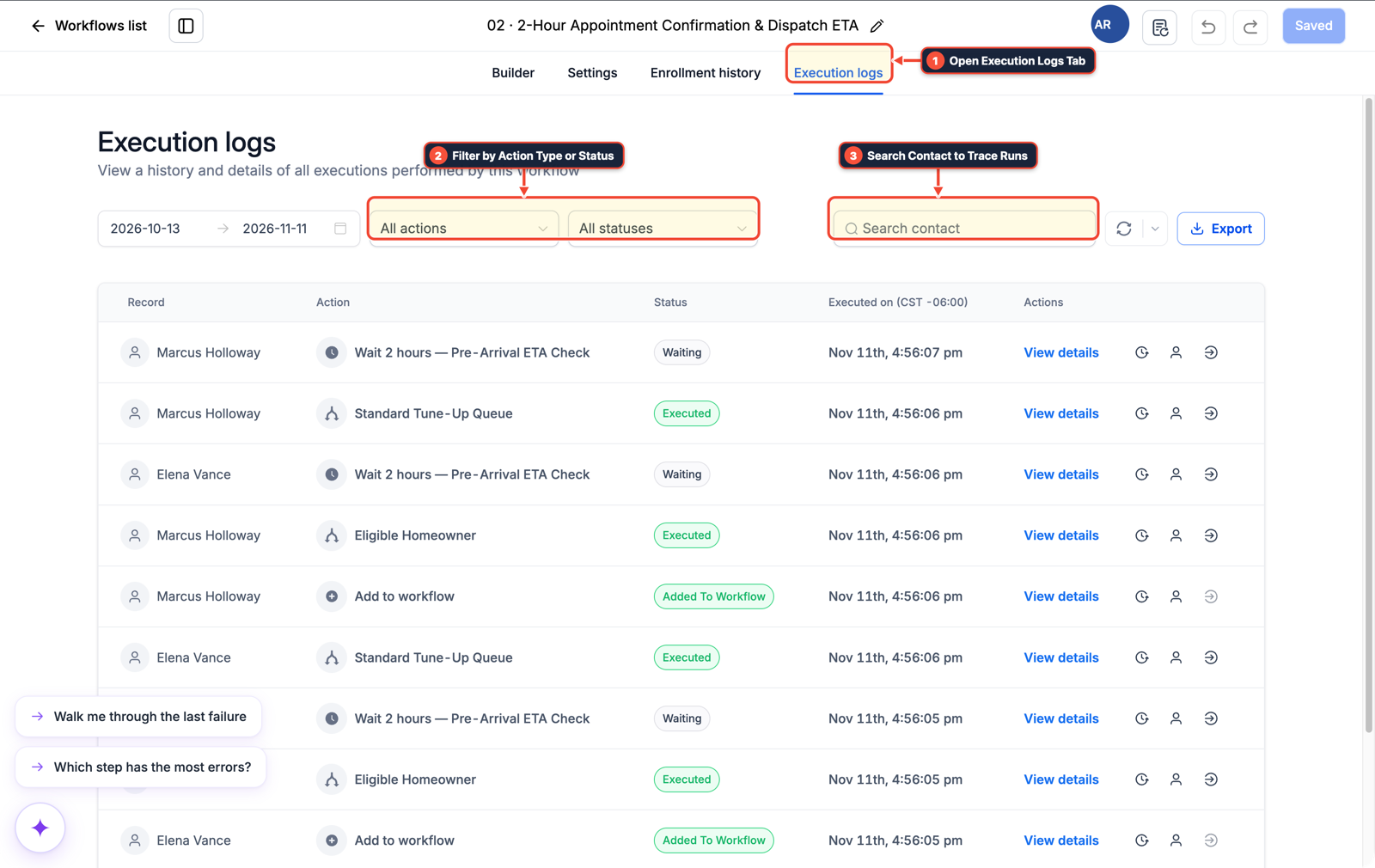
1Open Execution Logs Tab 2Filter by Action Type or Status 3Search Contact to Trace Runs
MODE: AGENT PROMPT
PASTE INTO CLAUDE CODE, CURSOR, CHATGPT, OR GOHIGHLEVEL ASK AI
AGENT PROMPT
Set up a 50-thread Suggestive-to-Auto-Pilot evaluation workflow in sub-account <YOUR_LOCATION_ID>:
1. In Settings > Private Integrations, scope the agent token to contact tags, notes, and standard calendar slots while leaving delete and billing scopes disabled.
2. In AI Agents > Conversation AI and Automation > Workflow Builder, run new intents in Suggestive mode and track ai-draft-edited and customer-callback-fix tags on contact records.
3. In Automation > Workflow > Execution Logs, promote an intent branch to Auto-Pilot once 85% or more of its last 50 drafts send without human edits.
GHL-TOOLS MCP SERVER & CLI (DANIELHALLMAN.COM/MCP)
BUILDER + SUB-ACCOUNT TOOLS
# Audit private integration token scopes and active AI workflows in the sub-account
ghl-agency user-role-governance --context <YOUR_CONTEXT> --location <YOUR_LOCATION_ID>
ghl-crm workflows list --context <YOUR_CONTEXT> --location <YOUR_LOCATION_ID>
Official GHL MCP vs. ghl-tools: HighLevel’s official hosted MCP (services.leadconnectorhq.com/mcp) covers public v2 CRM records (contacts, opportunities, appointments, conversations). ghl-tools MCP complements it with workflow graph inspection & recipes, funnel/form builders, DNS/BIMI checks, and ghl-crm doctor audits.
Cause
- Teams often connect an AI agent to every inbox channel and CRM action at once, then force staff to review every single step because one bad command could alter pricing or cancel a booking.
- Checking every output shifts work instead of removing it.
GoHighLevel Configuration
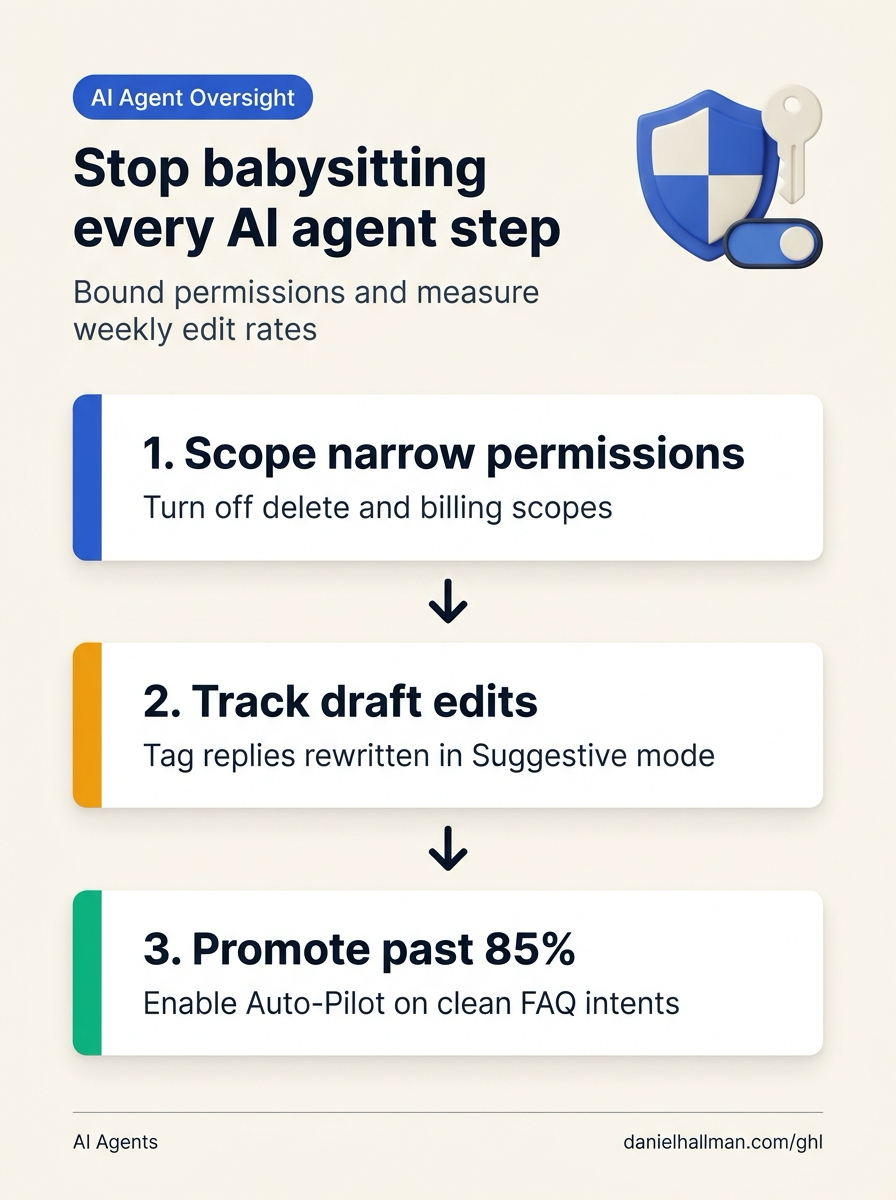
- Restrict what the agent can touch in Settings > Private Integrations and AI Agents > Conversation AI, measure how often staff edit drafts or customers call back to fix an answer
- and promote one narrow intent at a time to Auto-Pilot once it clears an 85% unedited pass rate in Automation > Workflow > Execution Logs.
GoHighLevel Menu Paths
| Step | Menu Path in GHL | Action |
|---|---|---|
| Step 1 | Settings > Private Integrations | Create a scoped token for one specific job (such as standard FAQ replies or appointment rescheduling) with delete, billing, and custom-quote permissions unchecked so the agent can act inside clear limits. |
| Step 2 | AI Agents > Conversation AI | Run the new intent in Suggestive mode for the first 50 requests and instruct reps to apply an ai-draft-edited tag whenever they have to rewrite a suggested answer (and customer-callback-fix if a customer calls back to correct a mistake). |
| Step 3 | Automation > Workflow > Execution Logs | Review the weekly count of unedited sends versus ai-draft-edited tags: once an intent passes 85% unedited replies with zero customer correction callbacks, flip that branch to Auto-Pilot and keep human review only on exception tags. |
DEFAULT SETUP VS. AUTOMATED WORKFLOW
Operational Comparison
Manual Admin Work Per Client
Lead-to-Booked-Job Conversion
Related Questions
- How Do You Let Non-Engineers Approve Risky AI Agent Actions in GoHighLevel Without Slowing the Team?
- How Do You Stop AI Sales Agents From Giving Unauthorized Discounts or Pricing in GoHighLevel?
- Why are AI agents unreliable in production workflows and how do you fix them in GoHighLevel?
- How Do You Prevent Prompt Injection and Free-Text Memory Bugs in GoHighLevel AI Agents?
BUILD FASTER IN GOHIGHLEVEL · FREE TRIAL BONUSES + MCP SERVER
Build this directly inside your GoHighLevel sub-account
Connect Claude Code, Cursor, or OpenAI Codex to our ghl-tools MCP Server & Rust CLI to build workflows, forms, and funnels from your editor, or start your GoHighLevel plan through our partner link to unlock $612+ in ready-to-import kits (including GHL AI Agent Oversight & Evaluation Kit) and weekly live clinics.