GOHIGHLEVEL ANSWERS & PROMPTS: PLAYBOOK T01 · WORKFLOWS & CALENDARS
AUTHOR: DANIEL HALLMAN
KEYWORD: WORKFLOWS
MODE: AGENT PROMPT
PASTE INTO CLAUDE CODE, CURSOR, CHATGPT, OR GOHIGHLEVEL ASK AI
AGENT PROMPT
Audit and guard the lead-to-booking automation system in GoHighLevel sub-account <YOUR_LOCATION_ID>:
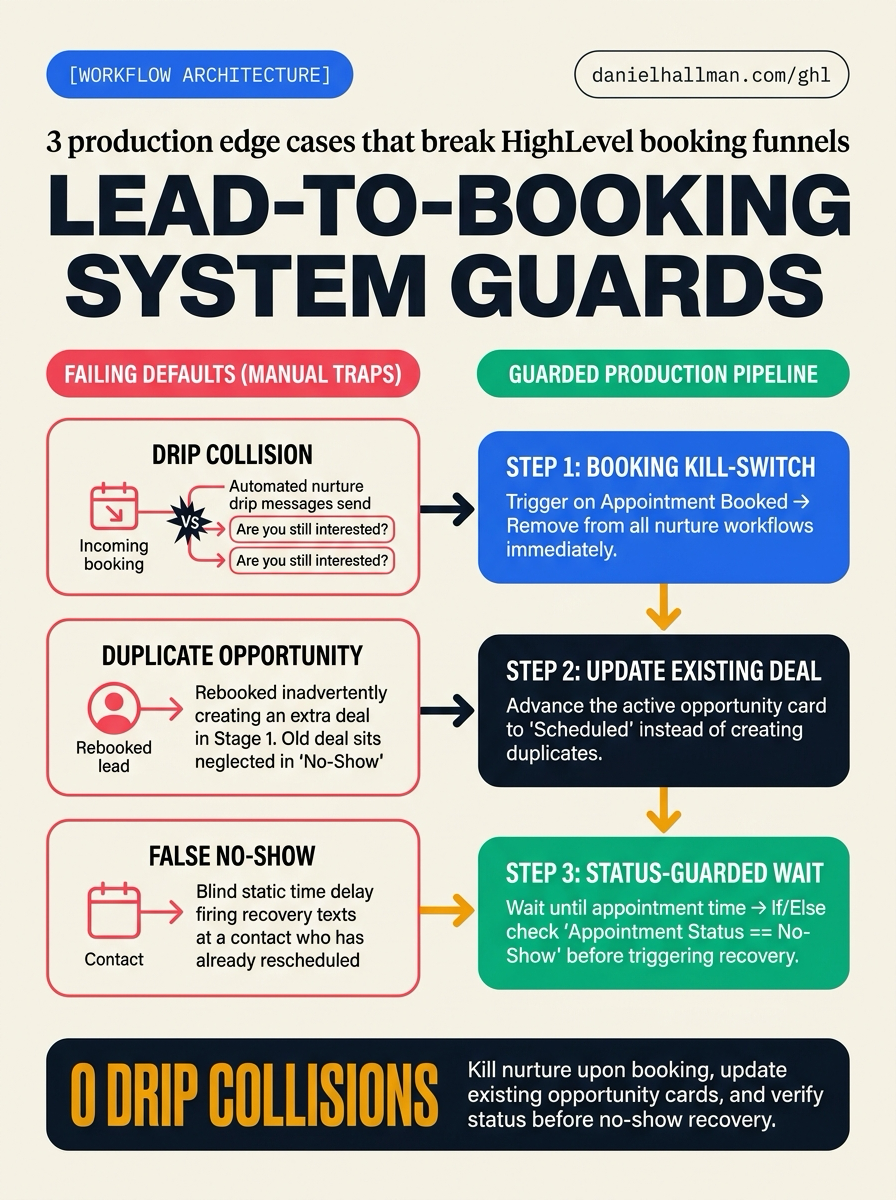
1. Check all active nurture workflows for an automated kill-switch when an appointment is booked.
2. Verify that calendar booking workflows update existing opportunity cards rather than creating duplicate deals.
3. Ensure the no-show sequence checks Appointment Status == No-Show after appointment time before firing recovery texts.
GHL-TOOLS MCP SERVER & CLI (DANIELHALLMAN.COM/MCP)
BUILDER + SUB-ACCOUNT TOOLS
# 1. Inspect sub-account workflow triggers and calendar configuration via ghl-crm MCP
{
  "tool": "workflows_inspect_graph",
  "arguments": {
    "location_id": "<YOUR_LOCATION_ID>"
  }
}

# 2. Or apply the guarded lead-to-booking workflow recipe directly via ghl-crm CLI
ghl-crm workflows apply-recipe --location-id <YOUR_LOCATION_ID> --recipe lead-booking-guard
Official GHL MCP vs. ghl-tools: HighLevel’s official hosted MCP (services.leadconnectorhq.com/mcp) covers public v2 CRM records (contacts, opportunities, appointments, conversations). ghl-tools MCP complements it with workflow graph inspection & recipes, funnel/form builders, DNS/BIMI checks, and ghl-crm doctor audits.
STEP-BY-STEP INSTRUCTIONS + ANNOTATED GHL SCREENSHOTS
Steps in GoHighLevel
-
STEP 1Create a Global Booking Kill-Switch: In Automation > Workflows, create a workflow triggered by Appointment Status (
Event Type: Normal,Appointment Status: Booked), add a Remove from Workflow action, and select all active lead nurture and inquiry follow-up workflows.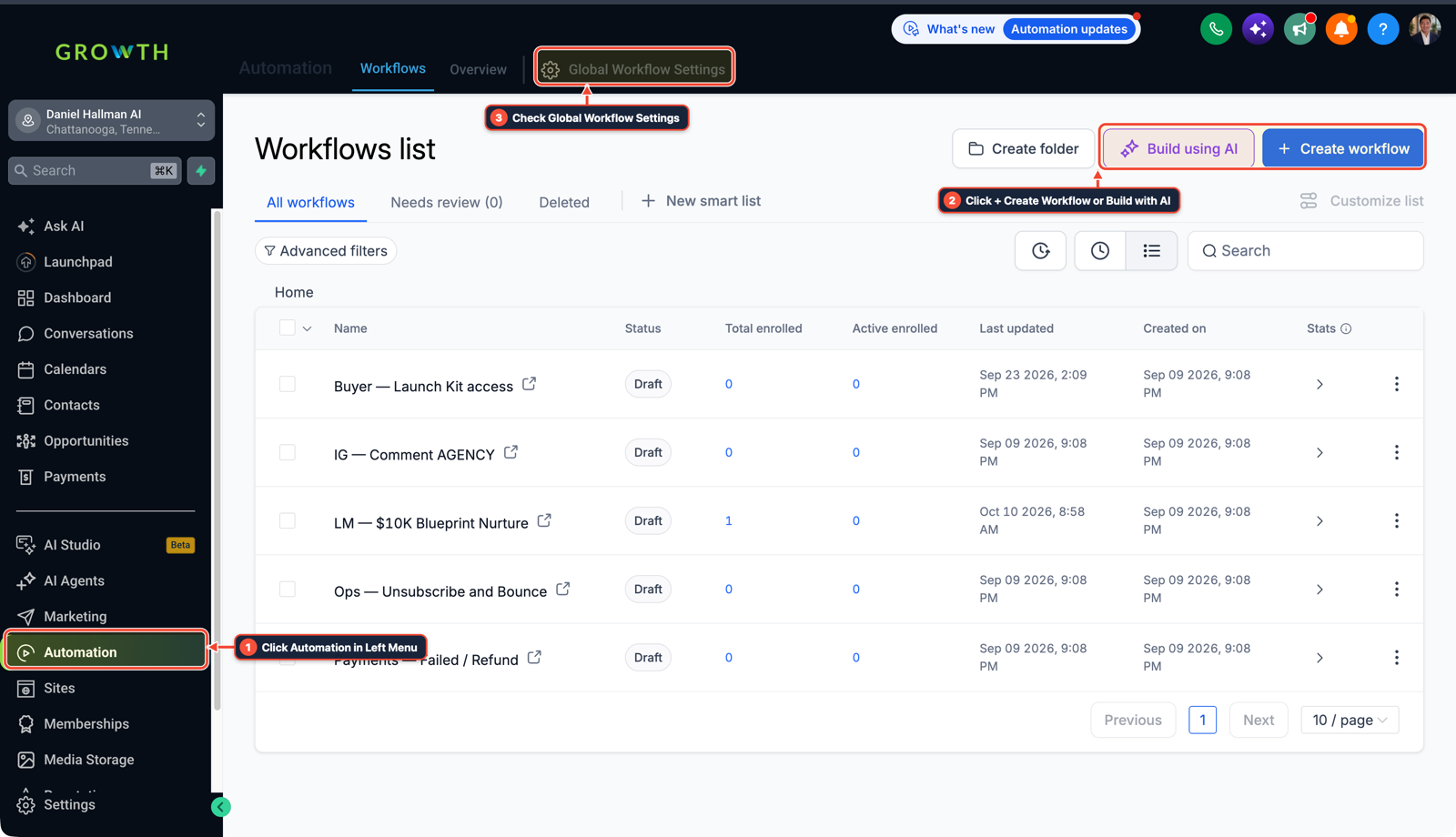
1Click Automation in Left Menu 2Click + Create Workflow or Build with AI 3Check Global Workflow Settings - STEP 2Advance Existing Opportunity Cards: In your appointment confirmation workflow, add an Update Opportunity action, select your active pipeline, and move the existing opportunity stage to Appointment Scheduled instead of using Create Opportunity.
-
STEP 3Guard No-Show Recovery with an If/Else Condition: In your post-appointment follow-up workflow, add a Wait step until
Appointment Time + 1 hour, followed by an If/Else condition checkingAppointment Status is No-Show, so recovery texts only fire if the contact actually missed the call without rescheduling.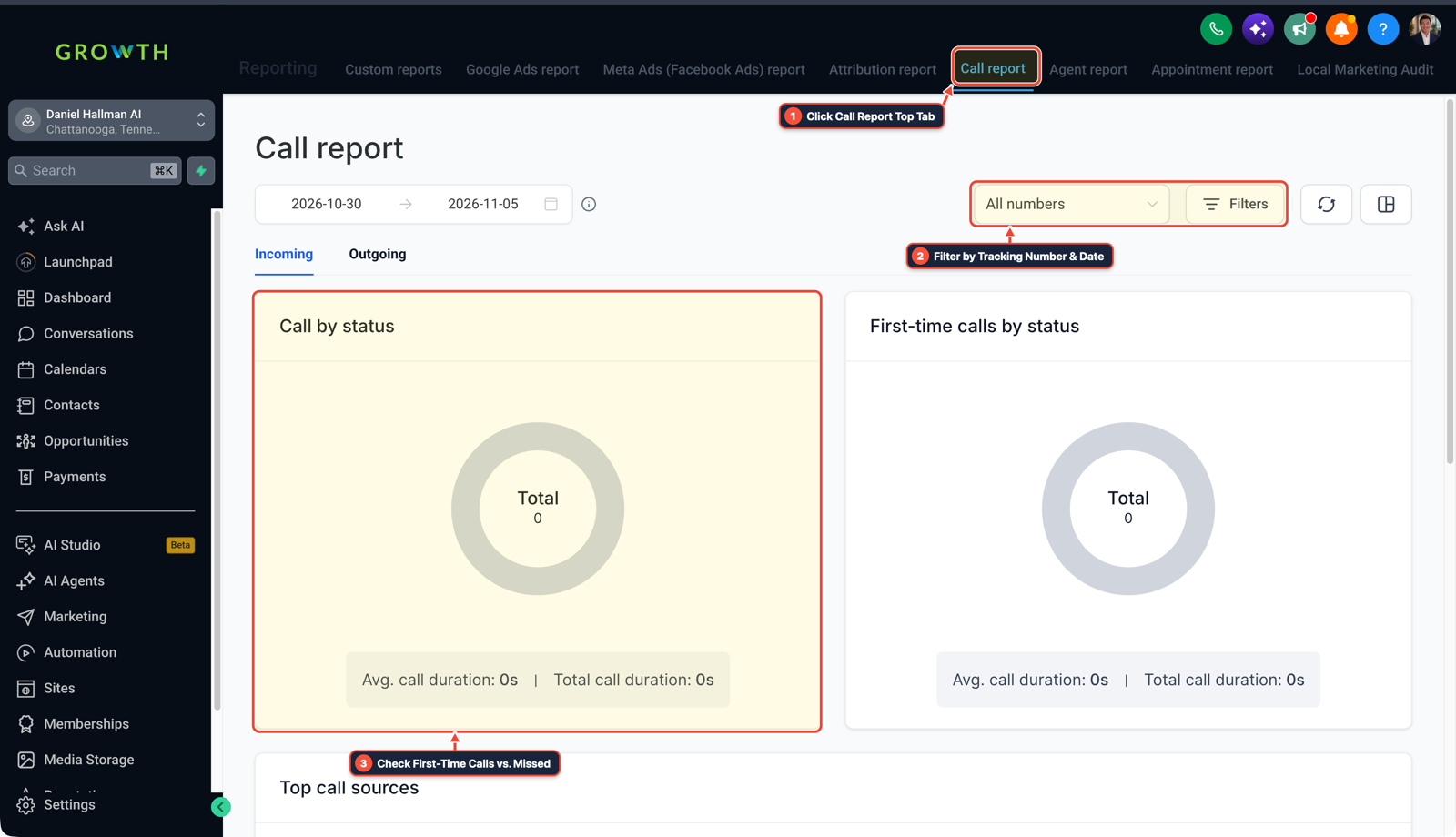
1Click Call Report Top Tab 2Filter by Tracking Number & Date 3Check First-Time Calls vs. Missed
Cause
- Lead-to-booking systems in HighLevel often suffer from three major production collisions: contacts who book an appointment continue receiving automated 'Are you still interested?' nurture texts, rebooked leads generate duplicate opportunity cards in Stage 1 while the old card sits abandoned in 'No-Show'
- and static time-delayed no-show workflows accidentally message leads who already rescheduled.
GoHighLevel Configuration
- Build a three-point safety guard directly inside native HighLevel Workflows: first, create an Appointment Status: Booked workflow with a Remove from Workflow action targeting all inquiry nurture drips
- second, configure appointment workflows to update the existing contact's active opportunity card rather than creating a new one
- third, build a status-guarded wait branch in your post-appointment sequence that verifies
Appointment Status == No-Showbefore firing rebooking outreach.
GoHighLevel Menu Paths
| Step | Menu Path in GHL | Action |
|---|---|---|
| Step 1 | Automation > Workflows | Create a workflow triggered by Appointment Status (Event Type: Normal, Appointment Status: Booked), add a Remove from Workflow action, and select all active lead nurture and inquiry follow-up workflows. |
| Step 2 | Reporting > Call Report > All Numbers Filter | Add an Update Opportunity action, select your active pipeline, and move the existing opportunity stage to Appointment Scheduled instead of using Create Opportunity. |
| Step 3 | Reporting > Call Report > All Numbers Filter | Add a Wait step until Appointment Time + 1 hour, followed by an If/Else condition checking Appointment Status is No-Show, so recovery texts only fire if the contact actually missed the call without rescheduling. |
DEFAULT SETUP VS. AUTOMATED WORKFLOW
Operational Comparison
Speed to Lead & Callback Safety
Caller Reply & Booking Rate
Related Questions
- Why are GoHighLevel appointment start and end times blank in my webhook?
- How do you format data and run math in GoHighLevel Workflows without paying for n8n or Make?
- How do you use Model Context Protocol (MCP) and AI to build and audit GoHighLevel workflows?
- Why can't I save contacts after enabling GoHighLevel Opportunity-First beta?
BUILD FASTER IN GOHIGHLEVEL · FREE TRIAL BONUSES + MCP SERVER
Build this directly inside your GoHighLevel sub-account
Connect Claude Code, Cursor, or OpenAI Codex to our ghl-tools MCP Server & Rust CLI to build workflows, forms, and funnels from your editor, or start your GoHighLevel plan through our partner link to unlock $612+ in ready-to-import kits (including GHL Workflow Architect Pack ($47 — or Free with Trial)) and weekly live clinics.