GOHIGHLEVEL ANSWERS & PROMPTS: PLAYBOOK T119 · WORKFLOWS & DYNAMIC DATE-TIME FIELDS
AUTHOR: DANIEL HALLMAN
KEYWORD: DATE-TIME
STEP-BY-STEP INSTRUCTIONS + ANNOTATED GHL SCREENSHOTS
Steps in GoHighLevel
-
STEP 1In Automation > Workflow Builder, add a Format Date and Time action earlier in the workflow if you need to normalize a timestamp into a supported format such as
YYYY-MM-DD HH:mm:ss.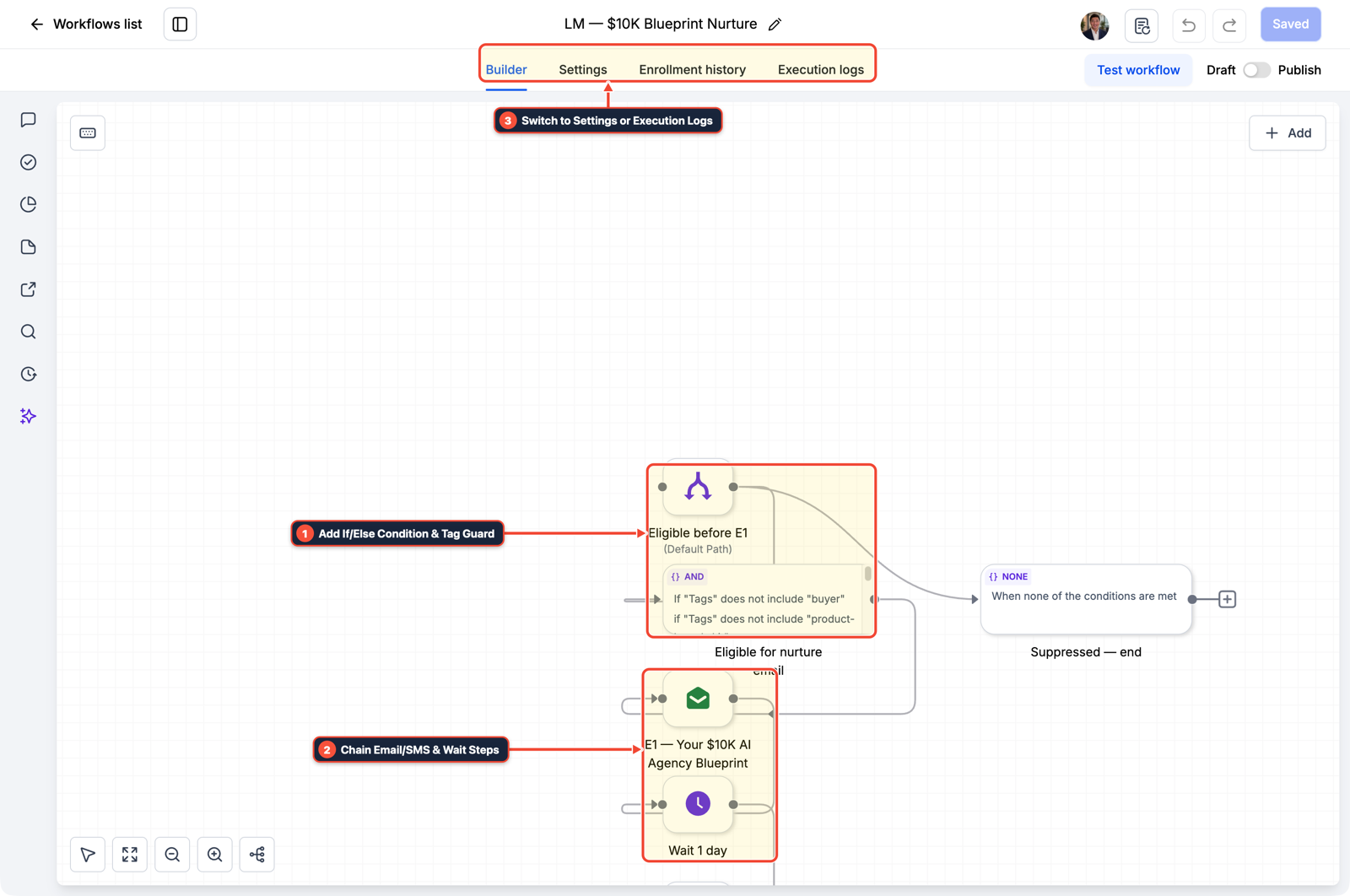
1Add If/Else Condition & Tag Guard 2Chain Priority & Wait Steps 3Switch to Settings or Execution Logs -
STEP 2In Automation > Workflow Builder, add or edit Update Contact Field or Create Contact, select your Date-Time contact custom field, open its three-dot menu, and switch from Standard to Dynamic (switching clears any fixed value already typed in that box).
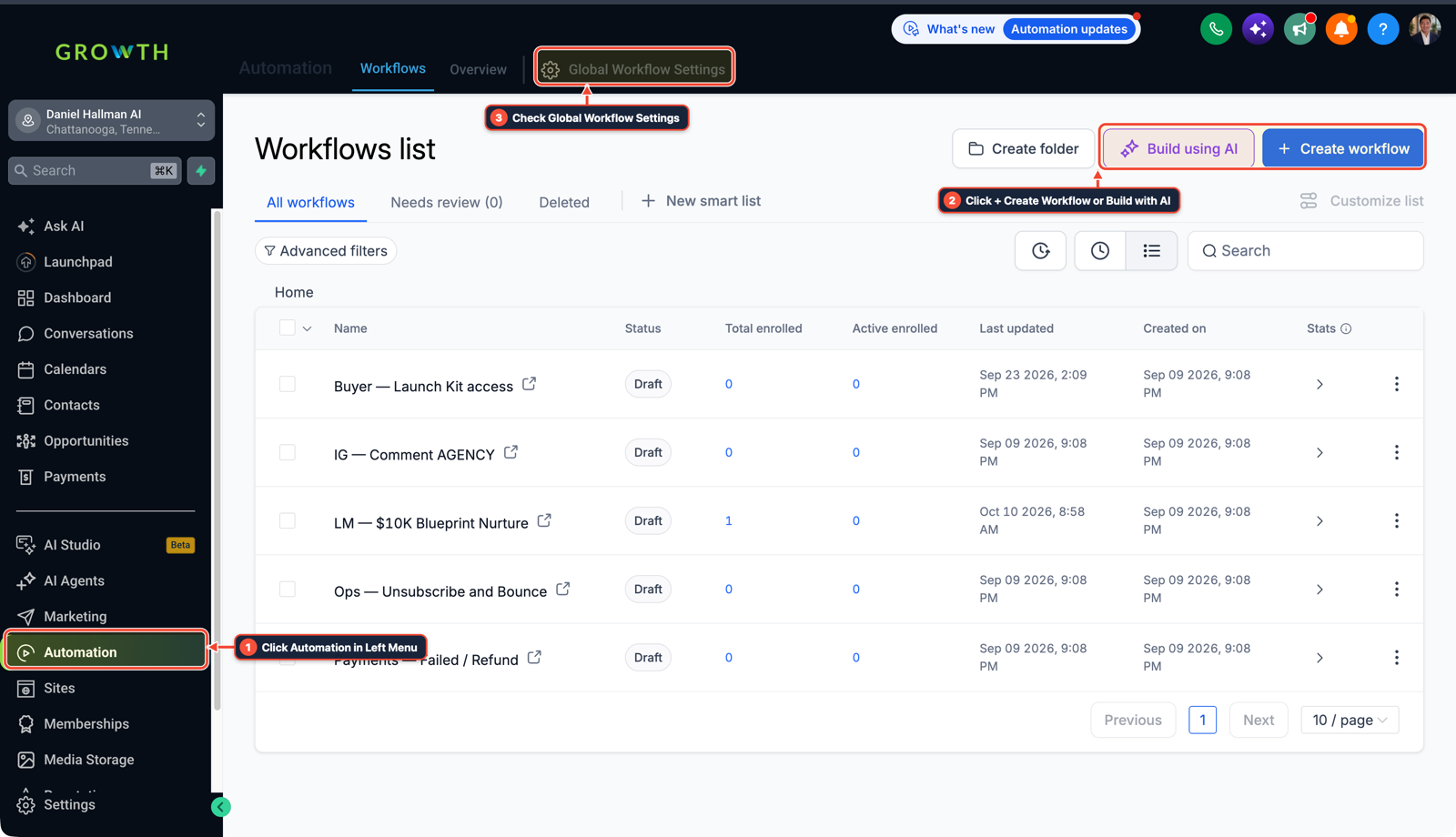
1Click Automation in Left Menu 2Click + Create Workflow or Build with AI 3Check Global Workflow Settings -
STEP 3In Workflow > Execution Logs, pick your source timestamp, other date field, or Format Date and Time output, save the workflow, and confirm the saved value after a test run (date-only values save at
12:00 AMin the sub-account timezone, and empty or invalid values skip only that field while logging the reason).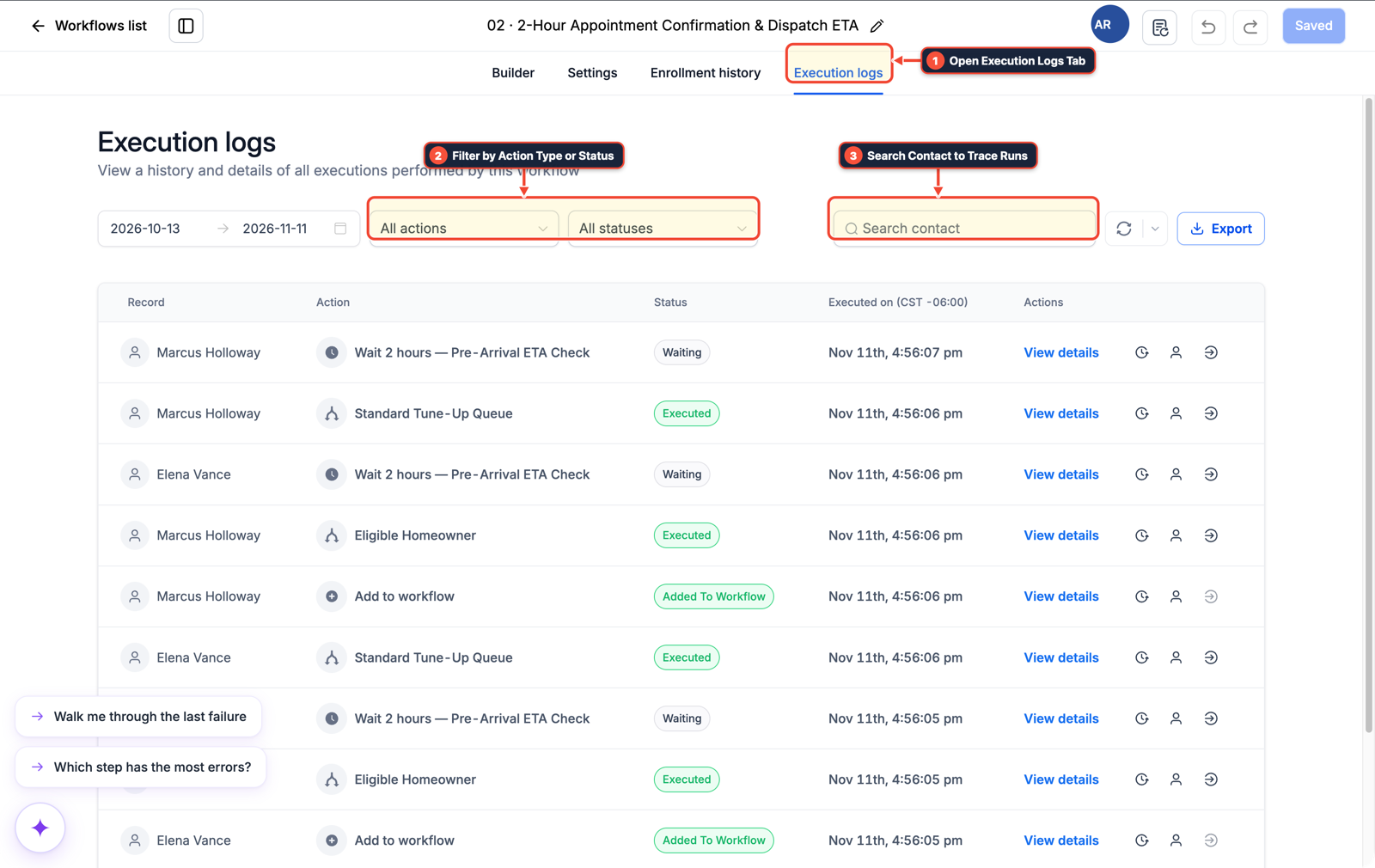
1Open Execution Logs Tab 2Filter by Action Type or Status 3Search Contact to Trace Runs
MODE: AGENT PROMPT
PASTE INTO CLAUDE CODE, CURSOR, CHATGPT, OR GOHIGHLEVEL ASK AI
AGENT PROMPT
Update our GoHighLevel workflow in sub-account <YOUR_LOCATION_ID> to populate a Date-Time contact custom field dynamically:
1. Create or confirm the target Date-Time contact custom field (for example, Follow-up At) under Settings > Custom Fields.
2. Add a Format Date and Time step earlier in the workflow outputting YYYY-MM-DD HH:mm:ss when normalizing an incoming timestamp.
3. In Update Contact Field (or Create Contact), switch the Date-Time field from Standard to Dynamic via its three-dot menu, map the formatted output, and inspect Workflow > Execution Logs after one test enrollment.
OFFICIAL GHL MCP V2: WORKFLOWS, VOICE AI & KNOWLEDGE BASE (DANIELHALLMAN.COM/MCP)
OAUTH V2 + BUILDER TOOLS
# List custom fields and workflows in the sub-account before updating dynamic Date-Time mappings
ghl-crm custom-fields list --context <YOUR_CONTEXT> --location <YOUR_LOCATION_ID>
ghl-crm workflows list --context <YOUR_CONTEXT> --location <YOUR_LOCATION_ID>
Official HighLevel MCP v2 vs. Local CLI: HighLevel’s official hosted MCP (services.leadconnectorhq.com/mcp/anthropic/v2 & /openai/v2, 181 OAuth scopes) covers CRM records, workflows (write/publish/logs), Voice AI, Conversation AI, Knowledge Bases, forms, emails, and SaaS locations. Use the Official GHL MCP v2 Guide and local CLI tools (ghl-crm, ghl-agency, ghl-onboard) for authoritative DNS/DMARC/BIMI checks, Cloudflare/Porkbun domains, funnel layout JSON/CSS edits, and cross-location snapshot diffs.
Cause
- Before HighLevel's November 24, 2026 workflow update, Date-Time contact custom fields only accepted a fixed date and time in Update Contact Field or Create Contact, forcing agencies to split timestamps into text fields or route them through external webhooks.
GoHighLevel Configuration
- Add Format Date and Time earlier in your workflow when you need a specific format like
YYYY-MM-DD HH:mm:ss, switch the Date-Time field from Standard to Dynamic via its three-dot menu - and check Execution Logs for any skipped invalid or empty values.
GoHighLevel Menu Paths
| Step | Menu Path in GHL | Action |
|---|---|---|
| Step 1 | Automation > Workflow Builder | Add a Format Date and Time action earlier in the workflow if you need to normalize a timestamp into a supported format such as YYYY-MM-DD HH:mm:ss. |
| Step 2 | Automation > Workflow Builder | Add or edit Update Contact Field or Create Contact, select your Date-Time contact custom field, open its three-dot menu, and switch from Standard to Dynamic (switching clears any fixed value already typed in that box). |
| Step 3 | Workflow > Execution Logs | Pick your source timestamp, other date field, or Format Date and Time output, save the workflow, and confirm the saved value after a test run (date-only values save at 12:00 AM in the sub-account timezone, and empty or invalid values skip only that field while logging the reason). |
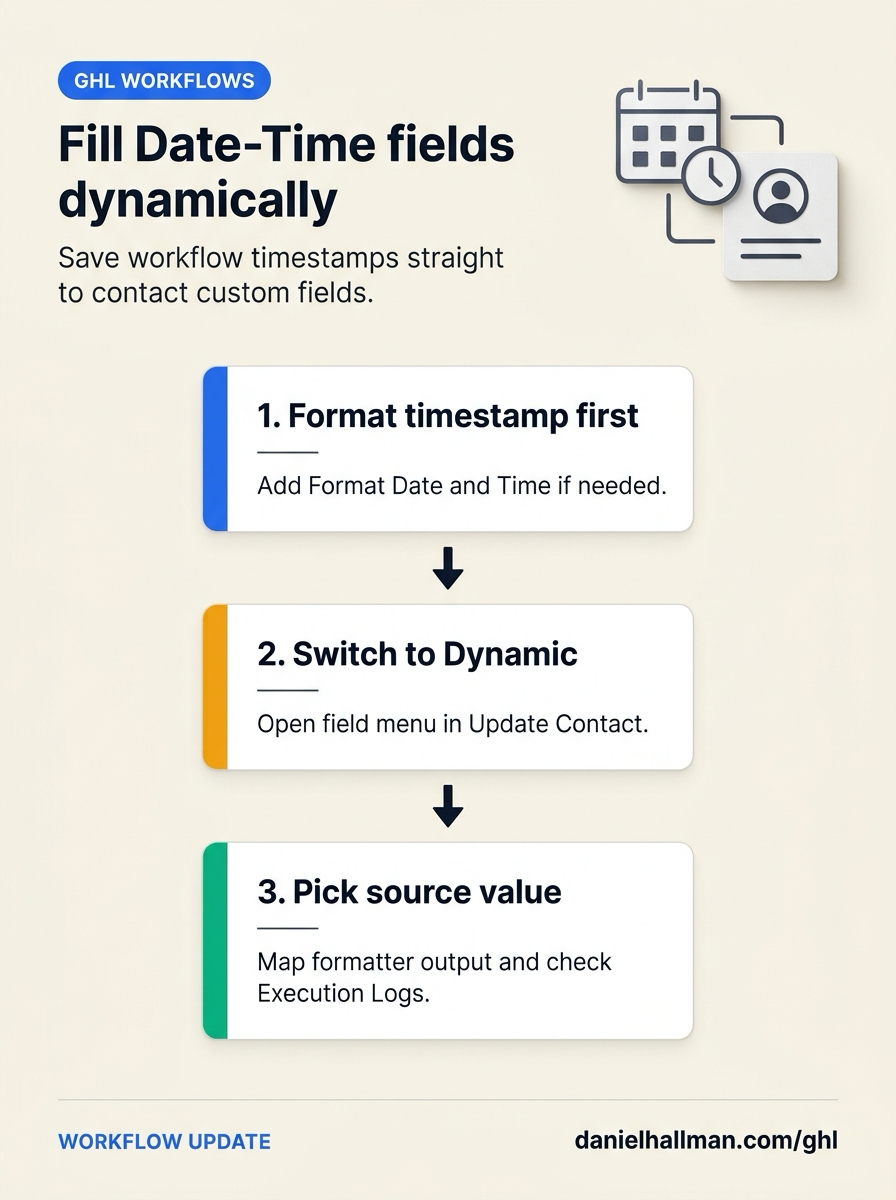
DEFAULT SETUP VS. AUTOMATED WORKFLOW
Operational Comparison
Speed to Lead & Callback Safety
Caller Reply & Booking Rate
Related Questions
- How Do You Export 60-Day Workflow Execution Logs and Filter by Opportunity or Task in GoHighLevel?
- How Do You Fix British Columbia and Daylight Saving Time Zone Notifications in GoHighLevel?
- Why are GoHighLevel appointment start and end times blank in my webhook?
- How do you format data and run math in GoHighLevel Workflows without paying for n8n or Make?
FREE AGENCY BLUEPRINT & GHL CHECKLIST
Get the Workflows & Dynamic Date-Time Fields Checklist + Free $10K Agency Blueprint
Enter your work email for the GoHighLevel setup checklist covering Workflows & Dynamic Date-Time Fields and the 7-part operating manual (GHL Workflow Recipe Pack ($47 — or Free with Trial)), or claim the bonus vault with your GoHighLevel partner bonus claim.