GOHIGHLEVEL ANSWERS & PROMPTS: PLAYBOOK T19 · EMAIL TRACKING & CONVERSATIONS
AUTHOR: DANIEL HALLMAN
KEYWORD: EMAIL LOG
STEP-BY-STEP INSTRUCTIONS + ANNOTATED GHL SCREENSHOTS
Steps in GoHighLevel
-
STEP 1In Settings > Email Services, keep private executive inboxes off 2-way sync and set up a dedicated intake address: Leave personal Gmail/Outlook 2-way sync disabled for confidential mailboxes, and create a per-location tracker address (
log@crm.yourdomain.com) that forwards inbound mail to your webhook endpoint.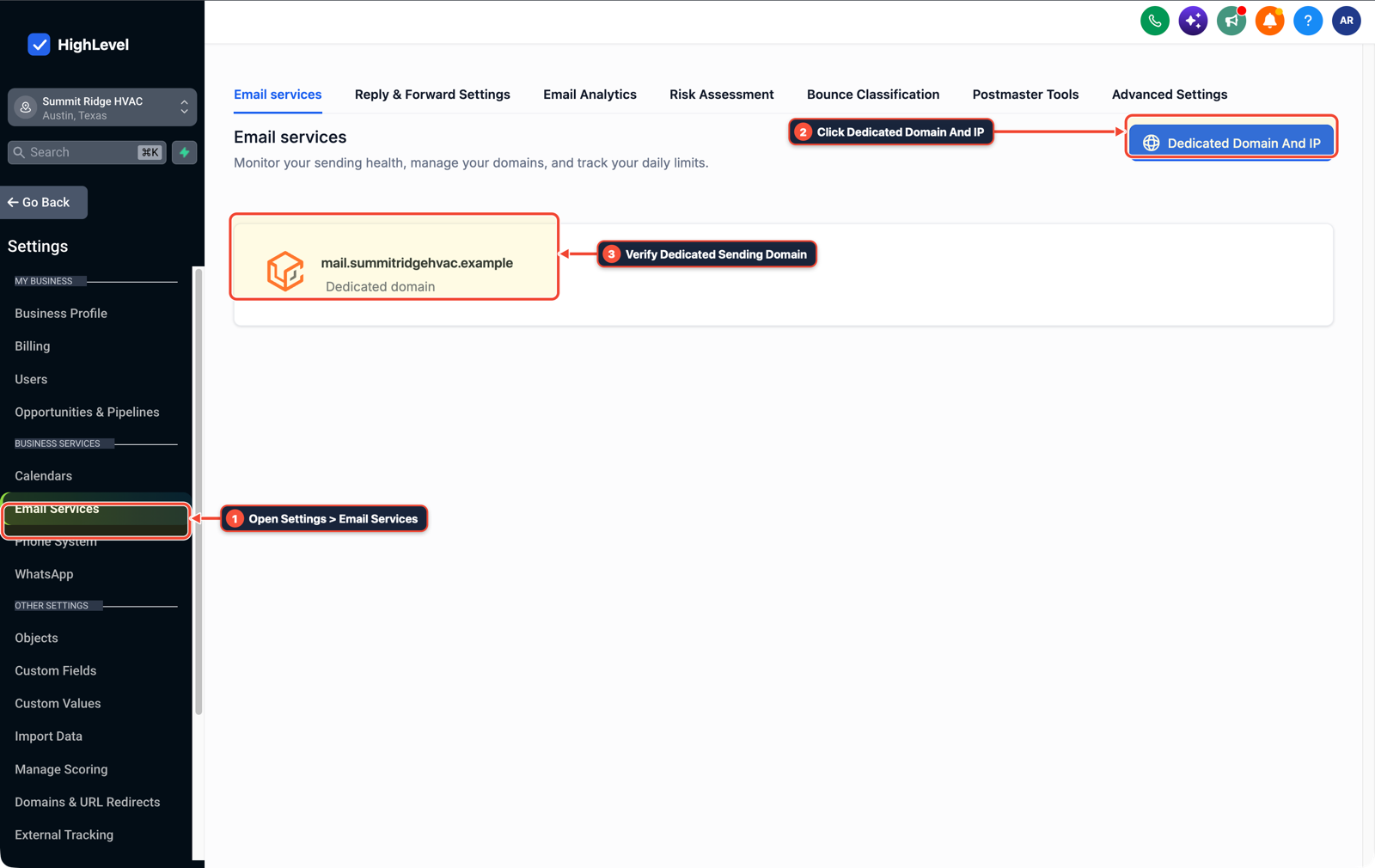
1Open Settings > Email Services 2Click Dedicated Domain And IP 3Verify Dedicated Sending Domain -
STEP 2In Automation > Workflows, parse the client email from BCC vs. Forwarded headers: Receive the parsed email payload via Inbound Webhook, use Format Data to extract the external client address (ignoring the internal
@yourdomain.comsender on forwarded threads), and map that address into Create/Update Contact.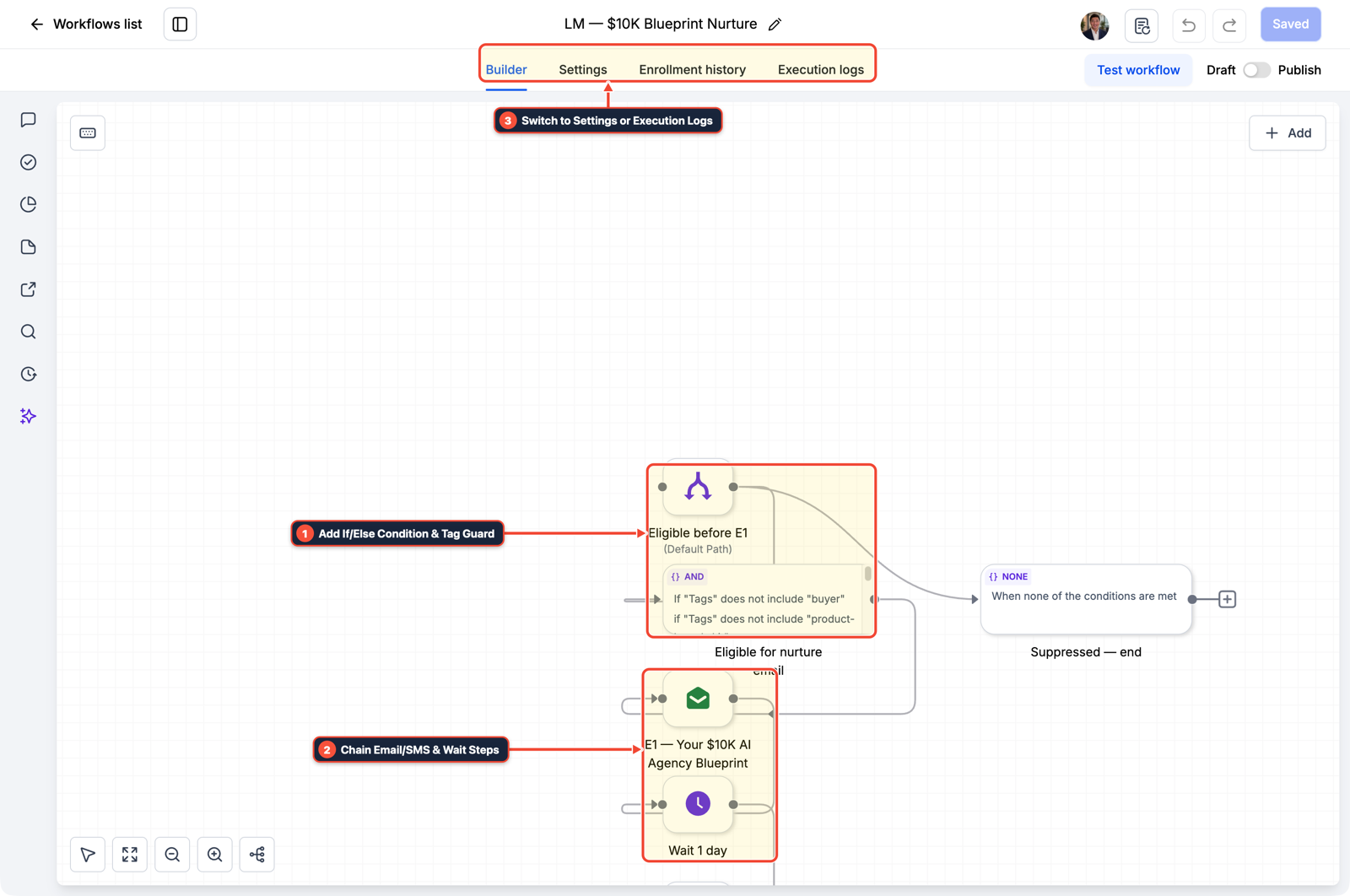
1Add If/Else Condition & Tag Guard 2Chain Priority & Wait Steps 3Switch to Settings or Execution Logs -
STEP 3In Conversations > Team Inbox (via workflow or API), log the email body and attachments as an Internal Comment: Write the subject, timestamp, plain-text body, and attachment URLs to the contact's conversation timeline as an internal note so your team sees the history without firing outbound
Customer Repliedworkflows.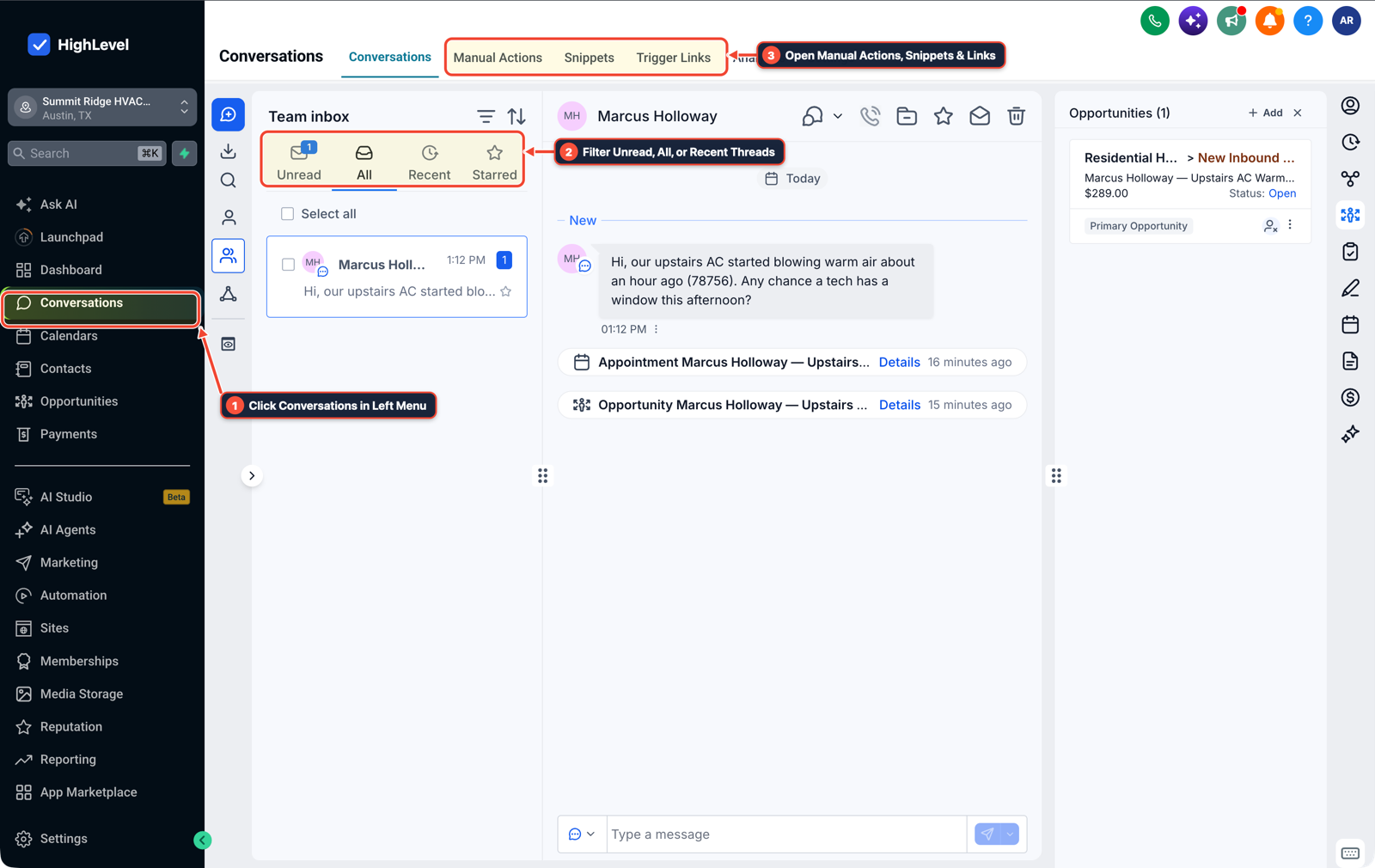
1Click Conversations in Left Menu 2Filter Unread, All, or Recent Threads 3Open Manual Actions, Snippets & Links
MODE: AGENT PROMPT
PASTE INTO CLAUDE CODE, CURSOR, CHATGPT, OR GOHIGHLEVEL ASK AI
AGENT PROMPT
Configure selective BCC and forwarded email logging for sub-account <YOUR_LOCATION_ID> without enabling full inbox sync:
1. In Automation > Workflows, create an Inbound Webhook workflow to receive parsed emails sent to the sub-account's BCC/forward tracker address.
2. Normalize and match the external client email address (excluding internal staff sender addresses on forwarded threads) to Create/Update Contact.
3. Log the email subject, body, and attachment links as an Internal Comment/Note on the contact record without triggering Customer Replied automations.
GHL-TOOLS MCP SERVER & CLI (DANIELHALLMAN.COM/MCP)
BUILDER + SUB-ACCOUNT TOOLS
# Inspect sub-account email settings and inbound webhook workflows via ghl-crm
ghl-crm workflows list --context <YOUR_CONTEXT> --location <YOUR_LOCATION_ID>
Official GHL MCP vs. ghl-tools: HighLevel’s official hosted MCP (services.leadconnectorhq.com/mcp) covers public v2 CRM records (contacts, opportunities, appointments, conversations). ghl-tools MCP complements it with workflow graph inspection & recipes, funnel/form builders, DNS/BIMI checks, and ghl-crm doctor audits.
Cause
- Founders, legal teams, and account executives often refuse to turn on full 2-way Gmail or Outlook sync in GoHighLevel because confidential HR, investor, or partner threads could appear inside the shared sub-account Conversations tab if that person is also a CRM contact.
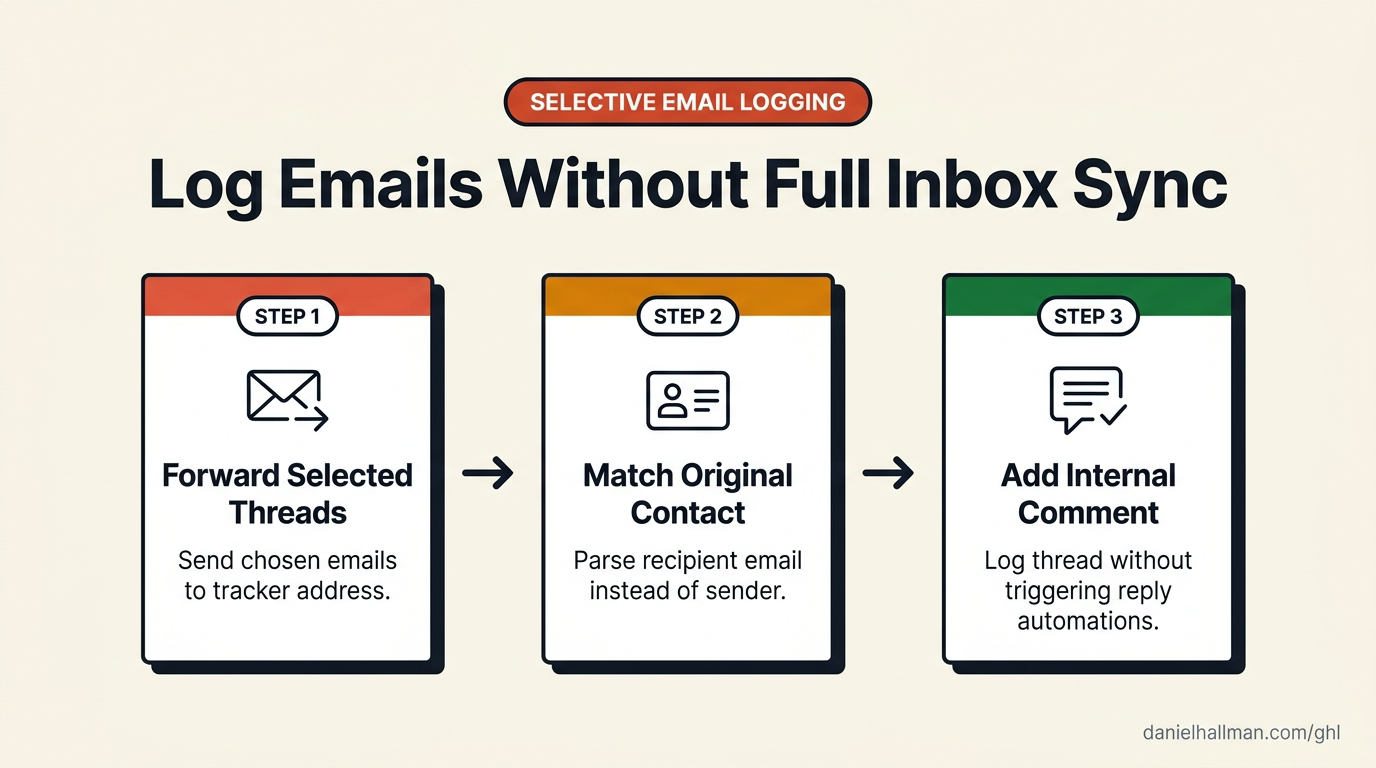
- They want to choose which emails get logged one thread at a time via BCC or Forward.
GoHighLevel Configuration
- Use a dedicated per-location forwarding/BCC address connected to an inbound email parser or webhook workflow.
- When an email arrives via BCC, match the
To:recipient - when a rep forwards a thread, parse the original sender/recipient from the forwarded header block (
From:/To:inside the body) so the note attaches to the client contact instead of the rep's own user record, and log it as an Internal Comment so it never triggersCustomer Repliedautomations.
GoHighLevel Menu Paths
| Step | Menu Path in GHL | Action |
|---|---|---|
| Step 1 | Settings > Email Services | Keep private executive inboxes off 2-way sync and set up a dedicated intake address: Leave personal Gmail/Outlook 2-way sync disabled for confidential mailboxes, and create a per-location tracker address (log@crm.yourdomain.com) that forwards inbound mail to your webhook endpoint. |
| Step 2 | Automation > Workflows | Parse the client email from BCC vs. |
| Step 3 | Conversations > Team Inbox | Log the email body and attachments as an Internal Comment: Write the subject, timestamp, plain-text body, and attachment URLs to the contact's conversation timeline as an internal note so your team sees the history without firing outbound Customer Replied workflows. |
DEFAULT SETUP VS. AUTOMATED WORKFLOW
Operational Comparison
Manual Admin Work Per Client
Lead-to-Booked-Job Conversion
Related Questions
- Why is my GoHighLevel Inbound Webhook not creating or updating contacts?
- Why is GoHighLevel still sending messages after a customer replies?
- How do you format data and run math in GoHighLevel Workflows without paying for n8n or Make?
- How do you keep cold email separate from your main business domain in GoHighLevel?
BUILD FASTER IN GOHIGHLEVEL · FREE TRIAL BONUSES + MCP SERVER
Build this directly inside your GoHighLevel sub-account
Connect Claude Code, Cursor, or OpenAI Codex to our ghl-tools MCP Server & Rust CLI to build workflows, forms, and funnels from your editor, or start your GoHighLevel plan through our partner link to unlock $612+ in ready-to-import kits (including GHL Workflow Architect Pack) and weekly live clinics.