GOHIGHLEVEL ANSWERS & PROMPTS: PLAYBOOK T45 · PRODUCTION VOICE AI INTERRUPTION & CALLBACK STATE
AUTHOR: DANIEL HALLMAN
KEYWORD: VOICE AI PRODUCTION
STEP-BY-STEP INSTRUCTIONS + ANNOTATED GHL SCREENSHOTS
Steps in GoHighLevel
-
STEP 1In AI Agents > Voice AI, strip all bullet lists from the prompt, cap every spoken response to 1 to 2 short sentences with one question per turn so caller interruptions recover cleanly, and add a Call Transfer action after two failed speech-recognition attempts.
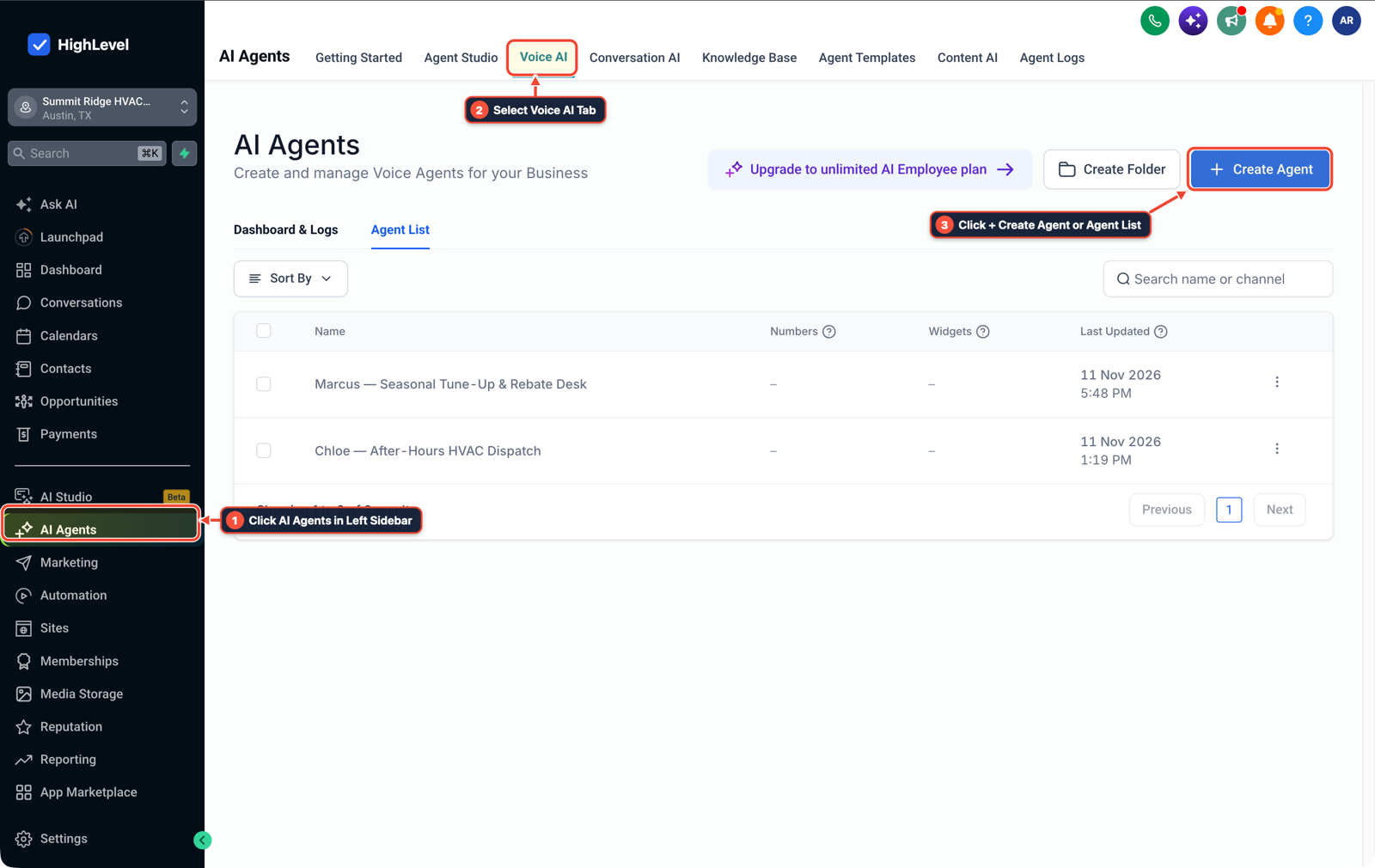
1Click AI Agents in Left Sidebar 2Select Voice AI Tab 3Click + Create Agent or Agent List -
STEP 2In Settings > Custom Fields, create contact fields for
Last Call Summary,Confirmed Service Need, andLast Voice Call Statusso post-call data saves directly onto the contact record.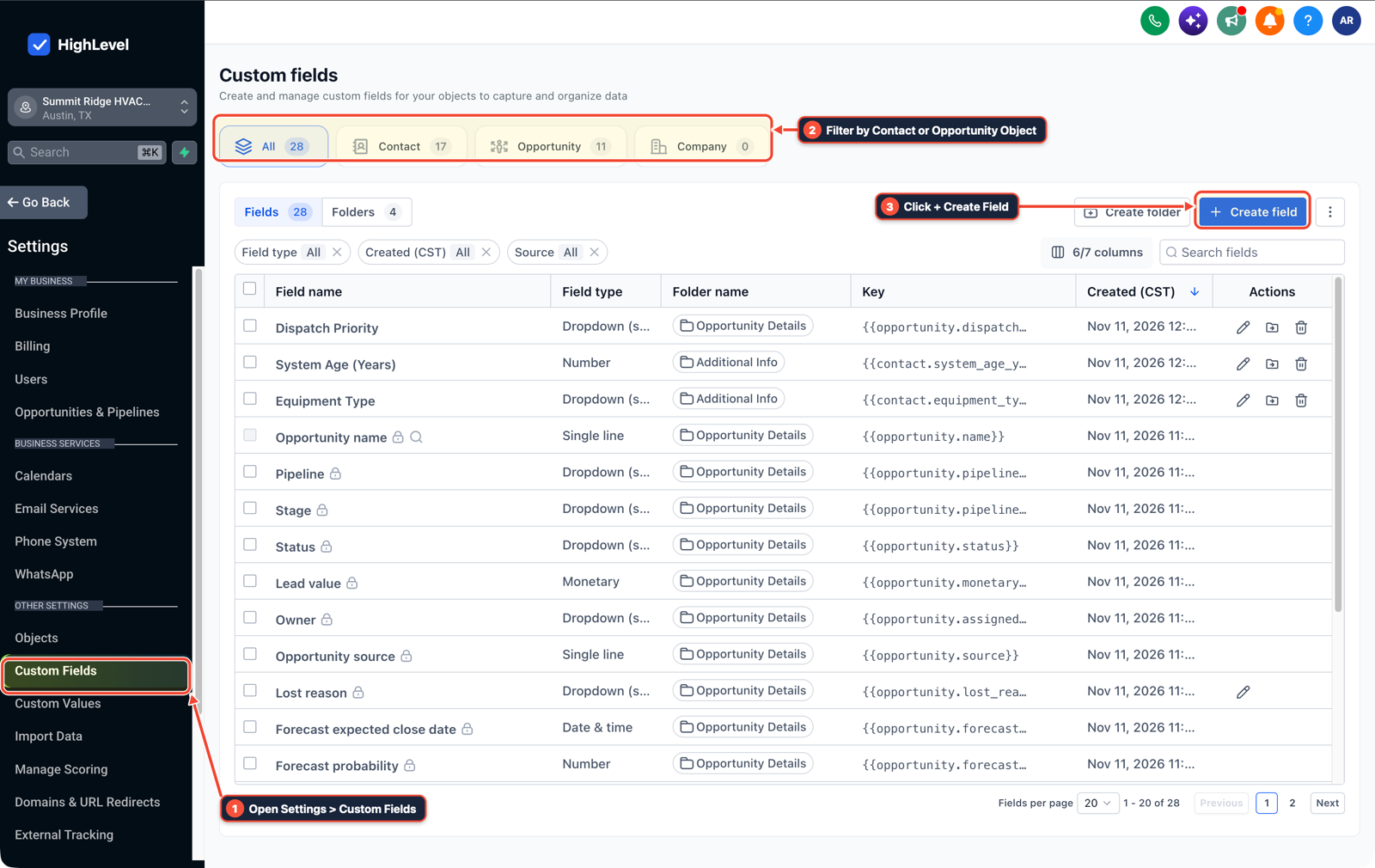
1Open Settings > Custom Fields 2Filter by Contact or Opportunity Object 3Click + Create Field -
STEP 3In Automation > Workflow > Settings (and Settings > Business Profile), leave Allow Multiple Opportunities unchecked (or use Create/Update Opportunity in your post-call workflow) so a caller who disconnects and calls back 2 minutes later updates their existing pipeline card instead of creating a duplicate outcome.
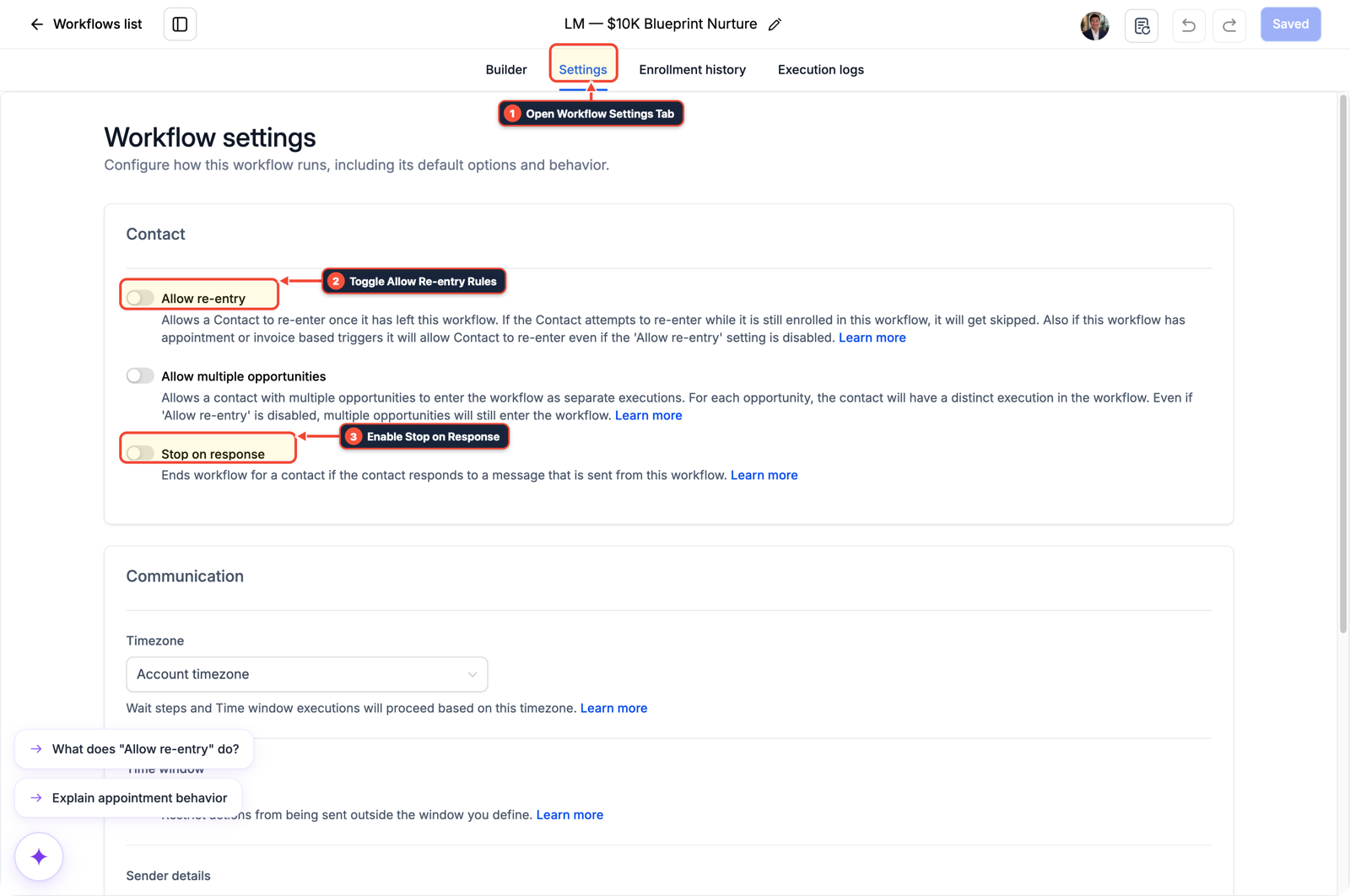
1Open Workflow Settings Tab 2Toggle Allow Re-entry Rules 3Enable Stop on Response
MODE: AGENT PROMPT
PASTE INTO CLAUDE CODE, CURSOR, CHATGPT, OR GOHIGHLEVEL ASK AI
AGENT PROMPT
Configure production Voice AI interruption handling and callback deduplication in sub-account <YOUR_LOCATION_ID>:
1. In AI Agents > Voice AI, shorten spoken prompt turns to 1-2 sentences with one question per turn and add a Call Transfer fallback after two unrecognized turns.
2. In Settings > Custom Fields, create contact fields for confirmed_service_need and last_call_summary.
3. In Automation > Workflow > Settings, configure the post-call workflow to update the existing opportunity card and contact fields rather than creating duplicate opportunities on callbacks.
GHL-TOOLS MCP SERVER & CLI (DANIELHALLMAN.COM/MCP)
BUILDER + SUB-ACCOUNT TOOLS
# Inspect custom fields and Voice AI post-call workflows in the sub-account
ghl-crm custom-fields list --context <YOUR_CONTEXT> --location <YOUR_LOCATION_ID>
ghl-crm workflows list --context <YOUR_CONTEXT> --location <YOUR_LOCATION_ID>
Official GHL MCP vs. ghl-tools: HighLevel’s official hosted MCP (services.leadconnectorhq.com/mcp) covers public v2 CRM records (contacts, opportunities, appointments, conversations). ghl-tools MCP complements it with workflow graph inspection & recipes, funnel/form builders, DNS/BIMI checks, and ghl-crm doctor audits.
Cause
- When an AI voice agent runs hundreds of calls a day, real callers talk over the bot, mumble on noisy cell connections, or hang up mid-call and call back two minutes later.
- If the voice prompt uses long multi-sentence blocks or the post-call workflow blindly runs Create Opportunity on every call event, callers get frustrated repeating themselves and the CRM fills up with duplicate pipeline cards.
GoHighLevel Configuration
- Configure AI Agents > Voice AI with 1 to 2 sentence spoken turns and a fast human transfer rule, store confirmed caller details in Settings > Custom Fields
- and use Update Opportunity with Allow Re-entry cooldowns in Automation > Workflow > Settings so repeat calls update the existing deal card.
GoHighLevel Menu Paths
| Step | Menu Path in GHL | Action |
|---|---|---|
| Step 1 | AI Agents > Voice AI | Strip all bullet lists from the prompt, cap every spoken response to 1 to 2 short sentences with one question per turn so caller interruptions recover cleanly, and add a Call Transfer action after two failed speech-recognition attempts. |
| Step 2 | Settings > Custom Fields | Create contact fields for Last Call Summary, Confirmed Service Need, and Last Voice Call Status so post-call data saves directly onto the contact record. |
| Step 3 | Automation > Workflow > Settings | In Automation > Workflow > Settings (and Settings > Business Profile), leave Allow Multiple Opportunities unchecked (or use Create/Update Opportunity in your post-call workflow) so a caller who disconnects and calls back 2 minutes later updates their existing pipeline card instead of creating a duplicate outcome. |
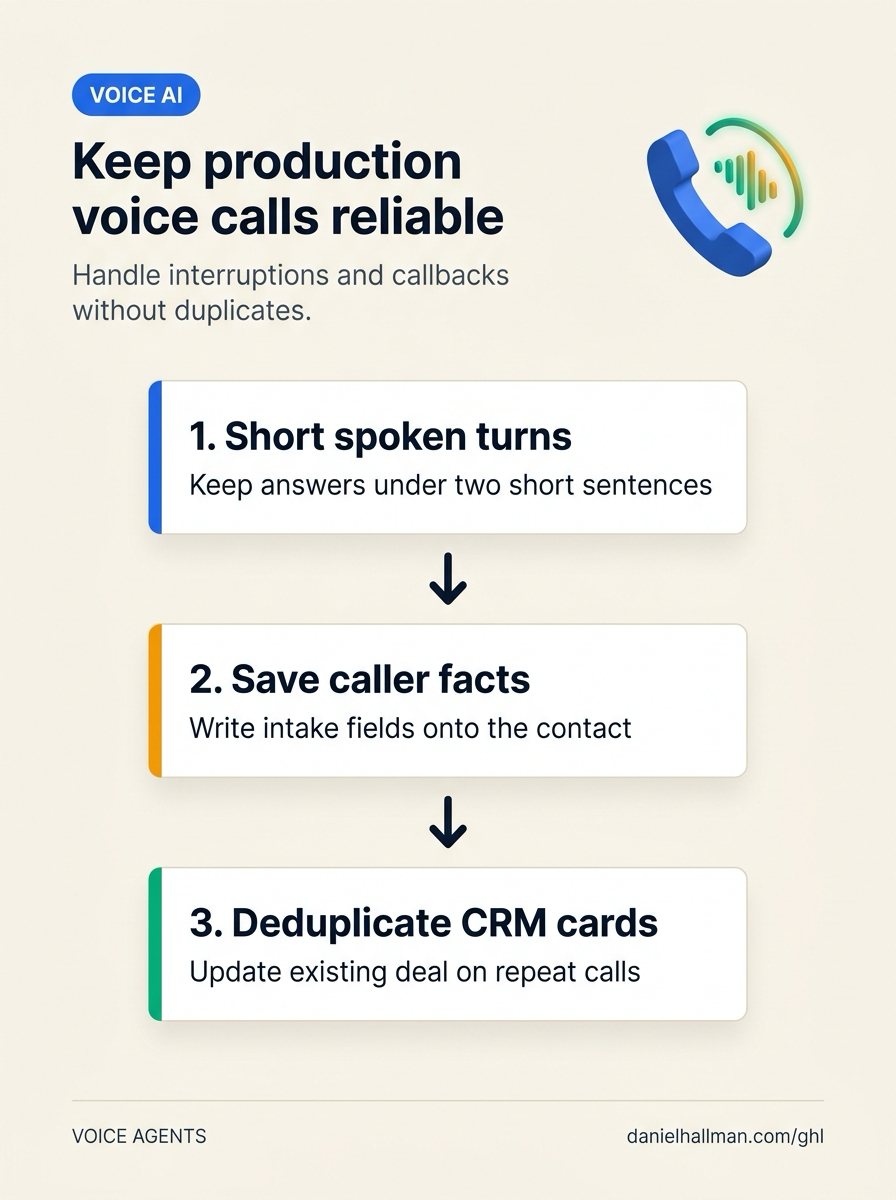
DEFAULT SETUP VS. AUTOMATED WORKFLOW
Operational Comparison
After-Hours & Missed Call Capture
Qualified Jobs Booked 24/7
Related Questions
- What Stops Clients From Buying AI Voice Agents (And How Do You Build Call Audit Trails in GoHighLevel)?
- How Do You Handle Multiple Orders and Opportunities for One Contact in a Single GoHighLevel Pipeline?
- What Skills and Stack Do You Actually Need to Start an AI Voice Receptionist Agency?
- Are White-Label AI Receptionist Margins Actually Worth It in GoHighLevel?
BUILD FASTER IN GOHIGHLEVEL · FREE TRIAL BONUSES + MCP SERVER
Build this directly inside your GoHighLevel sub-account
Connect Claude Code, Cursor, or OpenAI Codex to our ghl-tools MCP Server & Rust CLI to build workflows, forms, and funnels from your editor, or start your GoHighLevel plan through our partner link to unlock $612+ in ready-to-import kits (including GHL Production Voice AI & Callback Guard Kit) and weekly live clinics.