GOHIGHLEVEL ANSWERS & PROMPTS: PLAYBOOK T11 · EMAIL ROUTING & REPLY-TO DOMAINS
AUTHOR: DANIEL HALLMAN
KEYWORD: REPLY EMAIL
STEP-BY-STEP INSTRUCTIONS + ANNOTATED GHL SCREENSHOTS
Steps in GoHighLevel
-
STEP 1In Settings > Email Services > Reply & Forward Settings, enter your primary business email (such as
hello@yourdomain.com) in Reply Address and add your inbox in Forwarding Address so replies go to your mailbox while still logging in HighLevel.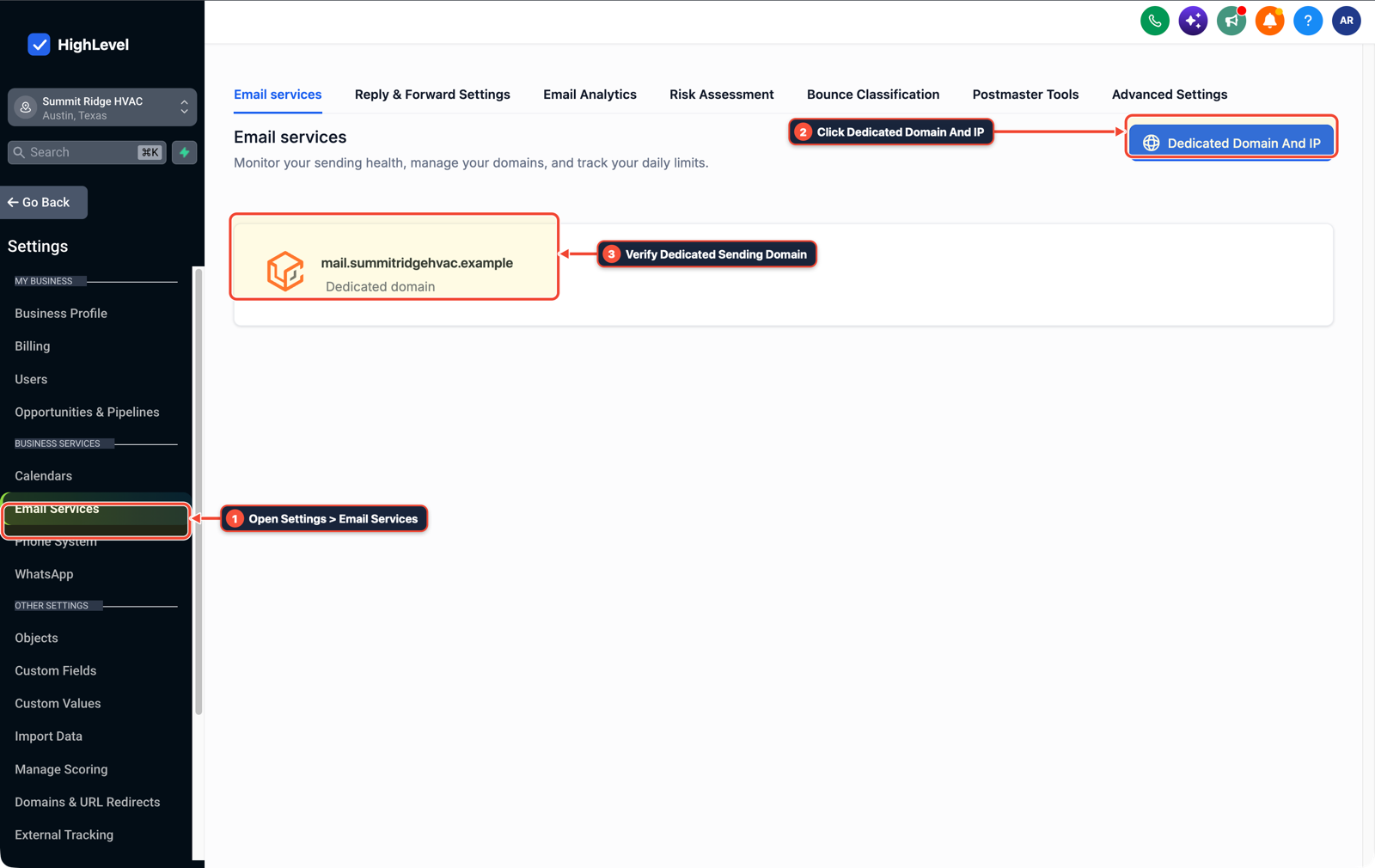
1Open Settings > Email Services 2Click Dedicated Domain And IP 3Verify Dedicated Sending Domain -
STEP 2In Automation > Workflows, open your Send Email actions and set From Email to
{{custom_values.sender_email}}(or your root domain address) so individual workflow steps do not fall back to the rawlc.subdomain.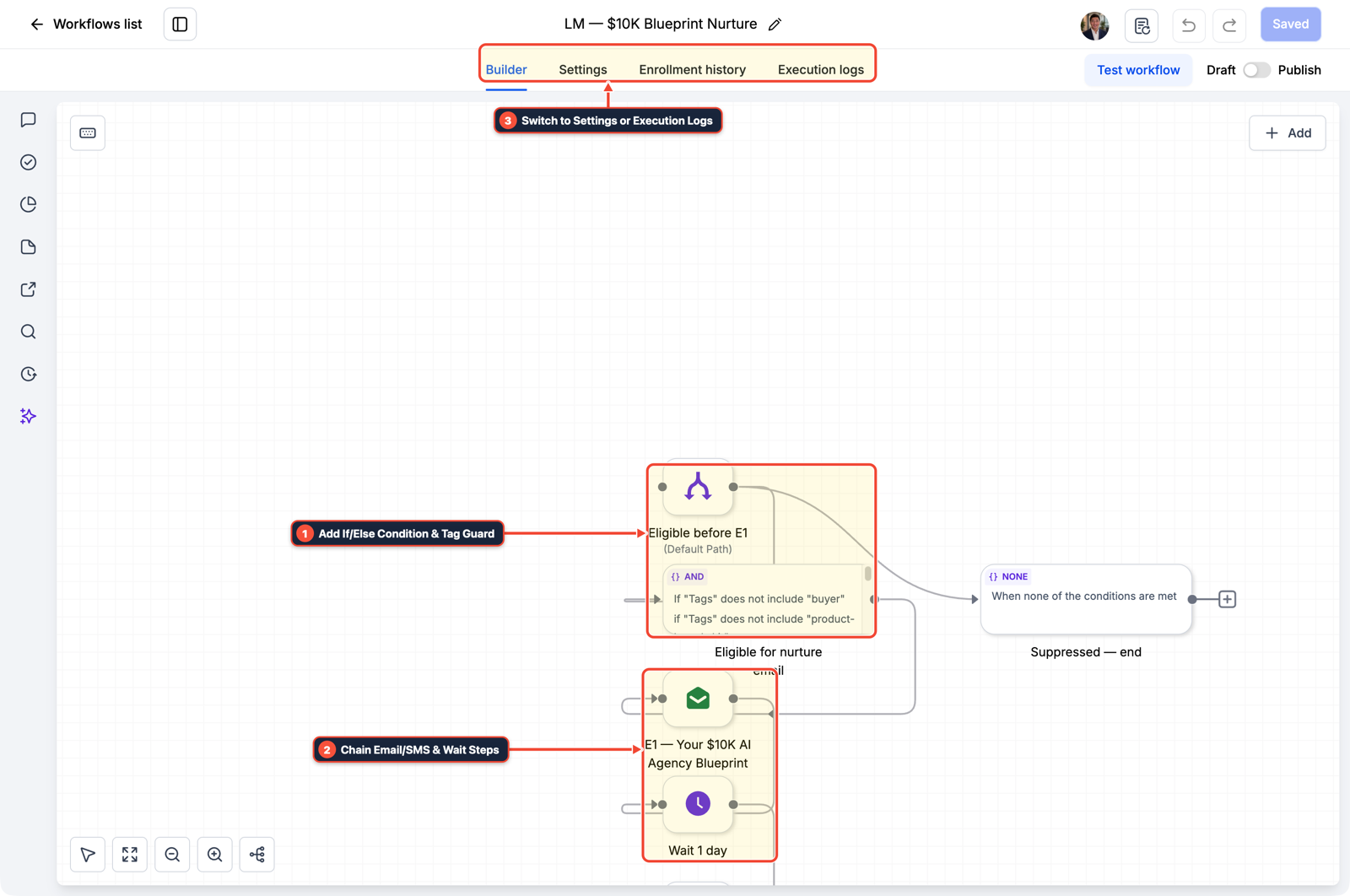
1Add If/Else Condition & Tag Guard 2Chain Priority & Wait Steps 3Switch to Settings or Execution Logs -
STEP 3In Conversations > Team Inbox, reply to a live test email from an external account and confirm the message appears on the contact's activity timeline and forwards to your inbox.
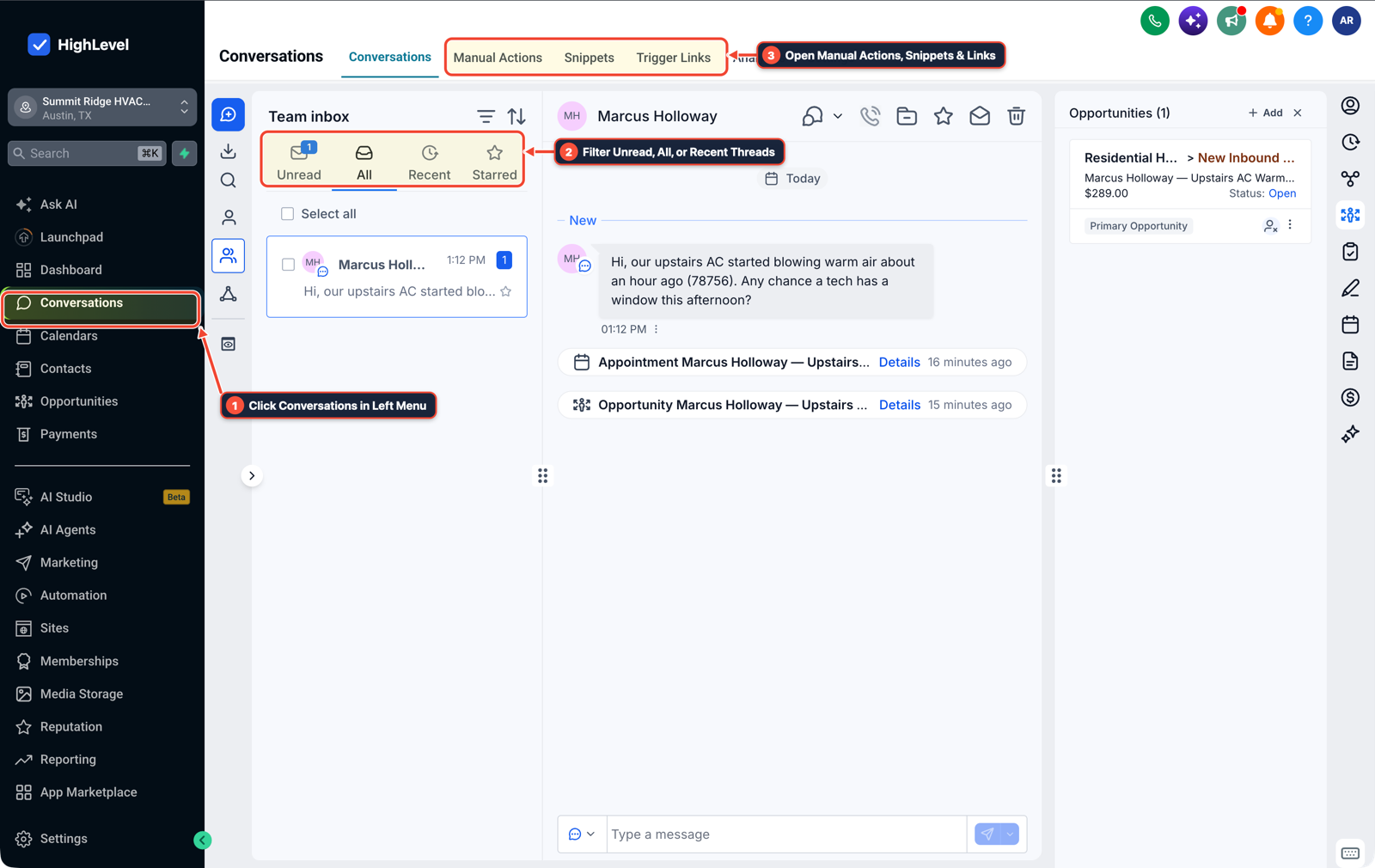
1Click Conversations in Left Menu 2Filter Unread, All, or Recent Threads 3Open Manual Actions, Snippets & Links
MODE: AGENT PROMPT
PASTE INTO CLAUDE CODE, CURSOR, CHATGPT, OR GOHIGHLEVEL ASK AI
AGENT PROMPT
Fix lc. subdomain reply-to headers in sub-account <YOUR_LOCATION_ID>:
1. In Settings > Email Services > Reply & Forward Settings, set Reply Address to the primary business email and configure Forwarding Address.
2. In Settings > Email Services > Dedicated Domain and IP, verify MX records are active on the lc. sending subdomain so inbound parse delivers replies into Conversations.
3. In Automation > Workflows, update Send Email actions to use {{custom_values.sender_email}} for From Email.
GHL-TOOLS MCP SERVER & CLI (DANIELHALLMAN.COM/MCP)
BUILDER + SUB-ACCOUNT TOOLS
# Audit custom values and email workflows in the target sub-account
ghl-agency custom-values-audit --context <YOUR_CONTEXT> --location <YOUR_LOCATION_ID>
ghl-crm workflows list --context <YOUR_CONTEXT> --location <YOUR_LOCATION_ID>
Official GHL MCP vs. ghl-tools: HighLevel’s official hosted MCP (services.leadconnectorhq.com/mcp) covers public v2 CRM records (contacts, opportunities, appointments, conversations). ghl-tools MCP complements it with workflow graph inspection & recipes, funnel/form builders, DNS/BIMI checks, and ghl-crm doctor audits.
Cause
- After verifying a dedicated sending subdomain like
lc.yourdomain.com.au, test emails land in the inbox, but clicking Reply addresses the response toreply@lc.yourdomain.com.au. - If MX records are missing on that subdomain or if you want clients to see a familiar
hello@yourdomain.com.auaddress when they reply, leaving Reply & Forward Settings blank confuses recipients and can drop inbound replies.
GoHighLevel Configuration
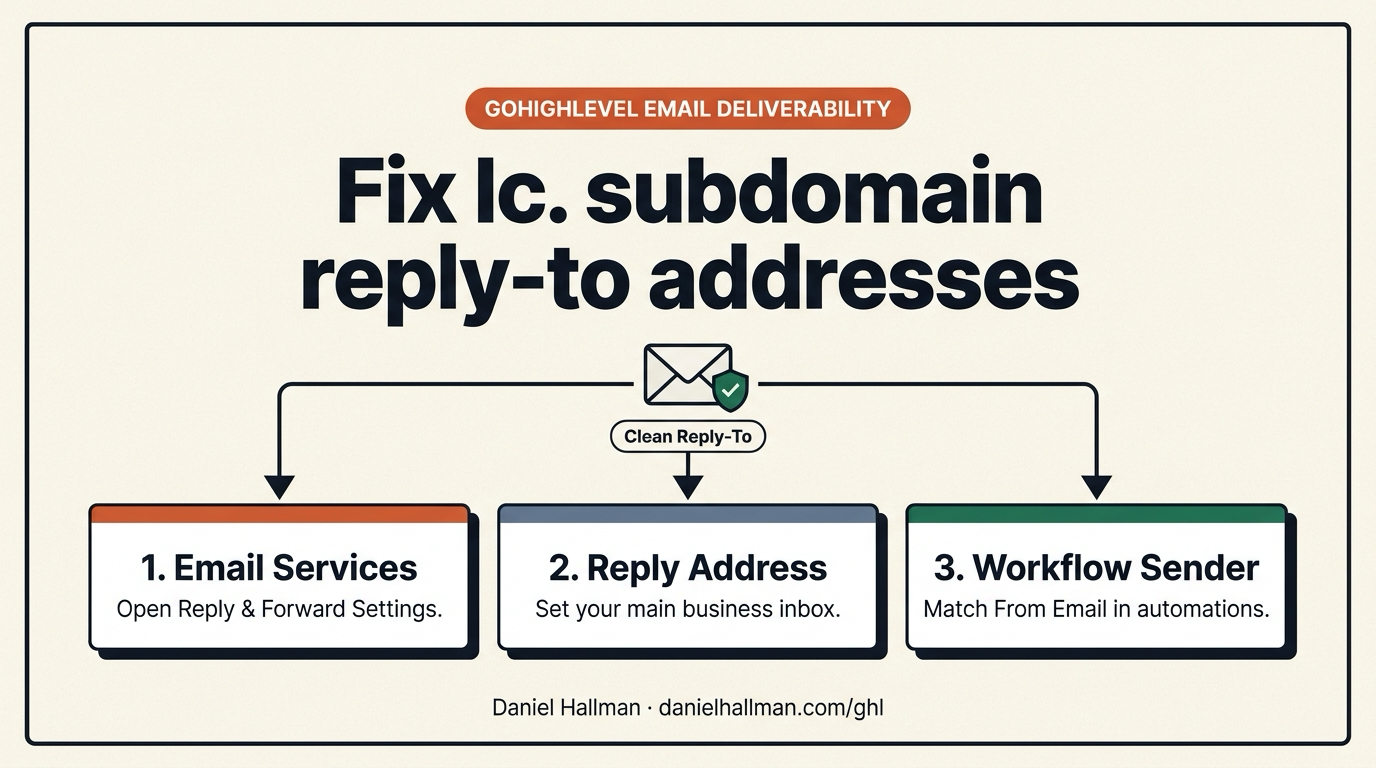
- Configure a clean Reply Address and Forwarding Address under Settings > Email Services > Reply & Forward Settings, confirm MX records are verified on your
lc.sending subdomain - and standardize From Email across workflow actions with a Custom Value.
GoHighLevel Menu Paths
| Step | Menu Path in GHL | Action |
|---|---|---|
| Step 1 | Settings > Email Services > Reply & Forward Settings | Enter your primary business email (such as hello@yourdomain.com) in Reply Address and add your inbox in Forwarding Address so replies go to your mailbox while still logging in HighLevel. |
| Step 2 | Automation > Workflows | Open your Send Email actions and set From Email to {{custom_values.sender_email}} (or your root domain address) so individual workflow steps do not fall back to the raw lc. subdomain. |
| Step 3 | Conversations > Team Inbox | Reply to a live test email from an external account and confirm the message appears on the contact's activity timeline and forwards to your inbox. |
DEFAULT SETUP VS. AUTOMATED WORKFLOW
Operational Comparison
Manual Admin Work Per Client
Lead-to-Booked-Job Conversion
Related Questions
- How do you keep cold email separate from your main business domain in GoHighLevel?
- How do you isolate custom tracking domains in GoHighLevel so links don't trigger spam filters?
- Why won't my GoDaddy DNS CNAME record or DMARC verify in GoHighLevel?
- Why Is My GoHighLevel Workflow Not Sending Notifications When a Customer Replies?
BUILD FASTER IN GOHIGHLEVEL · FREE TRIAL BONUSES + MCP SERVER
Build this directly inside your GoHighLevel sub-account
Connect Claude Code, Cursor, or OpenAI Codex to our ghl-tools MCP Server & Rust CLI to build workflows, forms, and funnels from your editor, or start your GoHighLevel plan through our partner link to unlock $612+ in ready-to-import kits (including GHL Email Deliverability & Reply Routing Pack) and weekly live clinics.