GOHIGHLEVEL ANSWERS & PROMPTS: PLAYBOOK T09 · UNIFIED INBOX & CHAT
AUTHOR: DANIEL HALLMAN
KEYWORD: CONVERSATION
MODE: AGENT PROMPT
PASTE INTO CLAUDE CODE, CURSOR, CHATGPT, OR GOHIGHLEVEL ASK AI
AGENT PROMPT
Configure Conversation AI on the live chat widget with human handoff for sub-account <YOUR_LOCATION_ID>:
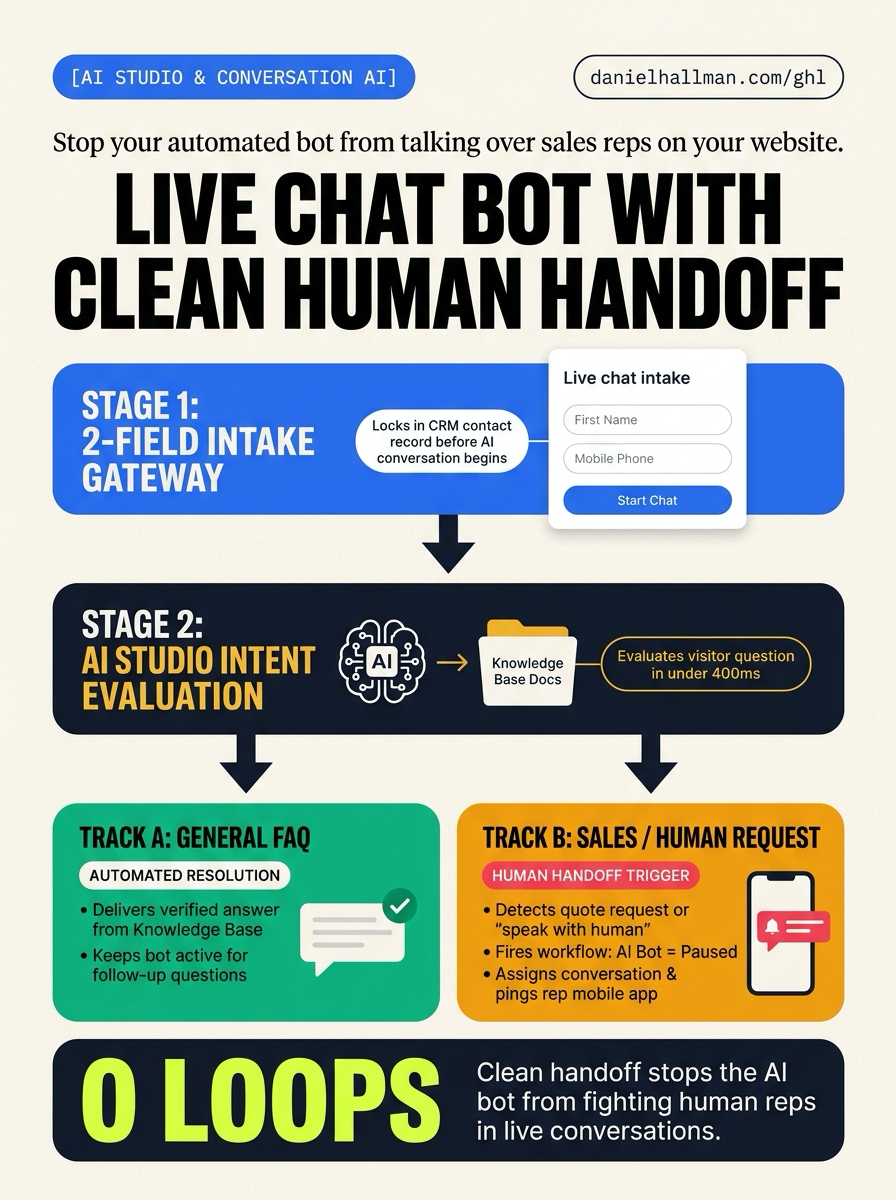
1. In Sites > Chat Widget, verify the live chat widget requires First Name and Mobile Phone before conversation start.
2. In Settings > Conversation AI, enable the AI bot for the Live Chat channel with Knowledge Base documentation attached.
3. In Automation > Workflows, create a handoff workflow triggered by Customer Replied on Live Chat matching quote or human escalation intents that updates AI Bot State to Paused, assigns the conversation to an on-call rep, and sends a mobile push notification.
GHL-TOOLS MCP SERVER & CLI (DANIELHALLMAN.COM/MCP)
BUILDER + SUB-ACCOUNT TOOLS
# 1. Inspect live chat and Conversation AI settings via ghl-crm MCP
{
  "tool": "chat_widget_get_settings",
  "arguments": {
    "location_id": "<YOUR_LOCATION_ID>"
  }
}

# 2. Or configure Conversation AI handoff workflow via ghl-crm CLI
ghl-crm chat-widget-setup --location-id <YOUR_LOCATION_ID> --enable-conversation-ai --handoff-intent "quote,human,representative" --assign-user "<USER_ID>"
Official GHL MCP vs. ghl-tools: HighLevel’s official hosted MCP (services.leadconnectorhq.com/mcp) covers public v2 CRM records (contacts, opportunities, appointments, conversations). ghl-tools MCP complements it with workflow graph inspection & recipes, funnel/form builders, DNS/BIMI checks, and ghl-crm doctor audits.
STEP-BY-STEP INSTRUCTIONS + ANNOTATED GHL SCREENSHOTS
Steps in GoHighLevel
-
STEP 1Require Contact Info in Chat Widget Settings: In Sites > Chat Widget, open the Chat Type tab, select Live Chat, and toggle on Form Fields requiring both
First NameandMobile Phonebefore the message prompt opens, ensuring every inquiry is saved as a verified contact in HighLevel.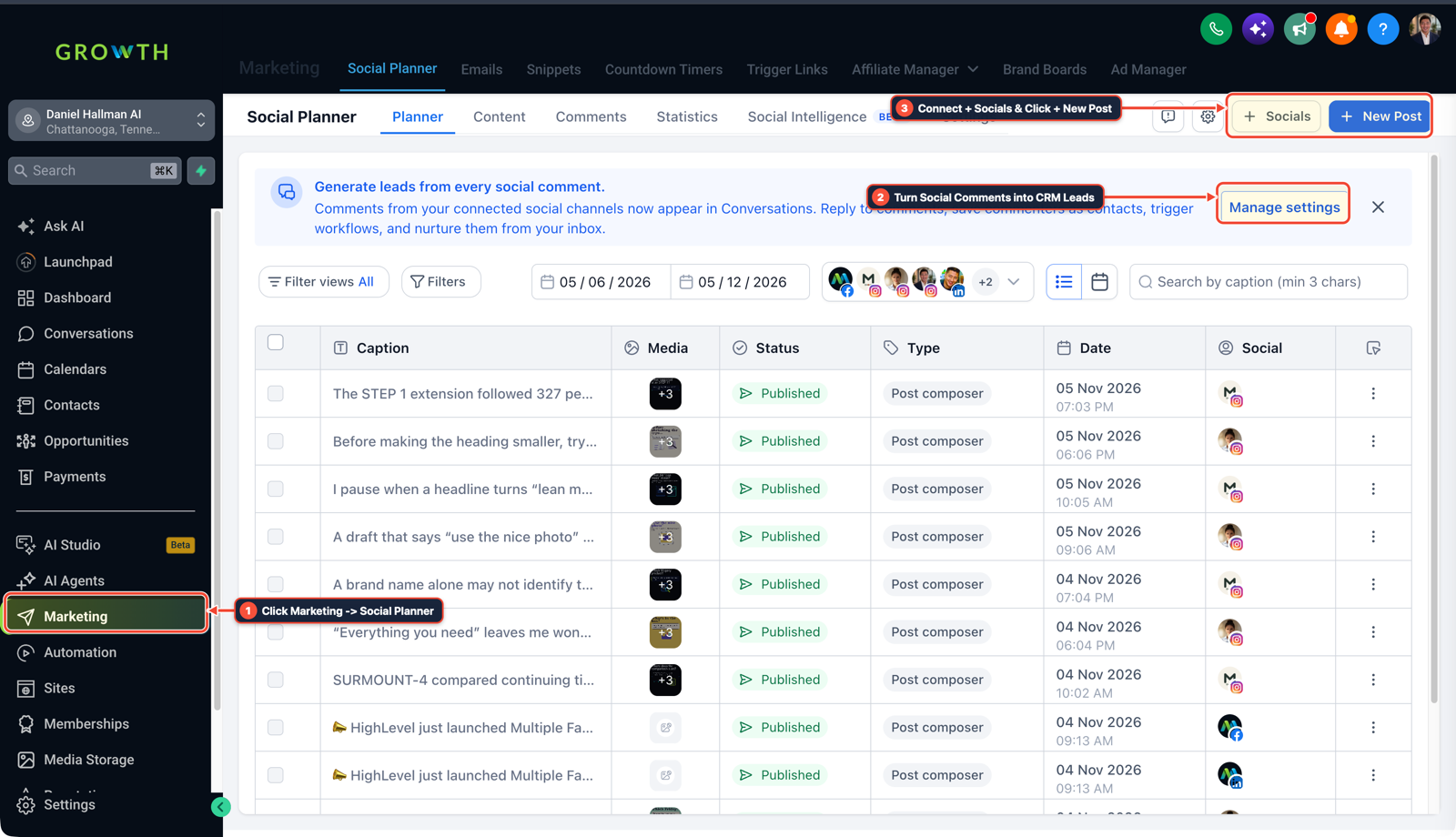
1Click Marketing > Social Planner 2Turn Social Comments into CRM Leads 3Connect + Socials & Click + New Post - STEP 2Connect AI Studio Bot in Conversation AI: In Settings > Conversation AI, open the Bot Settings tab, select your bot model, set the channel to Live Chat, and link your verified business knowledge base URLs or Google Docs so the bot answers questions with confirmed business details.
-
STEP 3Build the Human Handoff Workflow: In Automation > Workflows, create a workflow triggered by Customer Replied on the
Live Chatchannel where the message contains intent keywords (such asquote,pricing,speak to human,representative). Add an Update Contact Field action settingAI Bot StatetoPaused, add an Assign to User step for your sales rep, and send an Internal Notification via mobile app push.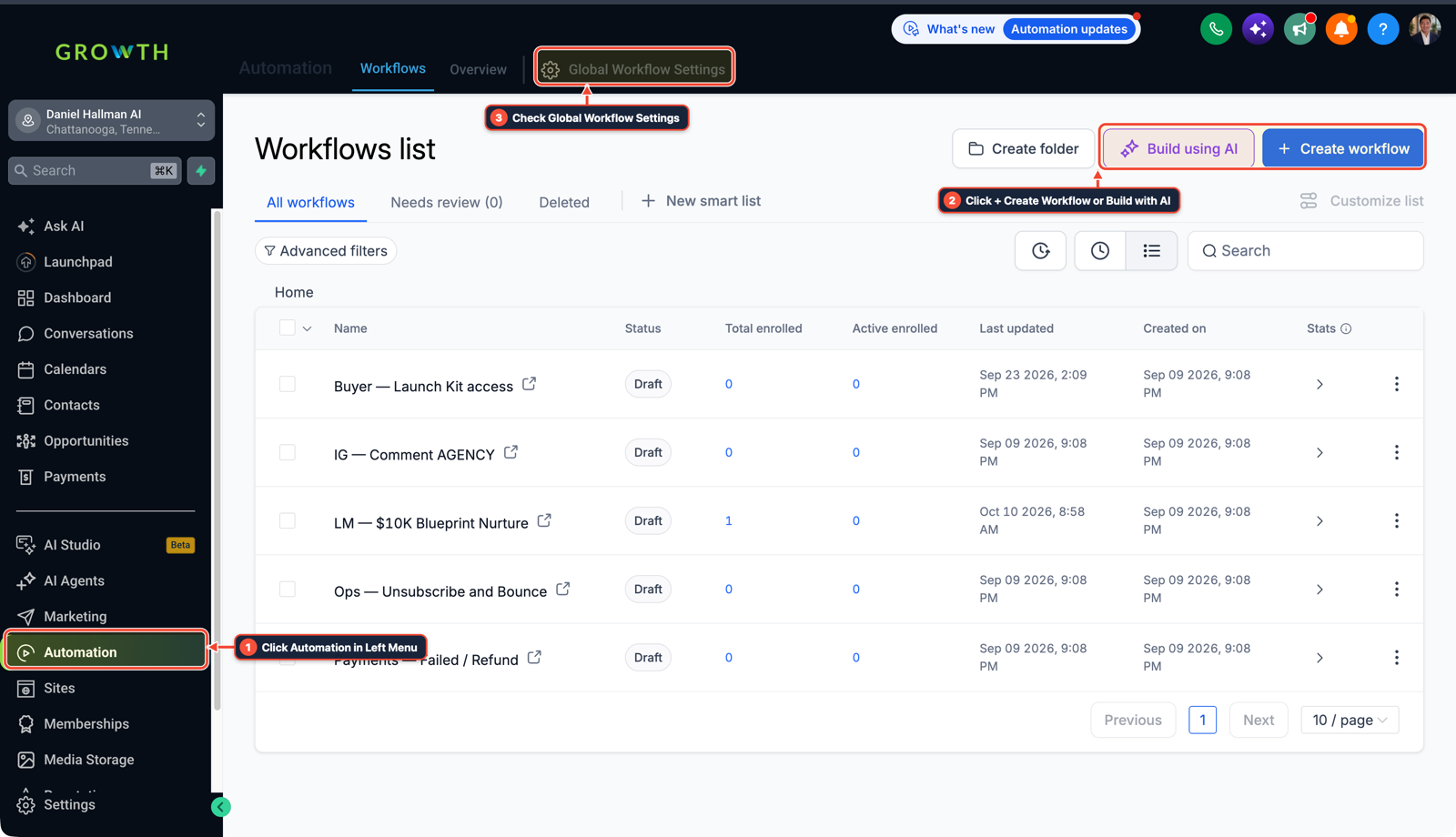
1Click Automation in Left Menu 2Click + Create Workflow or Build with AI 3Check Global Workflow Settings
Cause
- When you enable Conversation AI or AI Studio directly on a website chat widget without handoff rules, the bot attempts to answer every subsequent message indefinitely.
- If a prospect asks for a custom quote or a human rep responds inside Conversations, the bot continues firing replies over the human agent, creating contradictory answers and frustrating the visitor.
GoHighLevel Configuration
- Configure a 3-stage live chat architecture: require First Name and Mobile Phone in the chat widget greeting to lock in a CRM contact record, connect Conversation AI to answer standard knowledge-base FAQs automatically
- and deploy a trigger-based workflow that pauses the AI bot, assigns the thread to a team member
- and sends a push notification to the LeadConnector mobile app whenever the visitor requests a sales conversation or asks for a human.
GoHighLevel Menu Paths
| Step | Menu Path in GHL | Action |
|---|---|---|
| Step 1 | Sites > Chat Widget | Open the Chat Type tab, select Live Chat, and toggle on Form Fields requiring both First Name and Mobile Phone before the message prompt opens, ensuring every inquiry is saved as a verified contact in HighLevel. |
| Step 2 | Settings > Conversation AI | Open the Bot Settings tab, select your bot model, set the channel to Live Chat, and link your verified business knowledge base URLs or Google Docs so the bot answers questions with confirmed business details. |
| Step 3 | Automation > Workflows | Create a workflow triggered by Customer Replied on the Live Chat channel where the message contains intent keywords (such as quote, pricing, speak to human, representative). |
DEFAULT SETUP VS. AUTOMATED WORKFLOW
Operational Comparison
Manual Admin Work Per Client
Lead-to-Booked-Job Conversion
Related Questions
- How do you stop GoHighLevel Conversation AI from making up prices or looping on SMS?
- How do you stop GoHighLevel chat bots from replying after a customer texts STOP?
- How do you set up Instagram and Facebook Comment-to-DM in GoHighLevel?
- How do you format data and run math in GoHighLevel Workflows without paying for n8n or Make?
BUILD FASTER IN GOHIGHLEVEL · FREE TRIAL BONUSES + MCP SERVER
Build this directly inside your GoHighLevel sub-account
Connect Claude Code, Cursor, or OpenAI Codex to our ghl-tools MCP Server & Rust CLI to build workflows, forms, and funnels from your editor, or start your GoHighLevel plan through our partner link to unlock $612+ in ready-to-import kits (including GHL Voice & Conversation AI Stack ($47 — or Free with Trial)) and weekly live clinics.