GOHIGHLEVEL ANSWERS & PROMPTS: PLAYBOOK T08 · WORKFLOWS & AUTOMATION
AUTHOR: DANIEL HALLMAN
KEYWORD: DAILY AI
STEP-BY-STEP INSTRUCTIONS + ANNOTATED GHL SCREENSHOTS
Steps in GoHighLevel
-
STEP 1Capture incoming documents with a standard trigger: In Automation > Workflows, click + Create Workflow and start from scratch. Add an Inbound Webhook or Form Submitted trigger to capture incoming PDFs or emails, store the raw text in a custom contact field like
{{contact.pending_document_text}}, and assign a status tag likeai-pending-review.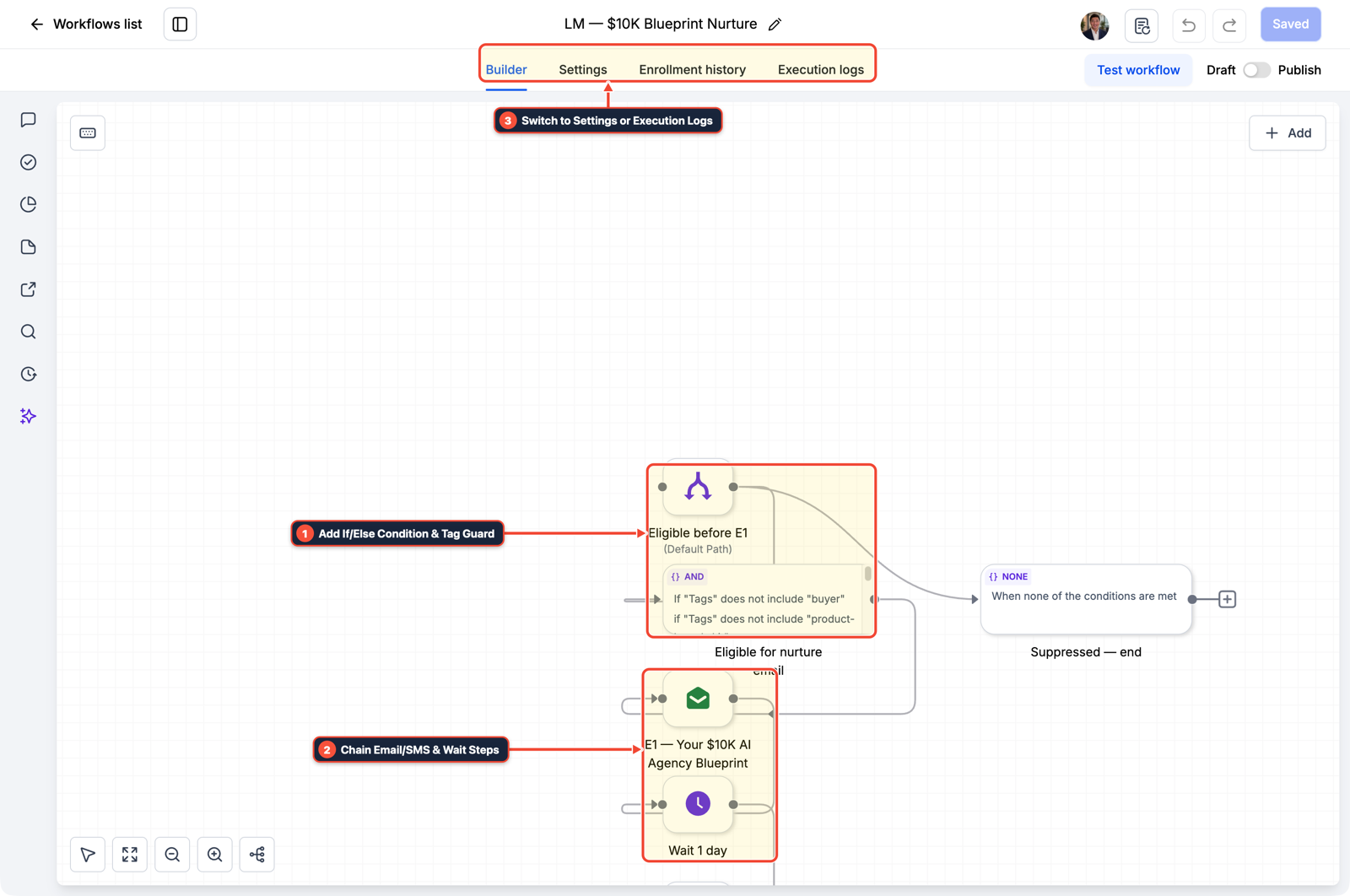
1Add If/Else Condition & Tag Guard 2Chain Email/SMS & Wait Steps 3Switch to Settings or Execution Logs -
STEP 2Extract structured fields with an isolated AI step: Add a Custom Webhook or AI Action step that sends the stored text with a strict JSON format requesting only required keys (such as invoice date, vendor name, line items, and total amount). Save the returned values into dedicated contact custom fields instead of letting the model edit tables directly.
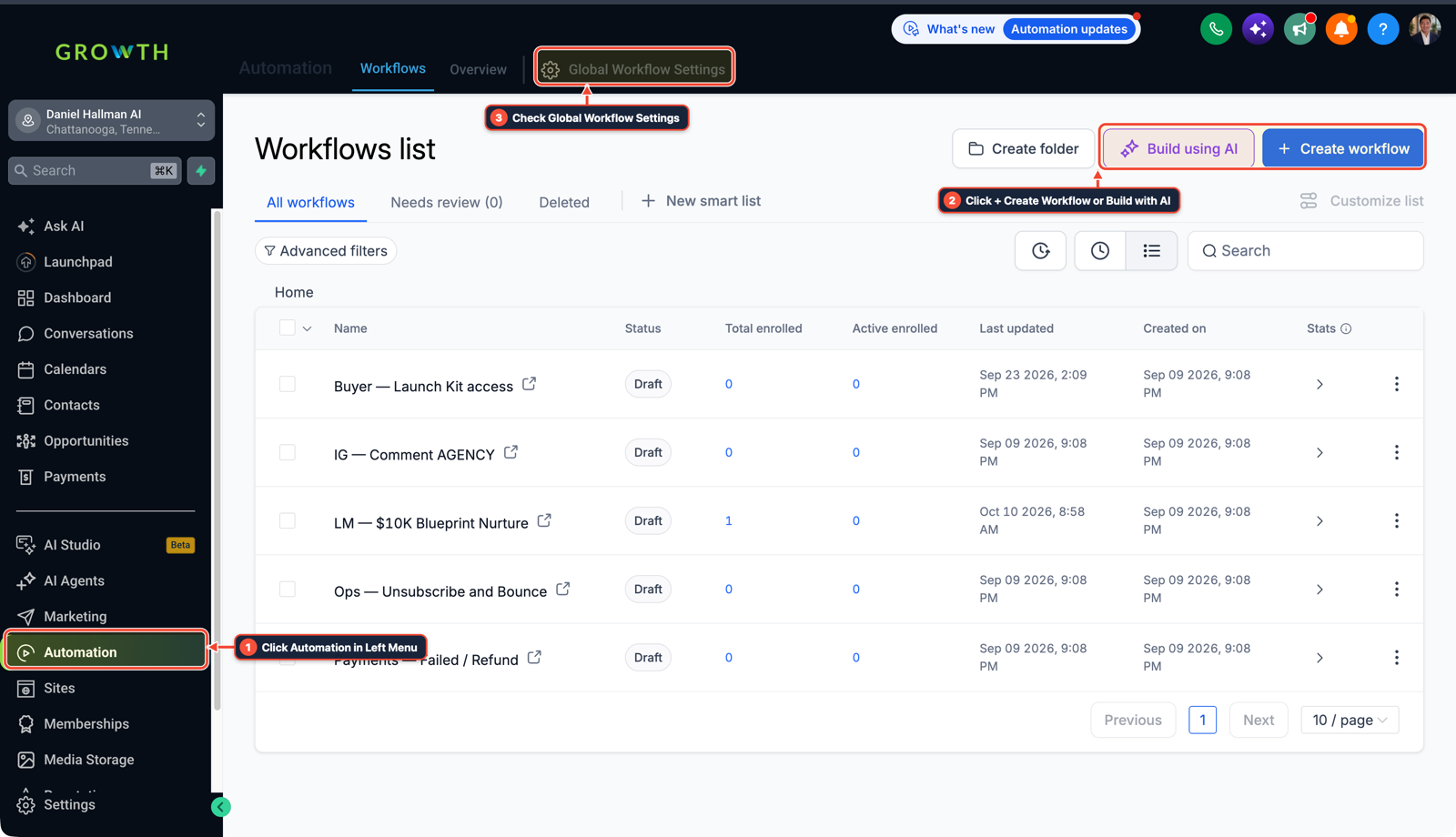
1Click Automation in Left Menu 2Click + Create Workflow or Build with AI 3Check Global Workflow Settings -
STEP 3Add a phone approval checkpoint before sending: Add an Internal Notification action to send an SMS or mobile app push to your phone with the extracted summary and a quick approval tag. Add an If/Else condition that only sends the client email when the contact has the
approved-to-sendtag; otherwise, keep the draft queued for manual review.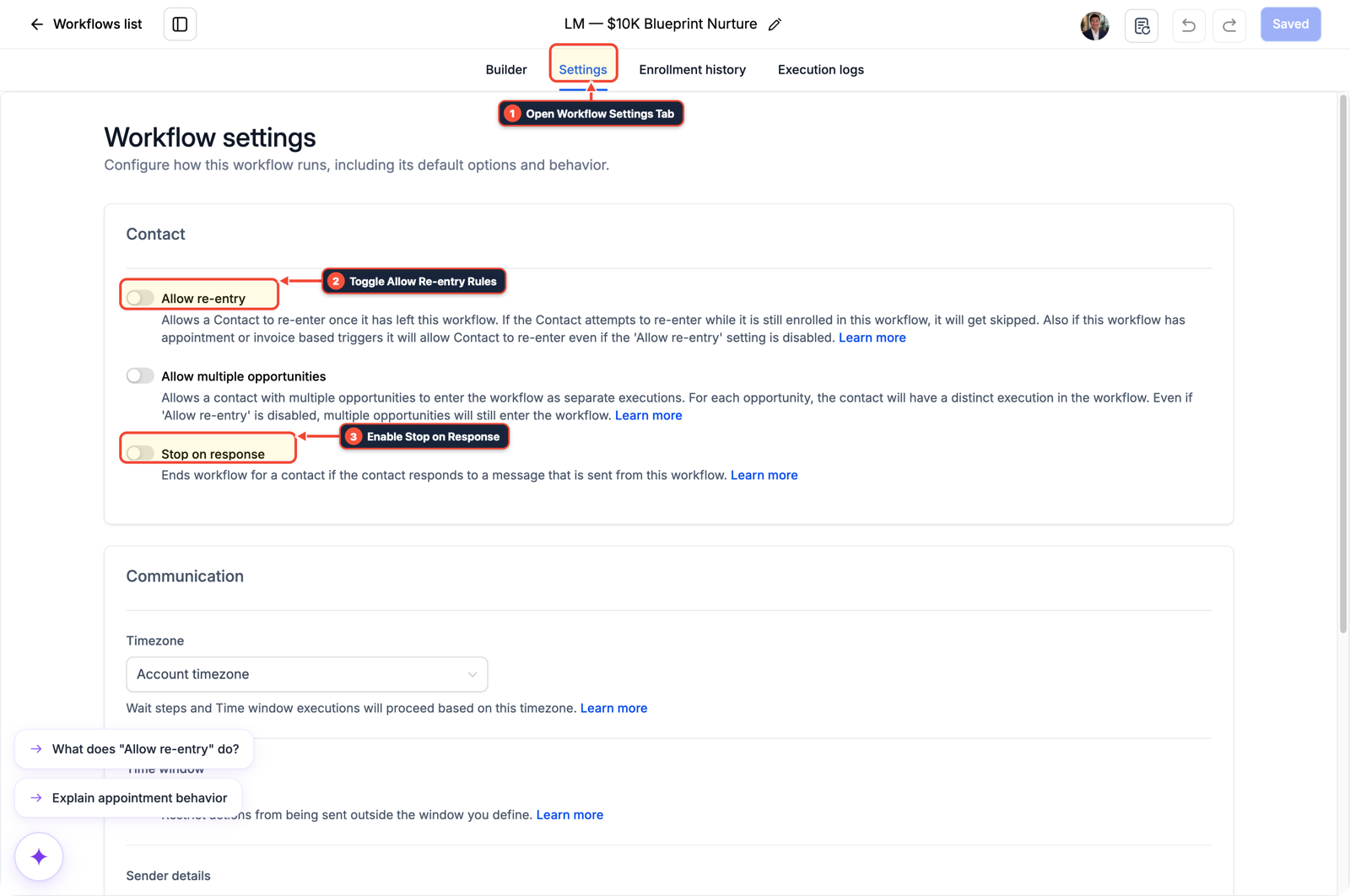
1Open Workflow Settings Tab 2Toggle Allow Re-entry Rules 3Enable Stop on Response
MODE: AGENT PROMPT
PASTE INTO CLAUDE CODE, CURSOR, CHATGPT, OR GOHIGHLEVEL ASK AI
AGENT PROMPT
Set up an everyday AI task automation pipeline for our sub-account (<YOUR_LOCATION_ID>):
1. In Automation > Workflows, create a workflow triggered by Inbound Webhook or Form Submitted to capture incoming files and store raw text in {{contact.pending_document_text}}.
2. Add an isolated AI Action to extract structured fields (invoice date, vendor, total amount) into dedicated contact custom fields.
3. Add an Internal Notification step to push the extracted summary to our phone, with an If/Else branch that waits for an approval tag before sending client confirmation emails.
GHL-TOOLS MCP SERVER & CLI (DANIELHALLMAN.COM/MCP)
BUILDER + SUB-ACCOUNT TOOLS
# Inspect existing workflows and custom fields via ghl-crm
ghl-crm workflows list --context <YOUR_CONTEXT> --location <YOUR_LOCATION_ID>
Official GHL MCP vs. ghl-tools: HighLevel’s official hosted MCP (services.leadconnectorhq.com/mcp) covers public v2 CRM records (contacts, opportunities, appointments, conversations). ghl-tools MCP complements it with workflow graph inspection & recipes, funnel/form builders, DNS/BIMI checks, and ghl-crm doctor audits.
Cause
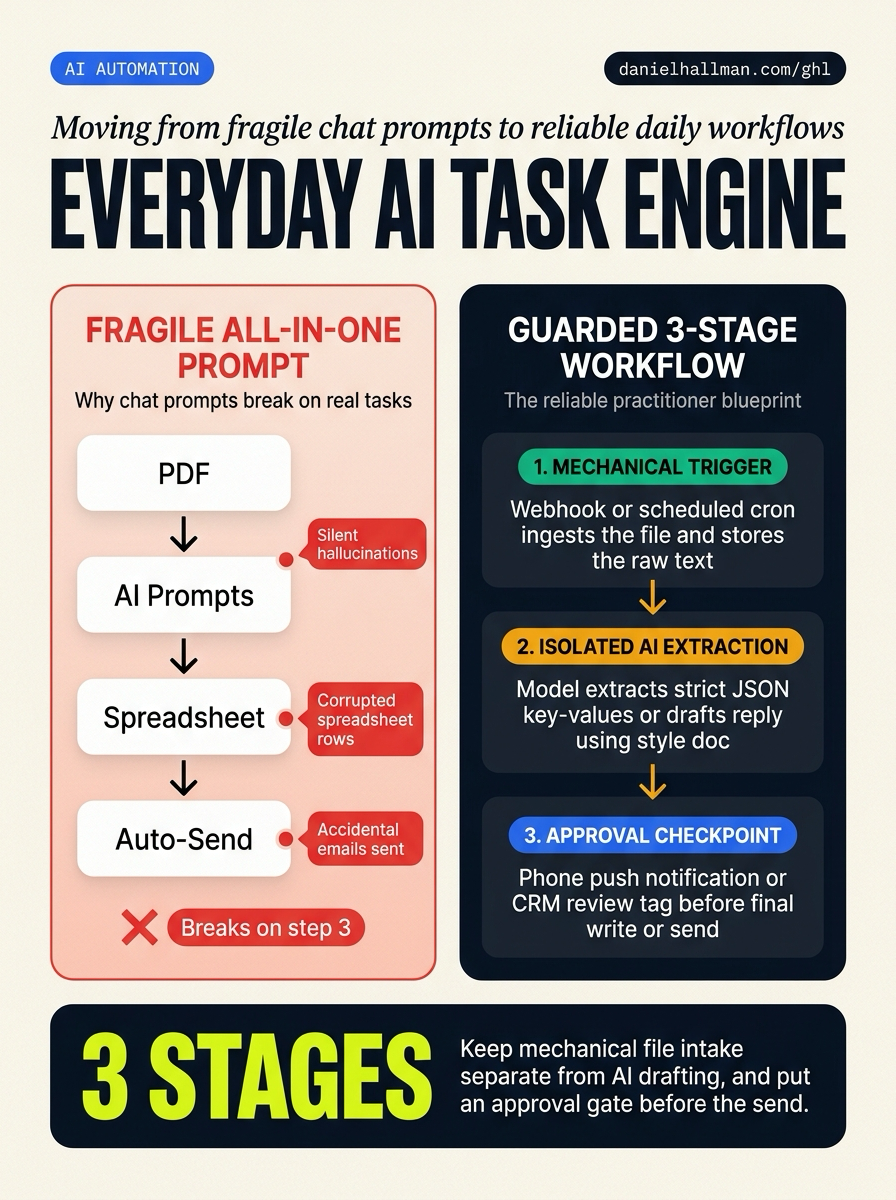
- Most people try to automate everyday tasks by pasting an entire multi-step job into an LLM prompt ('read this PDF, log the totals in my sheet, and email the client').
- When the model hallucinates a number, drops a spreadsheet row, or writes an unreviewed message, the routine breaks and takes longer to fix than doing the work manually.
GoHighLevel Configuration
- Separate the file intake and data storage from the AI step.
- Use a standard workflow trigger to capture documents and save the raw text.
- Call the model with a strict field list for extraction only, saving values into custom fields.
- Then add an approval step to send an alert to your phone so you confirm the draft before the final email leaves.
GoHighLevel Menu Paths
| Step | Menu Path in GHL | Action |
|---|---|---|
| Step 1 | Automation > Workflows | Click + Create Workflow and start from scratch. |
| Step 2 | Automation > Workflows > + Create Workflow | Add a Custom Webhook or AI Action step that sends the stored text with a strict JSON format requesting only required keys (such as invoice date, vendor name, line items, and total amount). |
| Step 3 | Automation > Workflow > Settings > Stop on Response | Add an Internal Notification action to send an SMS or mobile app push to your phone with the extracted summary and a quick approval tag. |
DEFAULT SETUP VS. AUTOMATED WORKFLOW
Operational Comparison
Speed to Lead & Callback Safety
Caller Reply & Booking Rate
Related Questions
- Why are AI agents unreliable in production workflows and how do you fix them in GoHighLevel?
- How do you automate client communications with an AI agent using your own writing style?
- How do you use Model Context Protocol (MCP) and AI to build and audit GoHighLevel workflows?
- How do you format data and run math in GoHighLevel Workflows without paying for n8n or Make?
BUILD FASTER IN GOHIGHLEVEL · FREE TRIAL BONUSES + MCP SERVER
Build this directly inside your GoHighLevel sub-account
Connect Claude Code, Cursor, or OpenAI Codex to our ghl-tools MCP Server & Rust CLI to build workflows, forms, and funnels from your editor, or start your GoHighLevel plan through our partner link to unlock $612+ in ready-to-import kits (including AI Agent Workflow Pack) and weekly live clinics.