GOHIGHLEVEL ANSWERS & PROMPTS: PLAYBOOK T84 · UNSTRUCTURED AI TEXT EXTRACTION VS RULE-BASED WORKFLOW ROUTING
AUTHOR: DANIEL HALLMAN
KEYWORD: AI VS WORKFLOWS
STEP-BY-STEP INSTRUCTIONS + ANNOTATED GHL SCREENSHOTS
Steps in GoHighLevel
-
STEP 1In AI Agents > Conversation AI, scope the AI prompt to unstructured intake only: read the customer's or candidate's free-text reply, classify their intent, and ask one clarifying question if a required detail (such as service zip code, job type, or availability) is missing.
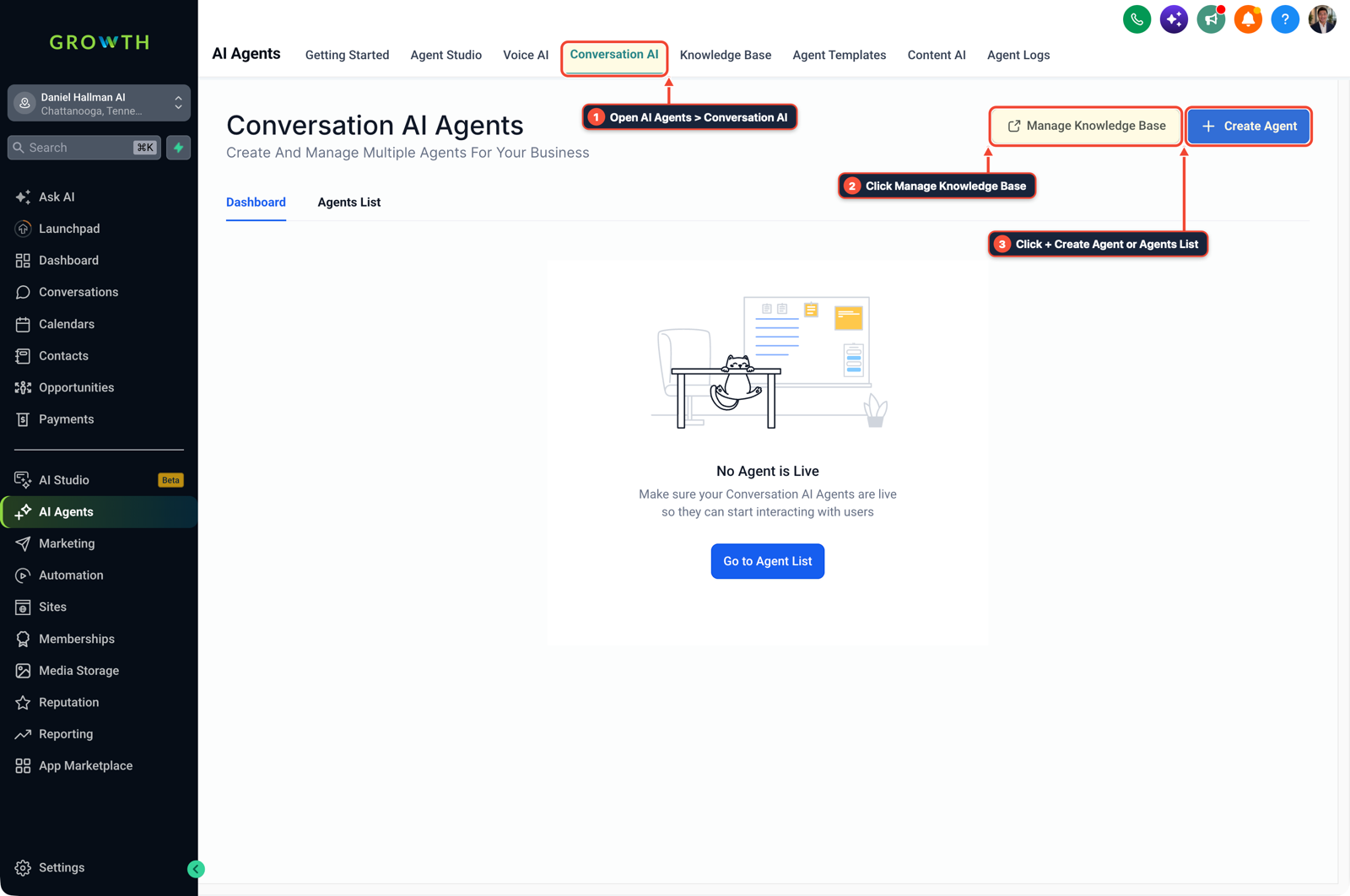
1Open AI Agents > Conversation AI 2Click Manage Knowledge Base 3Click + Create Agent or Agents List -
STEP 2In Settings > Custom Fields, store the AI's extracted outputs in typed dropdown or text fields (
Qualified Intent,Service Zip Code,Preferred Day,Missing Info Flag) rather than leaving critical facts buried in chat transcripts.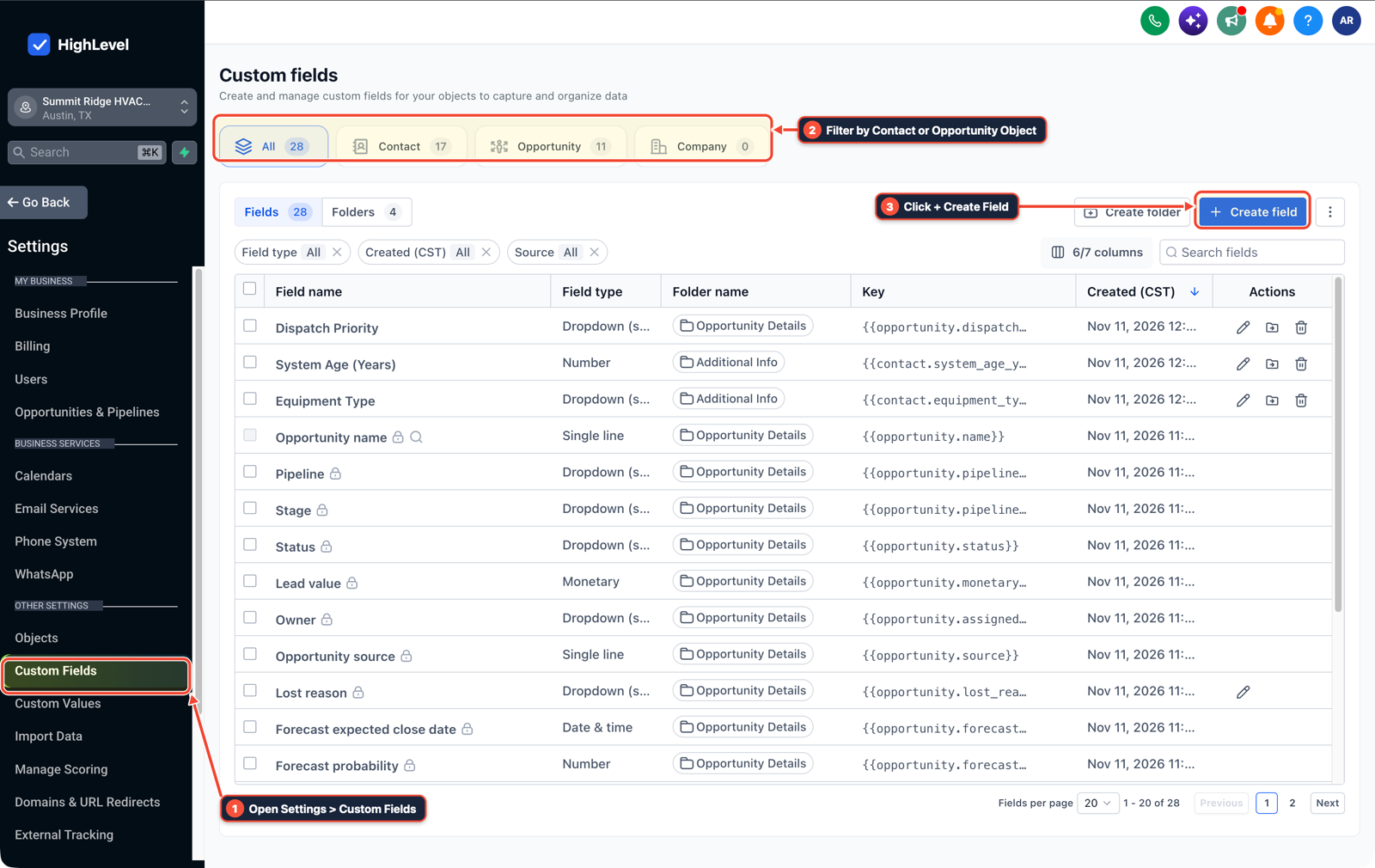
1Open Settings > Custom Fields 2Filter by Contact or Opportunity Object 3Click + Create Field -
STEP 3In Automation > Workflow Builder, use standard If/Else, Format Data, and Math Operation steps to validate those custom fields and trigger calendar bookings, pipeline stage updates, and payment links.
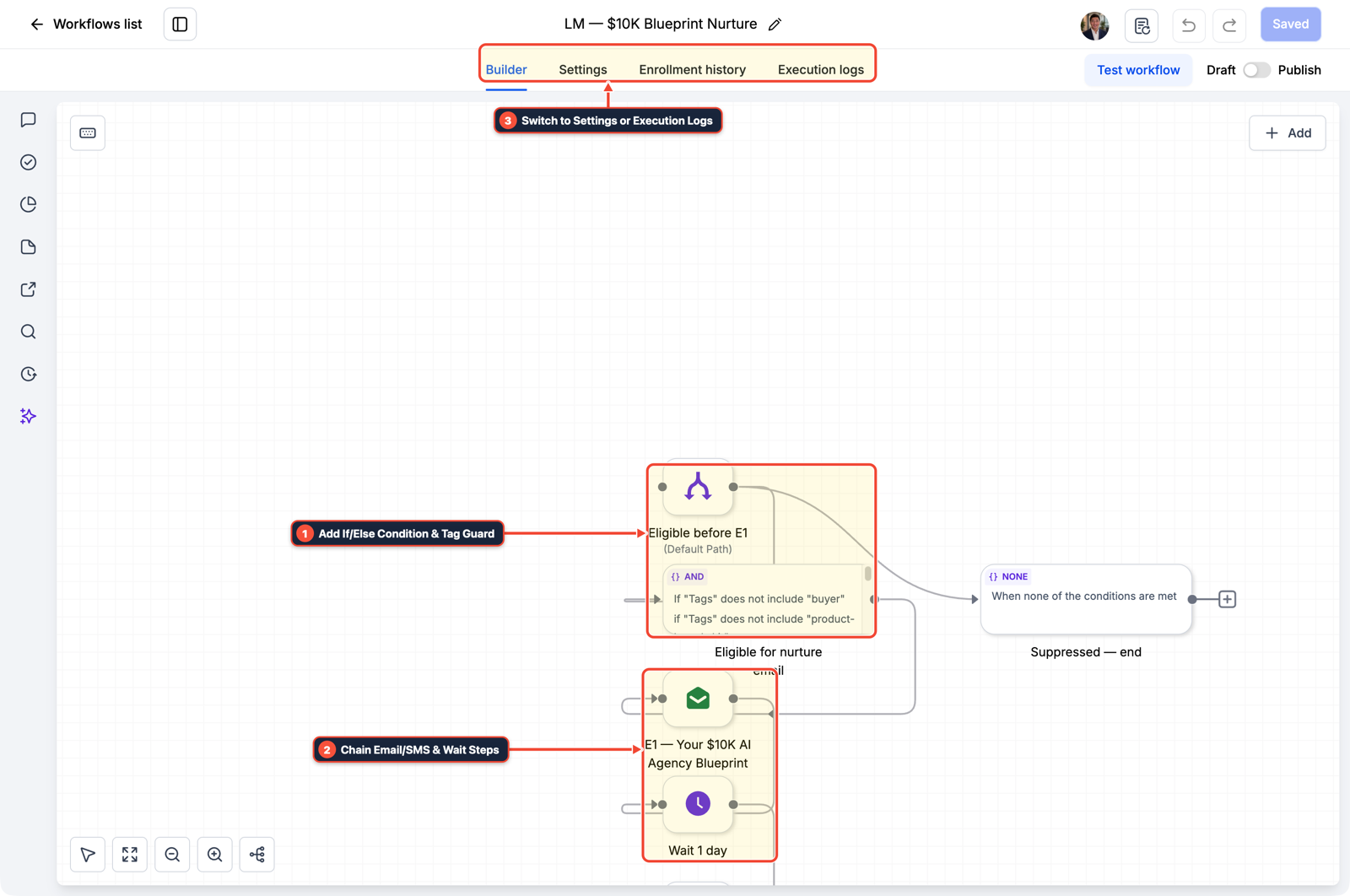
1Add If/Else Condition & Tag Guard 2Chain Priority & Wait Steps 3Switch to Settings or Execution Logs
MODE: AGENT PROMPT
PASTE INTO CLAUDE CODE, CURSOR, CHATGPT, OR GOHIGHLEVEL ASK AI
AGENT PROMPT
Separate unstructured AI text extraction from rule-based workflow routing in sub-account <YOUR_LOCATION_ID>:
1. In AI Agents > Conversation AI, restrict the assistant to classifying free-text inquiries, extracting required fields, and asking one clarifying question when a required field is blank.
2. In Settings > Custom Fields, create structured fields for Qualified Intent, Service Zip Code, Preferred Day, and Missing Info Flag.
3. In Automation > Workflow Builder, validate those custom fields with an If/Else step before firing calendar bookings, pipeline stage moves, or payment links.
GHL-TOOLS MCP SERVER & CLI (DANIELHALLMAN.COM/MCP)
BUILDER + SUB-ACCOUNT TOOLS
# Inspect custom fields and hybrid AI + If/Else workflows in the sub-account
ghl-crm custom-fields list --context <YOUR_CONTEXT> --location <YOUR_LOCATION_ID>
ghl-crm workflows list --context <YOUR_CONTEXT> --location <YOUR_LOCATION_ID>
Official GHL MCP vs. ghl-tools: HighLevel’s official hosted MCP (services.leadconnectorhq.com/mcp) covers public v2 CRM records (contacts, opportunities, appointments, conversations). ghl-tools MCP complements it with workflow graph inspection & recipes, funnel/form builders, DNS/BIMI checks, and ghl-crm doctor audits.
Cause
- Teams get into trouble when they ask a multi-step form to handle open-ended conversational questions, or when they hand an LLM full control over repetitive database updates, payments, and stage changes that should run by fixed rules.
- Running routine Yes/No routing through an AI prompt wastes token budget and introduces avoidable tool-call mistakes.
GoHighLevel Configuration
- Let AI Agents > Conversation AI read open-ended customer messages and ask one clarifying question when an answer is incomplete, store the extracted values in Settings > Custom Fields
- and execute all routing, bookings
- and notifications through If/Else branches in Automation > Workflow Builder.
GoHighLevel Menu Paths
| Step | Menu Path in GHL | Action |
|---|---|---|
| Step 1 | AI Agents > Conversation AI | Scope the AI prompt to unstructured intake only: read the customer's or candidate's free-text reply, classify their intent, and ask one clarifying question if a required detail (such as service zip code, job type, or availability) is missing. |
| Step 2 | Settings > Custom Fields | Store the AI's extracted outputs in typed dropdown or text fields (Qualified Intent, Service Zip Code, Preferred Day, Missing Info Flag) rather than leaving critical facts buried in chat transcripts. |
| Step 3 | Automation > Workflow Builder | Use standard If/Else, Format Data, and Math Operation steps to validate those custom fields and trigger calendar bookings, pipeline stage updates, and payment links. |
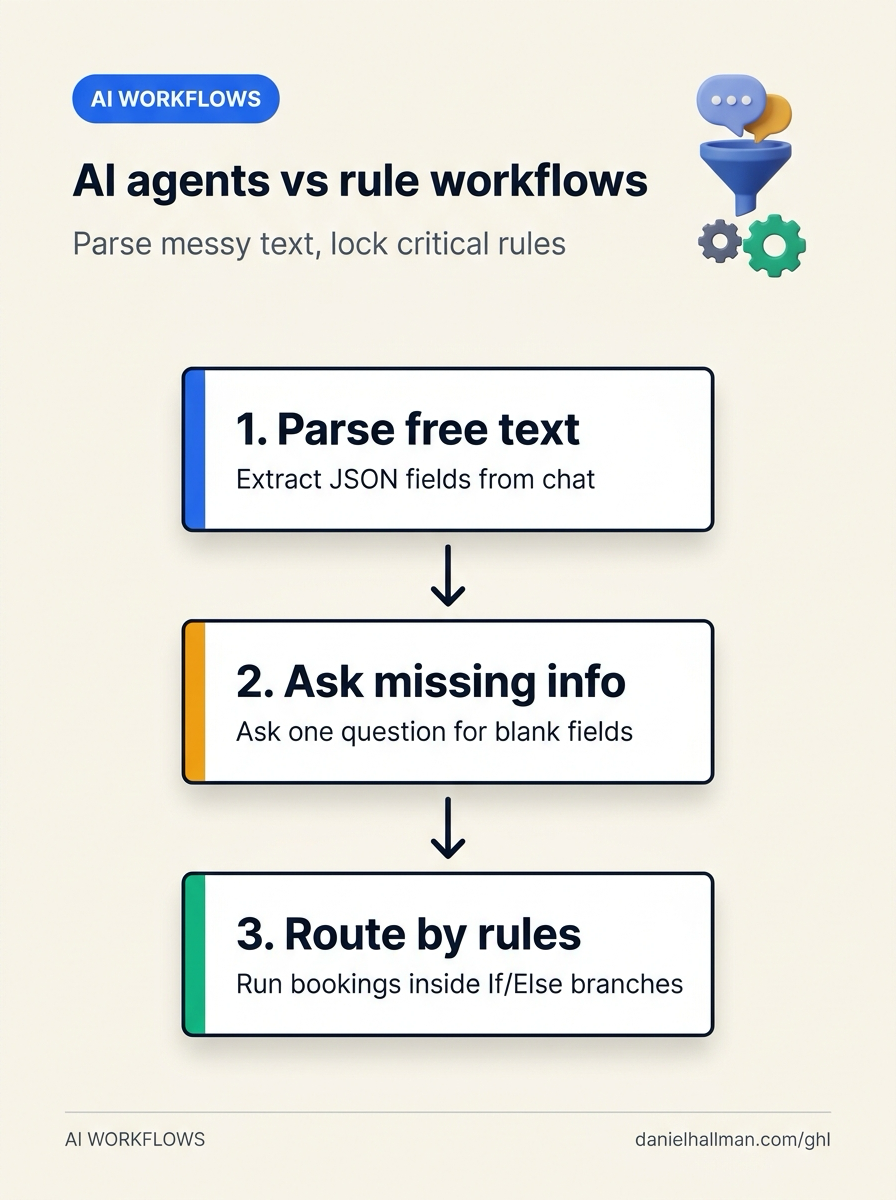
DEFAULT SETUP VS. AUTOMATED WORKFLOW
Operational Comparison
Speed to Lead & Callback Safety
Caller Reply & Booking Rate
Related Questions
- When Should You Use AI Agents and MCP vs Structured Workflows in GoHighLevel?
- How Do You Make Multi-Tool AI Agents Reliable Without Duplicate Bookings or Hallucinated Tool Calls in GoHighLevel?
- How Do You Use Rule-Based Approval Gates for AI Triage Agents in n8n and GoHighLevel?
- How do you format data and run math in GoHighLevel Workflows without paying for n8n or Make?
BUILD FASTER IN GOHIGHLEVEL · FREE TRIAL BONUSES + MCP SERVER
Build this directly inside your GoHighLevel sub-account
Connect Claude Code, Cursor, or OpenAI Codex to our ghl-tools MCP Server & Rust CLI to build workflows, forms, and funnels from your editor, or start your GoHighLevel plan through our partner link to unlock $612+ in ready-to-import kits (including GHL Hybrid AI Agent & Rule-Based Workflow Pack) and weekly live clinics.