GOHIGHLEVEL ANSWERS & PROMPTS: PLAYBOOK T101 · STATE-BOUND APPROVAL SNAPSHOTS, WRITE-TIME FIELD COMPARISON & CHANGED-DEAL RE-ROUTING
AUTHOR: DANIEL HALLMAN
KEYWORD: DECISION EXPIRY
STEP-BY-STEP INSTRUCTIONS + ANNOTATED GHL SCREENSHOTS
Steps in GoHighLevel
-
STEP 1In Settings > Custom Fields, create fields for
Approved Deal Stage,Approved Quote Amount, andApproved Contact Emailso every human approval records the exact CRM values that were reviewed.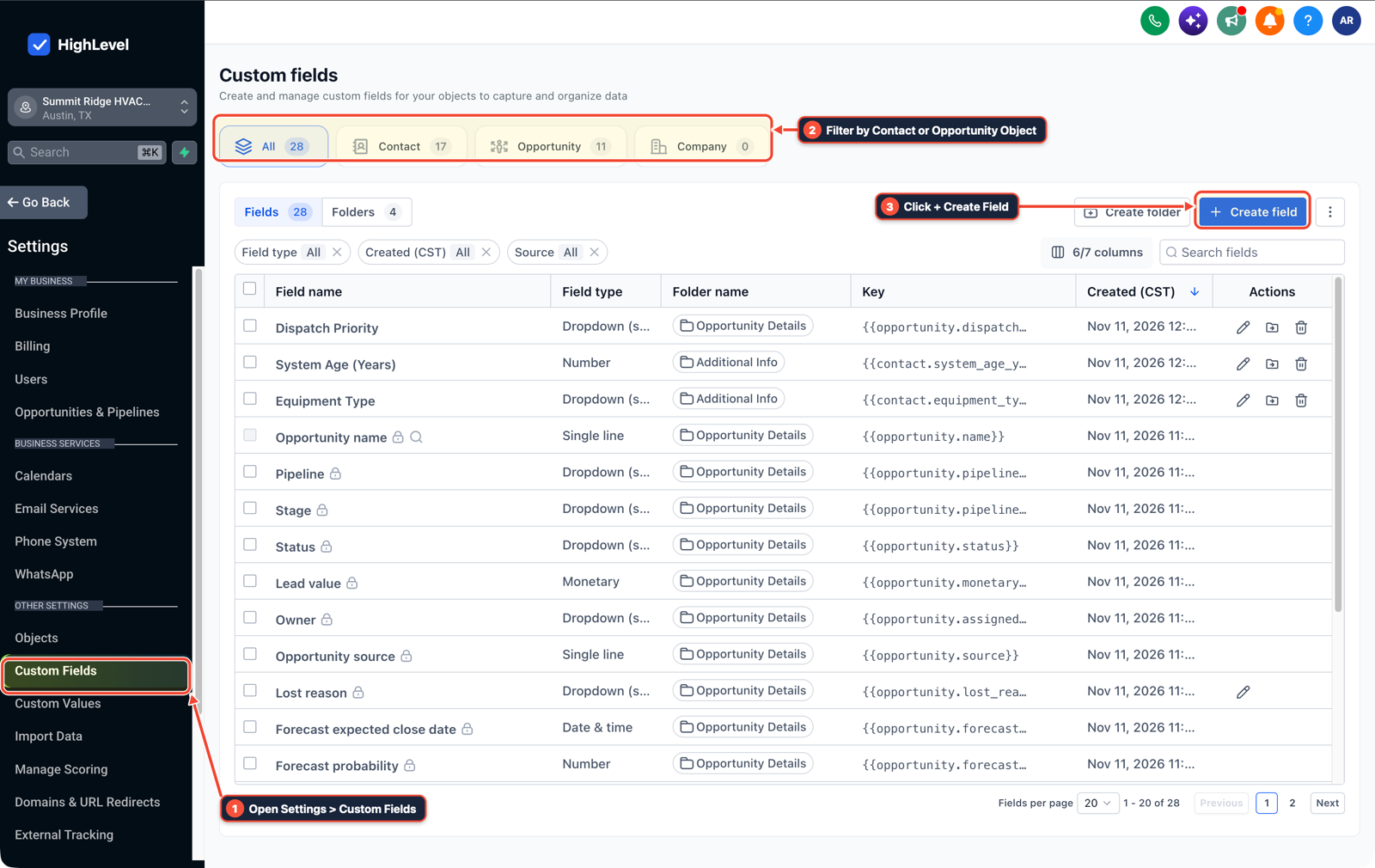
1Open Settings > Custom Fields 2Filter by Contact or Opportunity Object 3Click + Create Field -
STEP 2In Automation > Workflow Builder, add an If/Else step immediately before the outbound send or invoice action that compares the contact's current stage and quote total against the saved approval fields rather than relying on a timer alone.
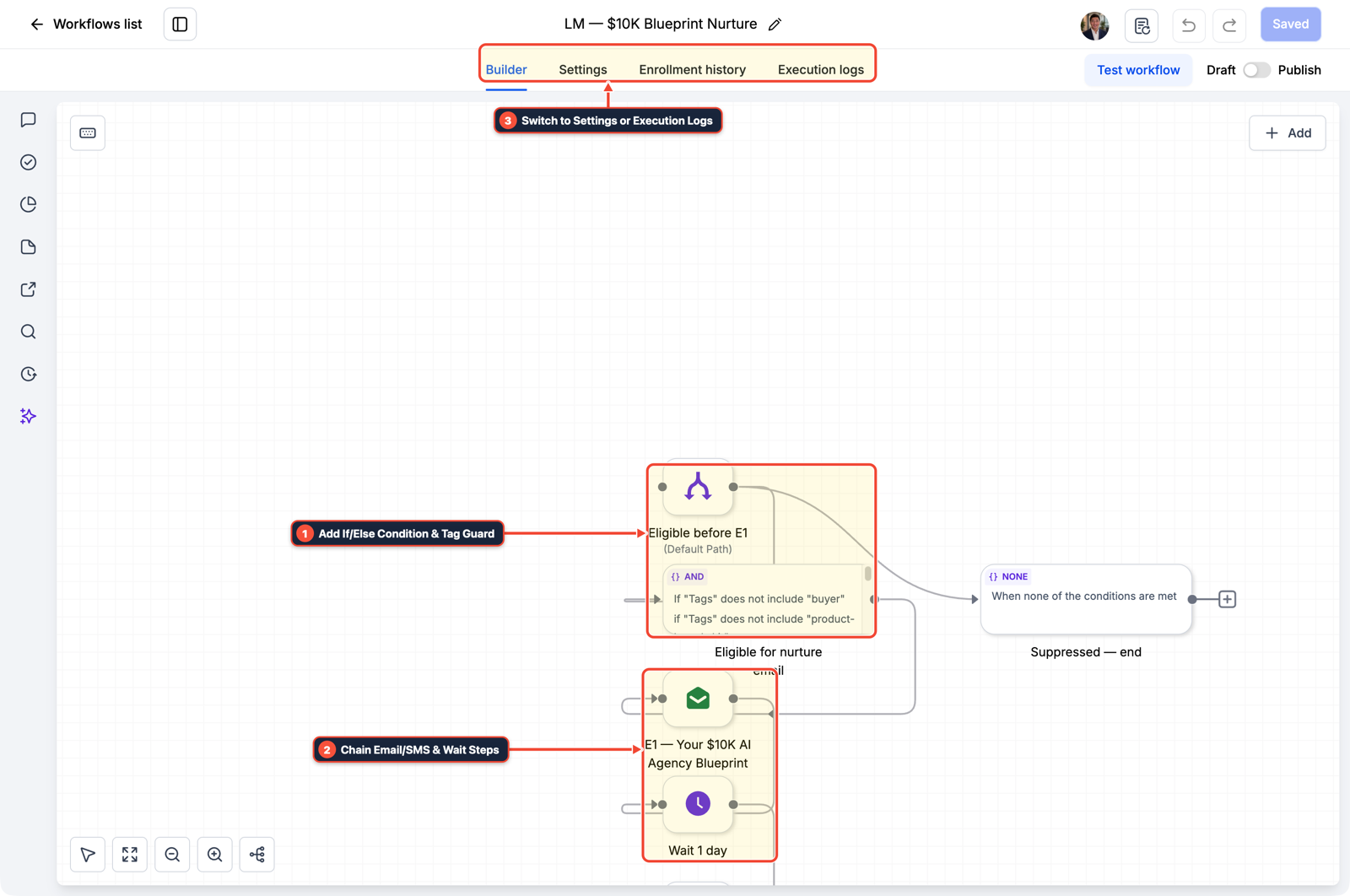
1Add If/Else Condition & Tag Guard 2Chain Priority & Wait Steps 3Switch to Settings or Execution Logs -
STEP 3In Conversations > Team Inbox, clear the approval tag and assign a manual review task whenever a quote, appointment time, or contact field changes after the original approval was granted.
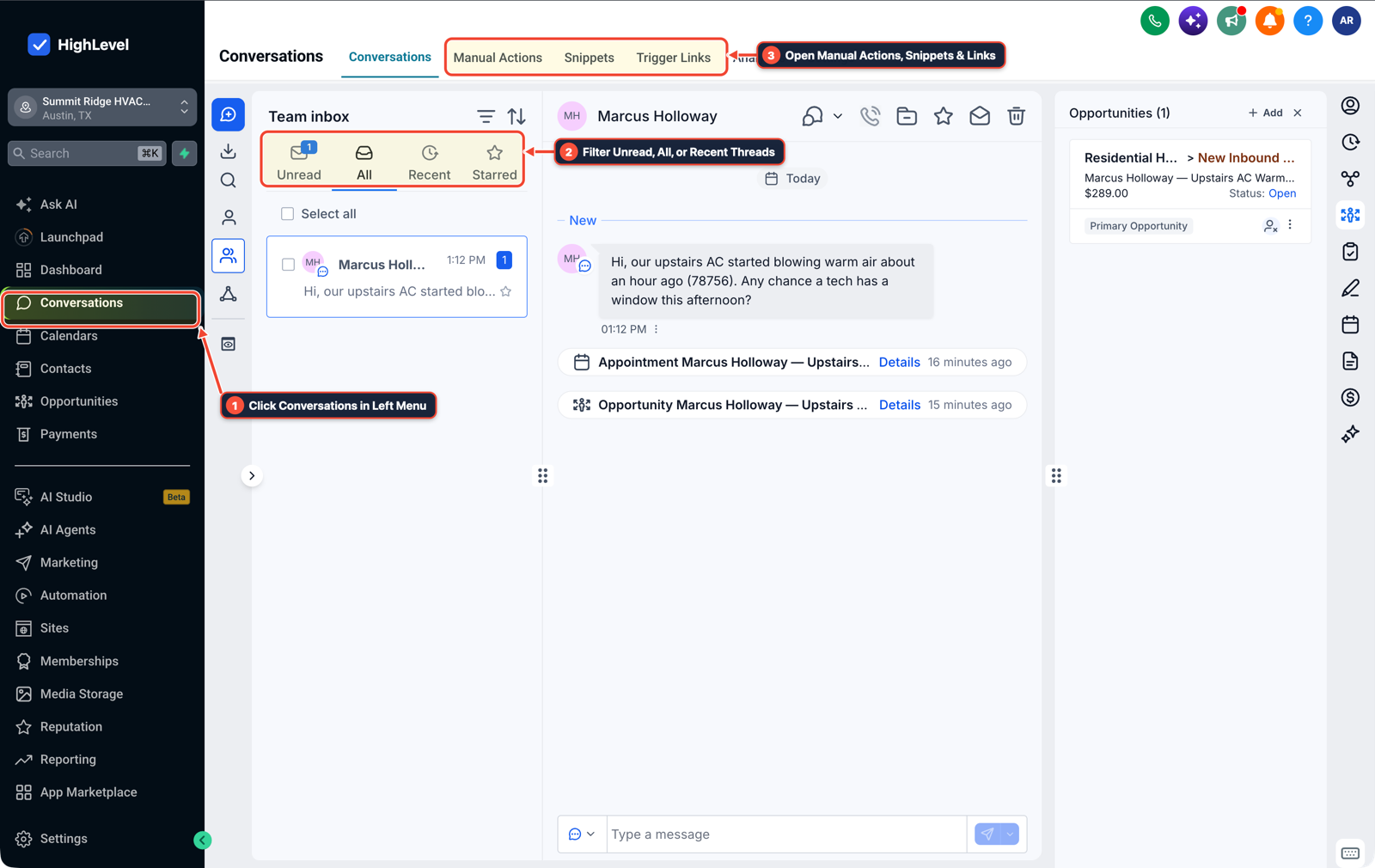
1Click Conversations in Left Menu 2Filter Unread, All, or Recent Threads 3Open Manual Actions, Snippets & Links
MODE: AGENT PROMPT
PASTE INTO CLAUDE CODE, CURSOR, CHATGPT, OR GOHIGHLEVEL ASK AI
AGENT PROMPT
Bind AI agent approvals to live CRM record state in sub-account <YOUR_LOCATION_ID>:
1. In Settings > Custom Fields, create Approved Deal Stage, Approved Quote Amount, and Approved Contact Email fields on the Contact or Opportunity object.
2. In Automation > Workflow Builder, add an If/Else check immediately before any outbound send or billing step that verifies the current deal stage and quote amount still match the approved values.
3. In Conversations > Team Inbox, clear the approval flag and notify staff whenever the underlying record changes after approval.
GHL-TOOLS MCP SERVER & CLI (DANIELHALLMAN.COM/MCP)
BUILDER + SUB-ACCOUNT TOOLS
# Inspect custom fields and approval verification workflows in the sub-account
ghl-crm custom-fields list --context <YOUR_CONTEXT> --location <YOUR_LOCATION_ID>
ghl-crm workflows list --context <YOUR_CONTEXT> --location <YOUR_LOCATION_ID>
Official GHL MCP vs. ghl-tools: HighLevel’s official hosted MCP (services.leadconnectorhq.com/mcp) covers public v2 CRM records (contacts, opportunities, appointments, conversations). ghl-tools MCP complements it with workflow graph inspection & recipes, funnel/form builders, DNS/BIMI checks, and ghl-crm doctor audits.
Cause
- When an agent stores 'send approved' as a plain text note in memory or relies only on a wall-clock countdown, any change to the contact's quote, appointment slot
- or pipeline stage between approval and execution causes the agent to send outdated terms with total confidence.
GoHighLevel Configuration
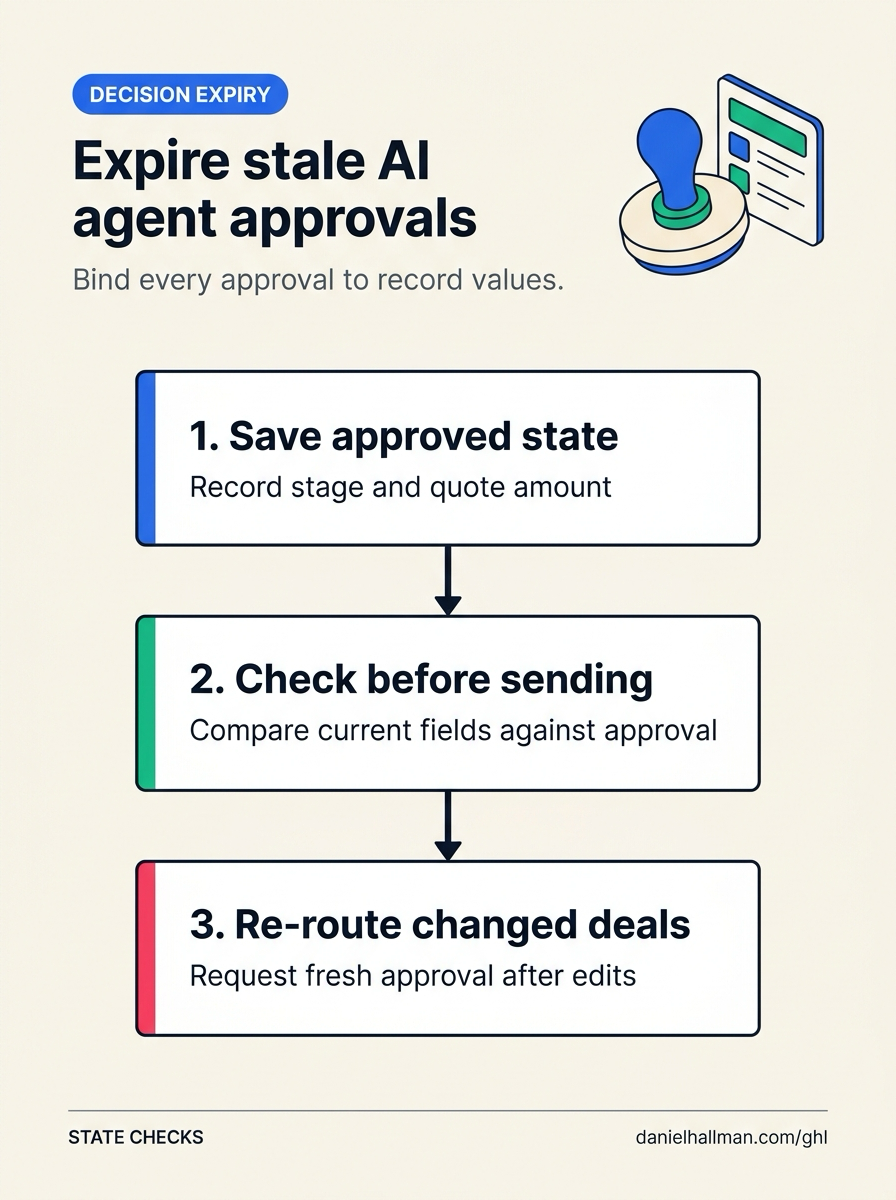
- Bind every approval to the exact record values (
Approved Deal Stage,Approved Quote Amount - and
Approved Contact Email) in Settings > Custom Fields, re-check those values immediately before the outbound action in Automation > Workflow Builder - and route mismatched records to Conversations > Team Inbox.
GoHighLevel Menu Paths
| Step | Menu Path in GHL | Action |
|---|---|---|
| Step 1 | Settings > Custom Fields | Create fields for Approved Deal Stage, Approved Quote Amount, and Approved Contact Email so every human approval records the exact CRM values that were reviewed. |
| Step 2 | Automation > Workflow Builder | Add an If/Else step immediately before the outbound send or invoice action that compares the contact's current stage and quote total against the saved approval fields rather than relying on a timer alone. |
| Step 3 | Conversations > Team Inbox | Clear the approval tag and assign a manual review task whenever a quote, appointment time, or contact field changes after the original approval was granted. |
DEFAULT SETUP VS. AUTOMATED WORKFLOW
Operational Comparison
Speed to Lead & Callback Safety
Caller Reply & Booking Rate
Related Questions
- What Causes Production AI Agents to Act on Stale Data or Double-Send (And How Do You Prevent It in GoHighLevel)?
- Why Do Some AI Agents Fail Even When They Have Access to Powerful Tools in GoHighLevel and MCP?
- How Do You Let Non-Engineers Approve Risky AI Agent Actions in GoHighLevel Without Slowing the Team?
- When You Start a New AI Chat for an Ongoing Project, What Do You Paste In to Keep Project Context and GoHighLevel Agent State?
BUILD FASTER IN GOHIGHLEVEL · FREE TRIAL BONUSES + MCP SERVER
Build this directly inside your GoHighLevel sub-account
Connect Claude Code, Cursor, or OpenAI Codex to our ghl-tools MCP Server & Rust CLI to build workflows, forms, and funnels from your editor, or start your GoHighLevel plan through our partner link to unlock $612+ in ready-to-import kits (including GHL State-Bound Agent Approval & Workflow Kit) and weekly live clinics.