GOHIGHLEVEL ANSWERS & PROMPTS: PLAYBOOK T40 · AI AGENT RATE LIMITS & LOOP GUARDS
AUTHOR: DANIEL HALLMAN
KEYWORD: AI EMAIL LOOPS
STEP-BY-STEP INSTRUCTIONS + ANNOTATED GHL SCREENSHOTS
Steps in GoHighLevel
-
STEP 1In Automation > Workflow > Settings, turn off Allow Re-entry and enable Stop on Response on your AI email workflows so the same contact cannot enter the sending sequence twice.
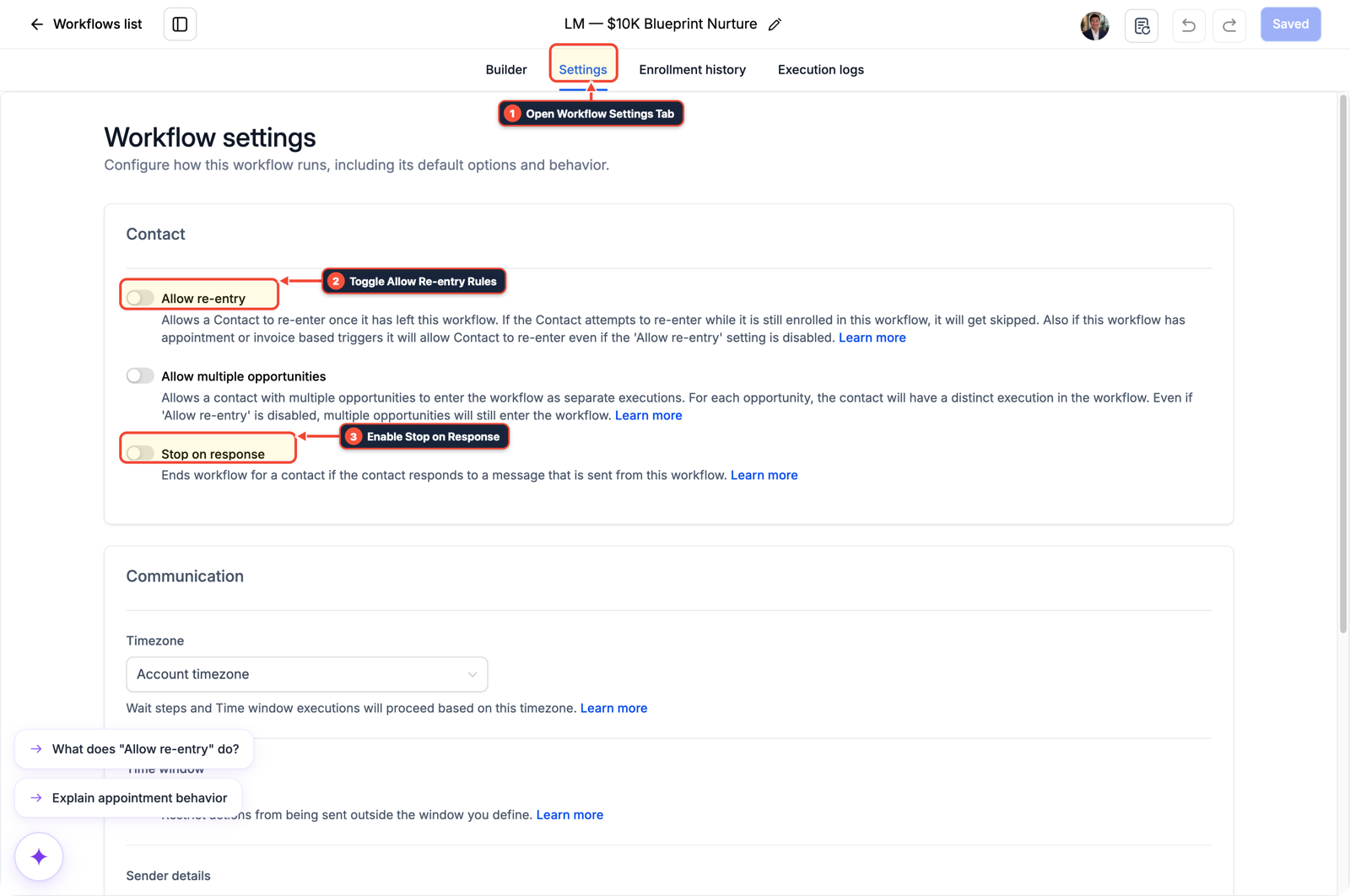
1Open Workflow Settings Tab 2Toggle Allow Re-entry Rules 3Enable Stop on Response -
STEP 2In Automation > Workflow Builder, insert an If/Else condition before any Send Email action checking that
Contact Tagdoes not includeai-email-sent-24h, then immediately applyai-email-sent-24hafter the email sends so auto-responders cannot trigger a second send.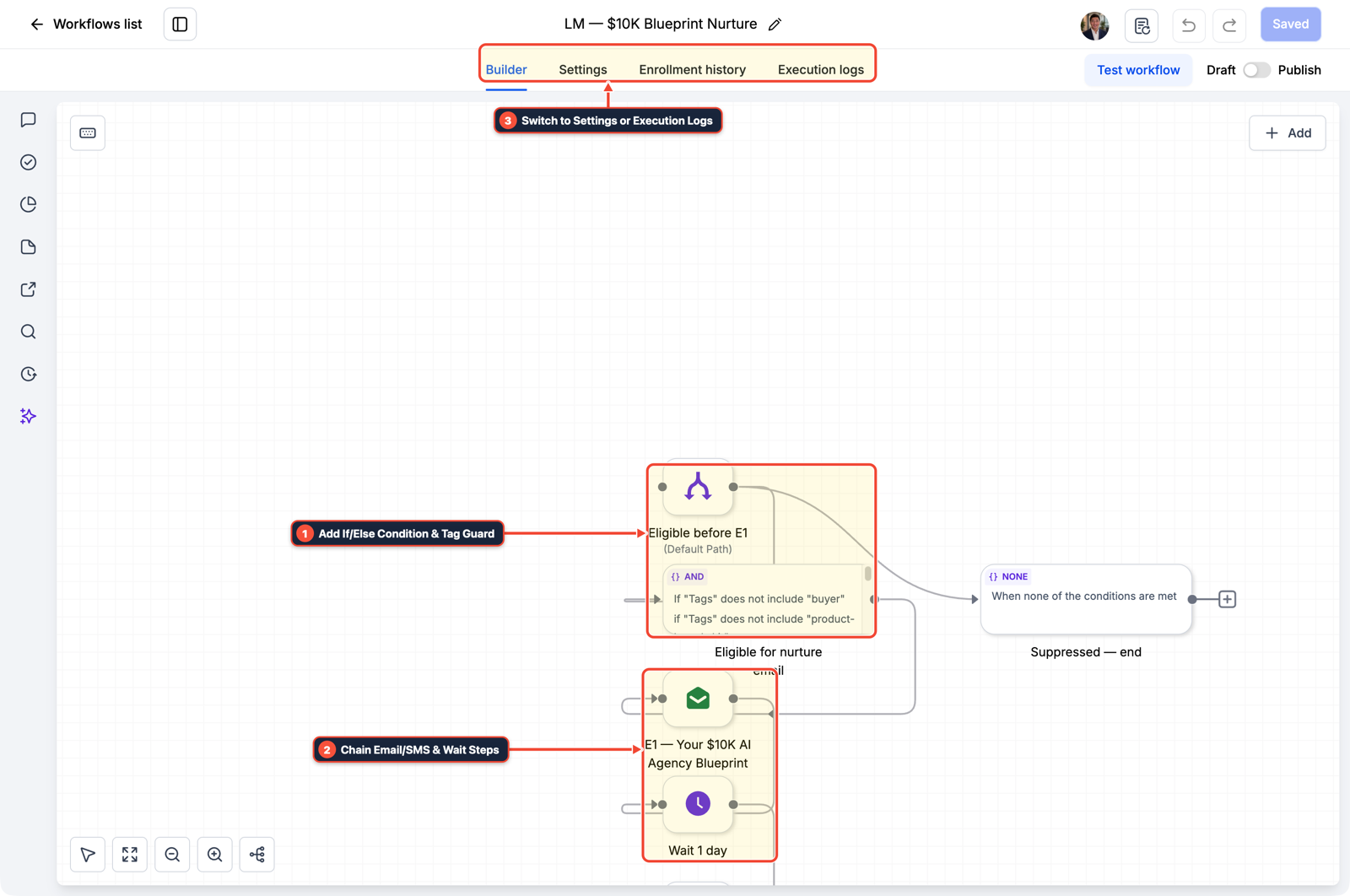
1Add If/Else Condition & Tag Guard 2Chain Priority & Wait Steps 3Switch to Settings or Execution Logs -
STEP 3In AI Agents > Conversation AI (and Conversations > Team Inbox), set Maximum Messages per session to
3and start new email agents in Suggestive mode (or route first-time outbound emails to an Internal Notification approval step) so a human confirms risky sends.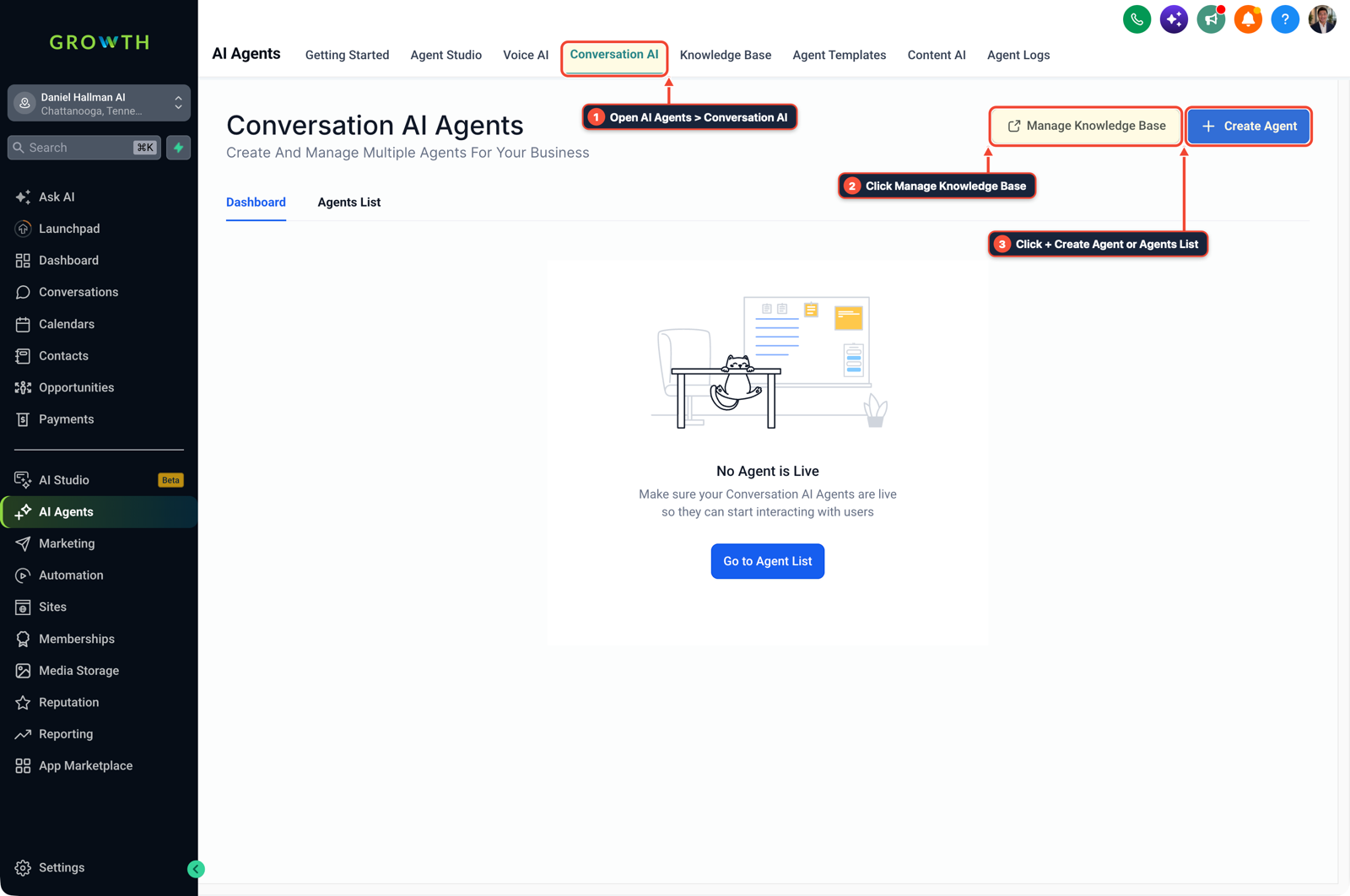
1Open AI Agents > Conversation AI 2Click Manage Knowledge Base 3Click + Create Agent or Agents List
MODE: AGENT PROMPT
PASTE INTO CLAUDE CODE, CURSOR, CHATGPT, OR GOHIGHLEVEL ASK AI
AGENT PROMPT
Add email rate-limit and loop guards to AI agent workflows in sub-account <YOUR_LOCATION_ID>:
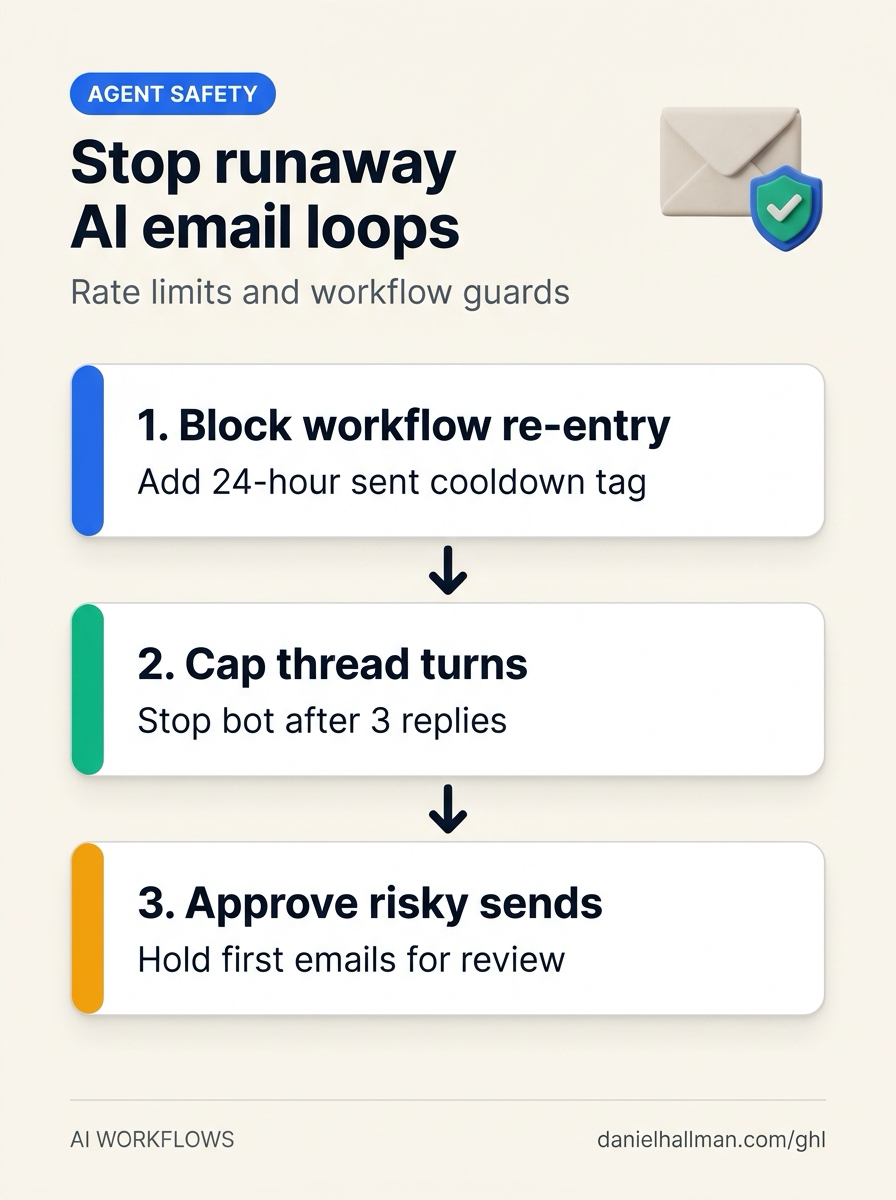
1. In Automation > Workflow > Settings, disable Allow Re-entry and enable Stop on Response on all AI-triggered outbound email workflows.
2. In Automation > Workflow Builder, add an If/Else check before Send Email verifying the contact does not have tag ai-email-sent-24h, then add tag ai-email-sent-24h immediately after sending.
3. In AI Agents > Conversation AI, cap Maximum Messages at 3 turns and route sensitive outbound emails to an Internal Notification approval step.
GHL-TOOLS MCP SERVER & CLI (DANIELHALLMAN.COM/MCP)
BUILDER + SUB-ACCOUNT TOOLS
# Inspect active AI email workflows and execution logs in the sub-account
ghl-crm workflows list --context <YOUR_CONTEXT> --location <YOUR_LOCATION_ID>
Official GHL MCP vs. ghl-tools: HighLevel’s official hosted MCP (services.leadconnectorhq.com/mcp) covers public v2 CRM records (contacts, opportunities, appointments, conversations). ghl-tools MCP complements it with workflow graph inspection & recipes, funnel/form builders, DNS/BIMI checks, and ghl-crm doctor audits.
Cause
- Giving an autonomous agent direct API access to an email sending endpoint or leaving Allow Re-entry enabled on a Customer Replied workflow exposes your domain to runaway loops.
- If a recipient's mailbox fires an Out-of-Office vacation responder or the agent retries a partial tool call, the bot and the mailbox reply to each other dozens of times until your email provider flags the domain for spam.
GoHighLevel Configuration
- Decouple AI drafting from email delivery: have the agent save its draft to a custom field, gate the Send Email step behind a workflow with Allow Re-entry disabled and a
24-hourcooldown tag check, cap Conversation AI turns at3 - and require staff approval for new or high-risk threads.
GoHighLevel Menu Paths
| Step | Menu Path in GHL | Action |
|---|---|---|
| Step 1 | Automation > Workflow > Settings | Turn off Allow Re-entry and enable Stop on Response on your AI email workflows so the same contact cannot enter the sending sequence twice. |
| Step 2 | Automation > Workflow Builder | Insert an If/Else condition before any Send Email action checking that Contact Tag does not include ai-email-sent-24h, then immediately apply ai-email-sent-24h after the email sends so auto-responders cannot trigger a second send. |
| Step 3 | AI Agents > Conversation AI | Set Maximum Messages per session to 3 and start new email agents in Suggestive mode (or route first-time outbound emails to an Internal Notification approval step) so a human confirms risky sends. |
DEFAULT SETUP VS. AUTOMATED WORKFLOW
Operational Comparison
Speed to Lead & Callback Safety
Caller Reply & Booking Rate
Related Questions
- How Do You Let Non-Engineers Approve Risky AI Agent Actions in GoHighLevel Without Slowing the Team?
- Why Is GoHighLevel Charging $10 Every Few Hours and How Do You Stop It?
- How Do You Use Rule-Based Approval Gates for AI Triage Agents in n8n and GoHighLevel?
- Why are AI agents unreliable in production workflows and how do you fix them in GoHighLevel?
BUILD FASTER IN GOHIGHLEVEL · FREE TRIAL BONUSES + MCP SERVER
Build this directly inside your GoHighLevel sub-account
Connect Claude Code, Cursor, or OpenAI Codex to our ghl-tools MCP Server & Rust CLI to build workflows, forms, and funnels from your editor, or start your GoHighLevel plan through our partner link to unlock $612+ in ready-to-import kits (including GHL AI Agent Loop & Rate-Limit Guard Pack) and weekly live clinics.